
Area of geometric figures
Area Model Multiplication by PhET Interactive Simulations, University of Colorado Boulder, licensed under CC-BY-4.0 (https://phet.colorado.edu)
Objective:
- To learn the formula for calculating area;
- To learn how to find the area of a rectangle and a square.
This virtual activity is designed for use in math lessons on the following topics:
- Grade 4. “Area of geometric figures”
Theoretical part
Area is a measure of the size of a plane figure. It is measured in square units, such as square centimeters (sq cm) or square meters (sq m).
The area of a rectangle
A rectangle is a quadrilateral whose angles are all right angles (equal to 90°) and whose opposite sides are equal in pairs.
To find the area of a rectangle, multiply the length of its base (a) by its width (b).
The formula is
S = a * b
Where:
- S – area of the rectangle (in square centimeters, square meters, etc.)
- a – length of the base of the rectangle (in cm, m, etc.)
- b – width of the rectangle (in cm, m, etc.)
Example:
Find the area of a rectangle with sides 5 cm and 3 cm:
S = 5 cm * 3 cm = 15 square cm
Area of a square
A square is a rectangle with equal sides.
To find the area of a square, you need to square its side (a).
The formula is
S = a²
Where:
- S – area of the square (in square centimeters, square meters, etc.)
- a – side of the square (in cm, m, etc.)
Example:
Find the area of a square with side 4 cm:
S = 4 cm² = 16 square cm
Virtual Experiment
The Finding Area Model simulator helps students learn how to find the area of a rectangle. Gives the rectangle different dimensions and creates problems. Checks their understanding of the area model by finding the missing dimensions or total area in the game section.
Course of Work:
Step 1. Start the simulation: You will be presented with 3 different modes, Explore, Generic, and Game. You will work on this experiment in the Generic and Game sections. Open the Generic section.
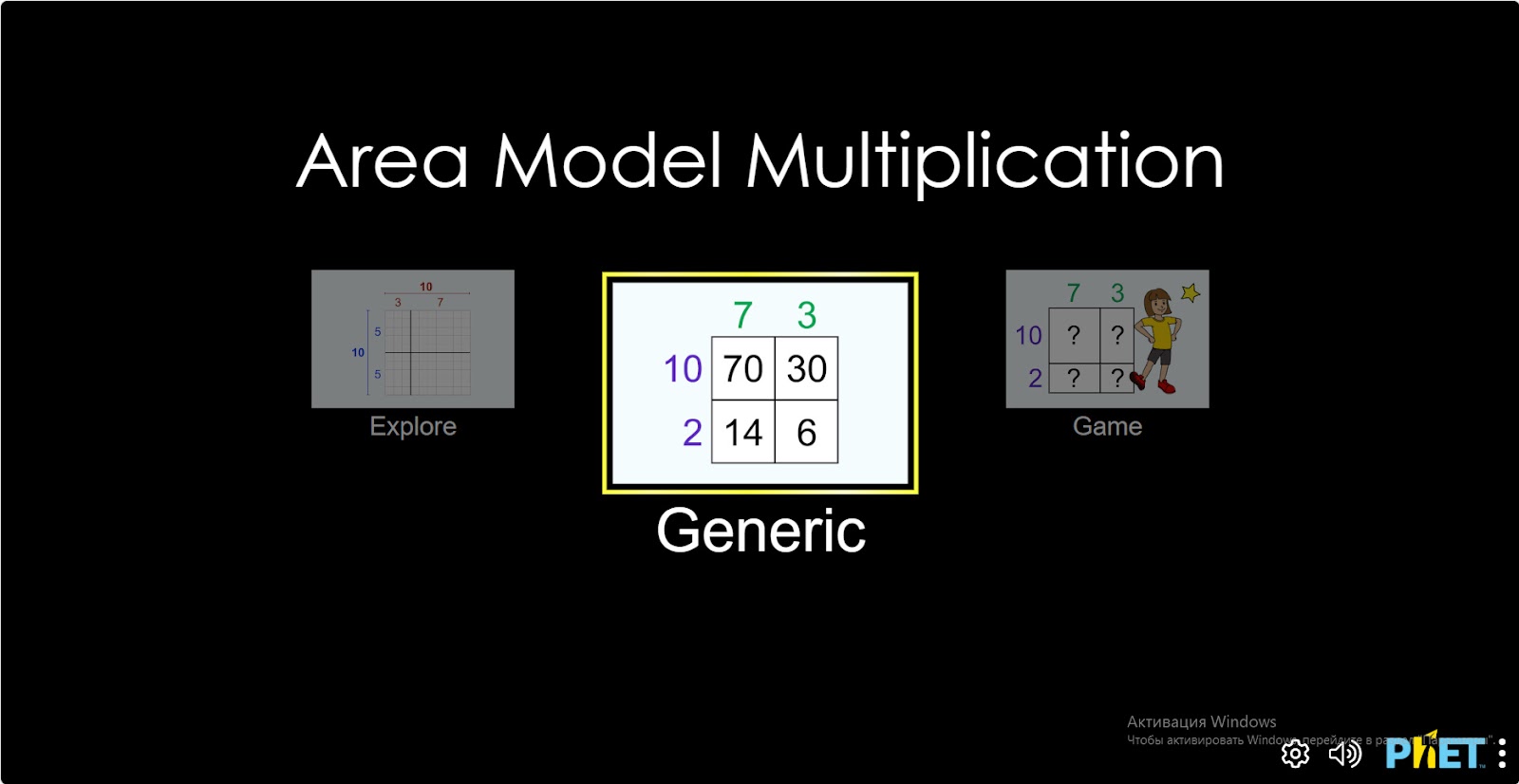
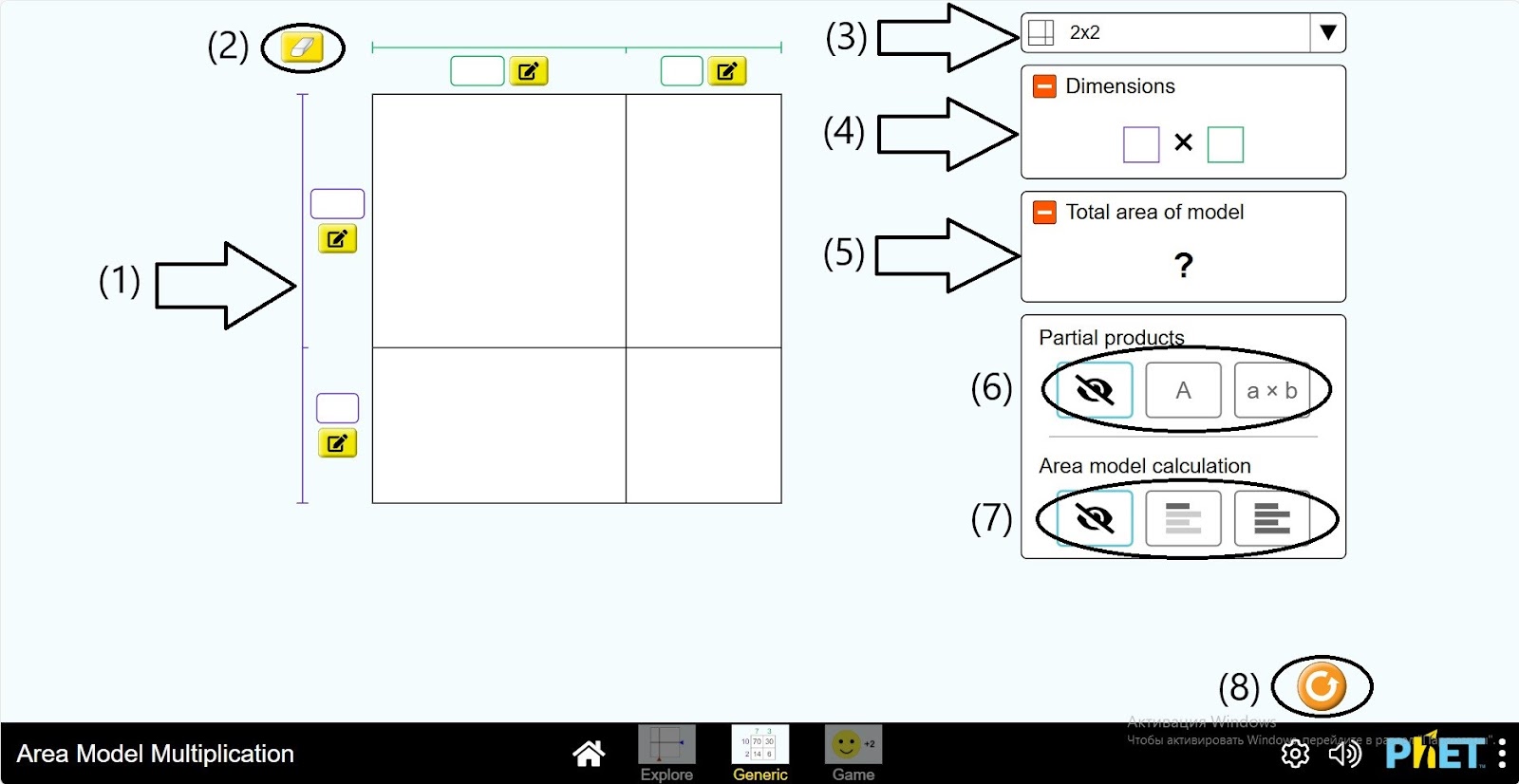
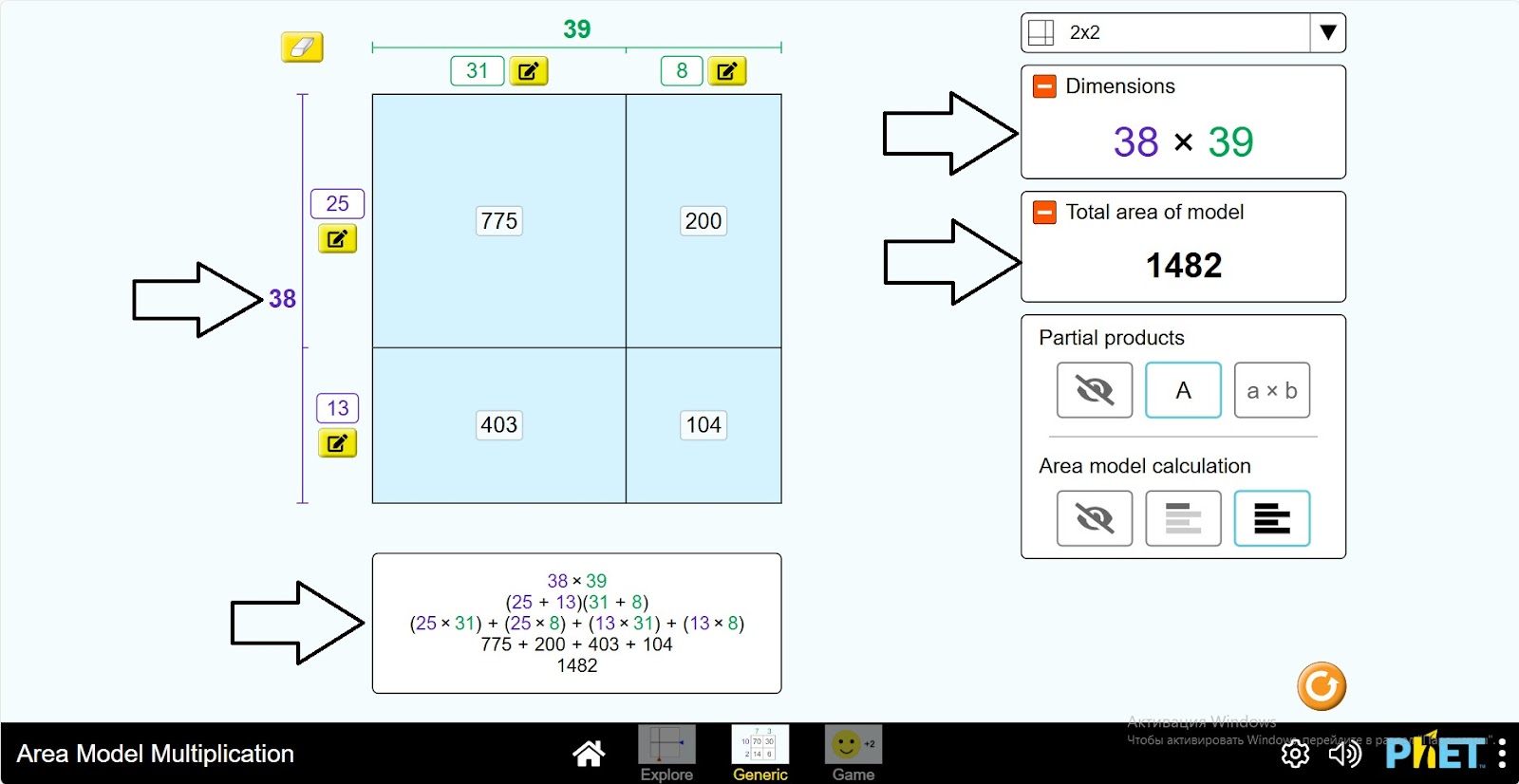
Step 2. You are presented with a workspace:
- A rectangle divided into 4 parts and spaces to enter its dimensions (1);
- An eraser (2);
- A button to select the type of rectangle division (3);
- Rectangle length and width information panel (4);
- Area results panel (5);
- Rectangle information (6);
- Calculation panels and “Hide” button (7);
- Reload button (8).
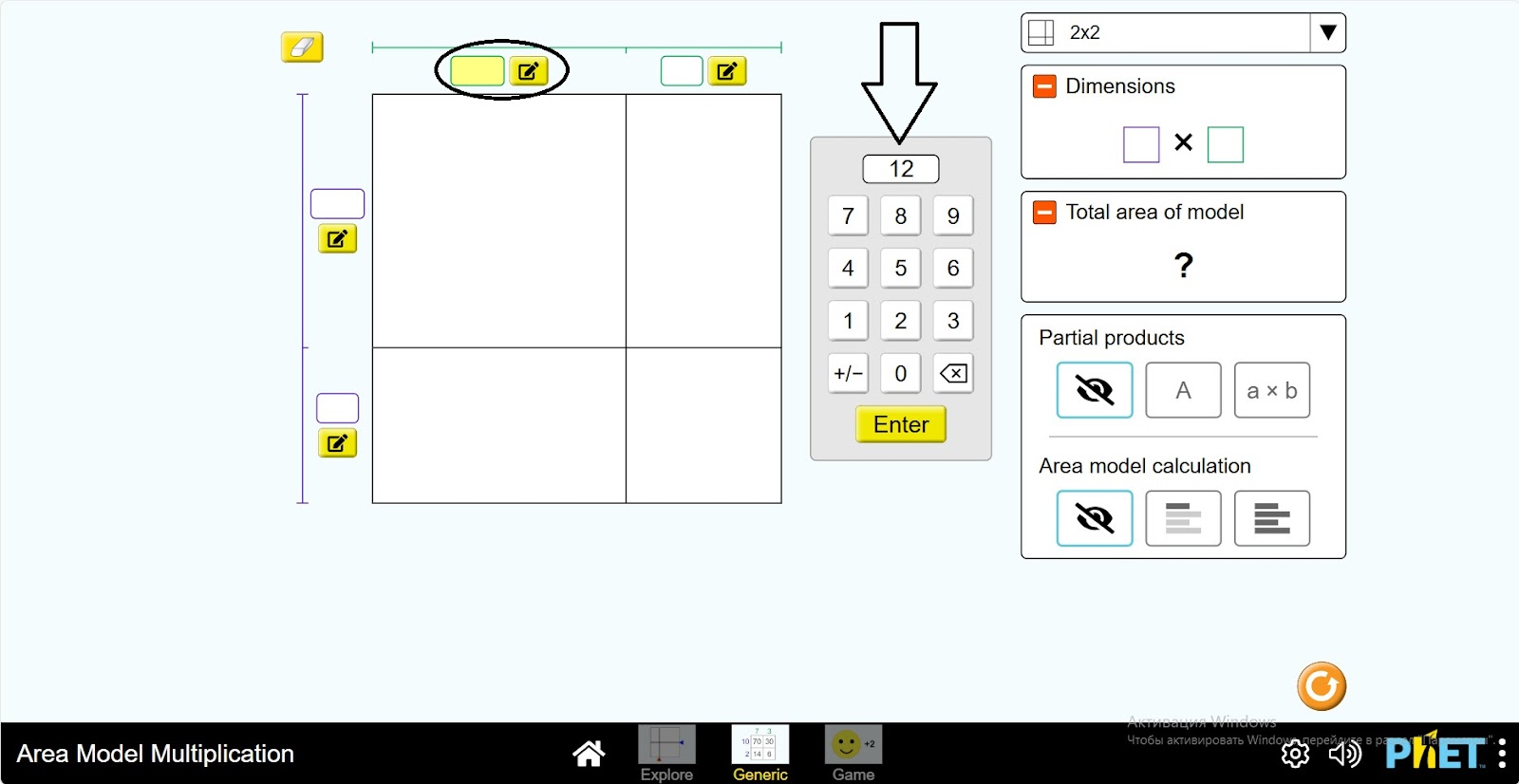
Step 3. Click on one of the spaces next to the rectangle. A calculator will appear on the screen. Enter the length of the rectangle.
Step 4. Enter the dimensions of the rectangle in the other 3 spaces.
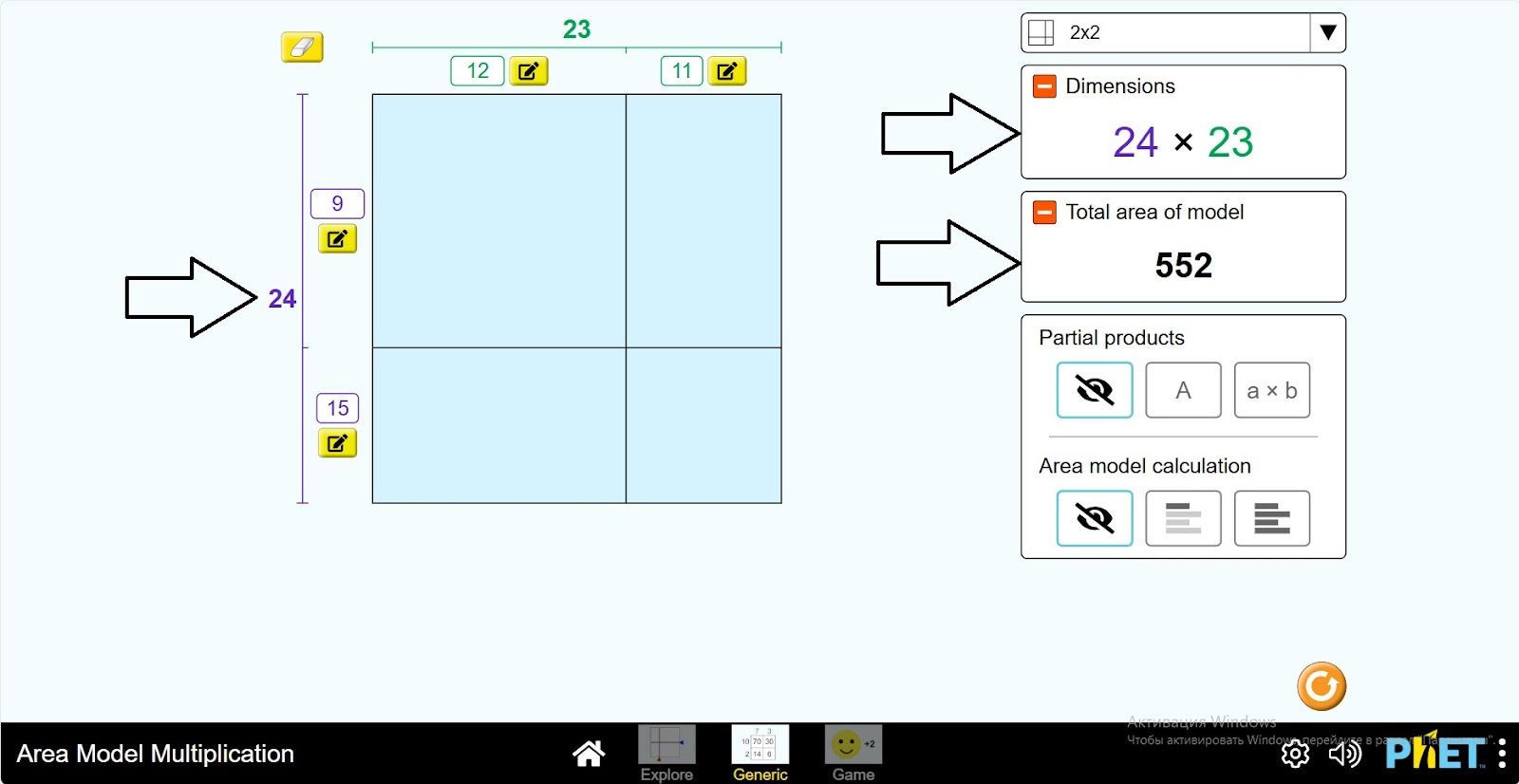
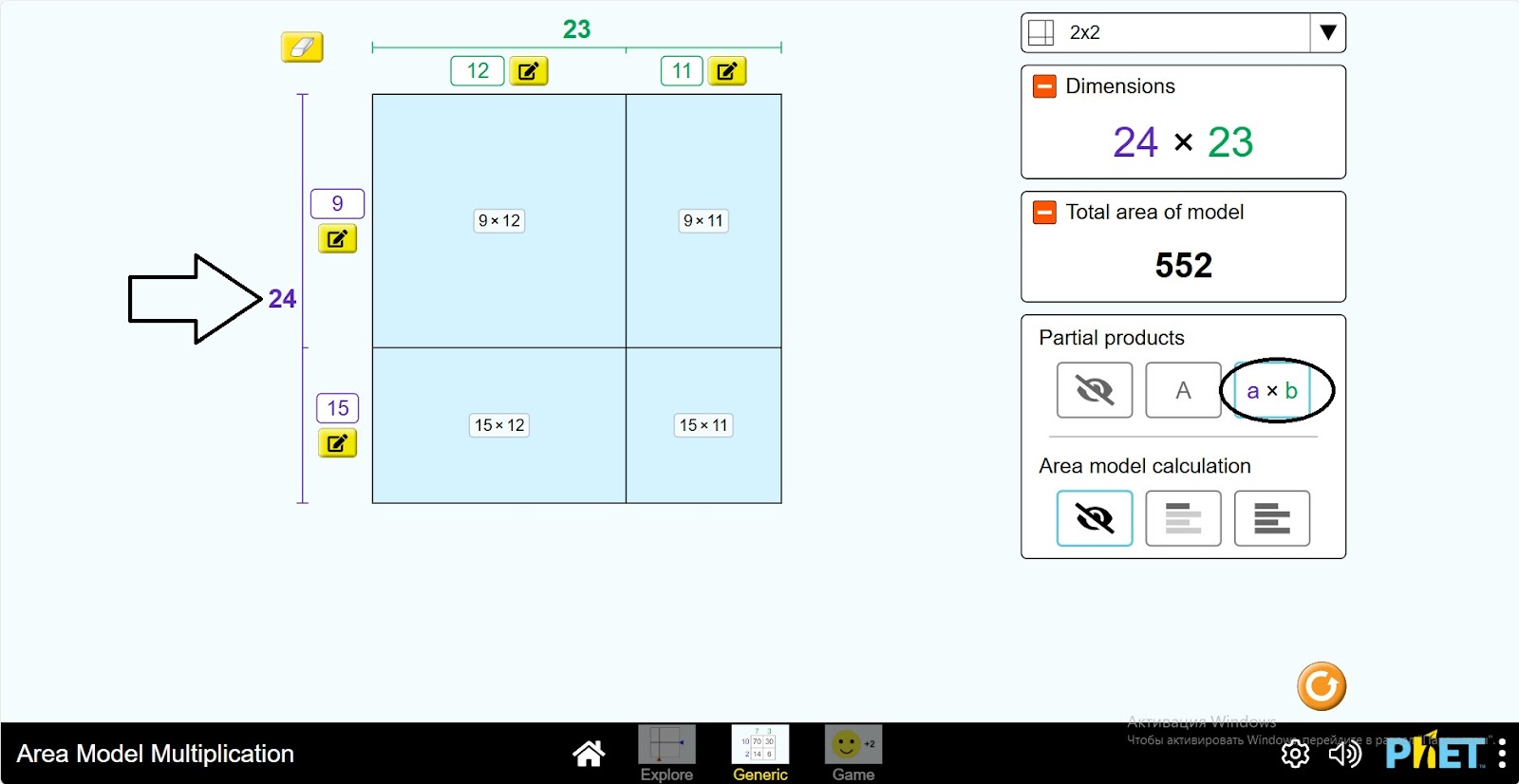
Step 5. Click on “a*b” to see the expression of the length and width of the rectangle.
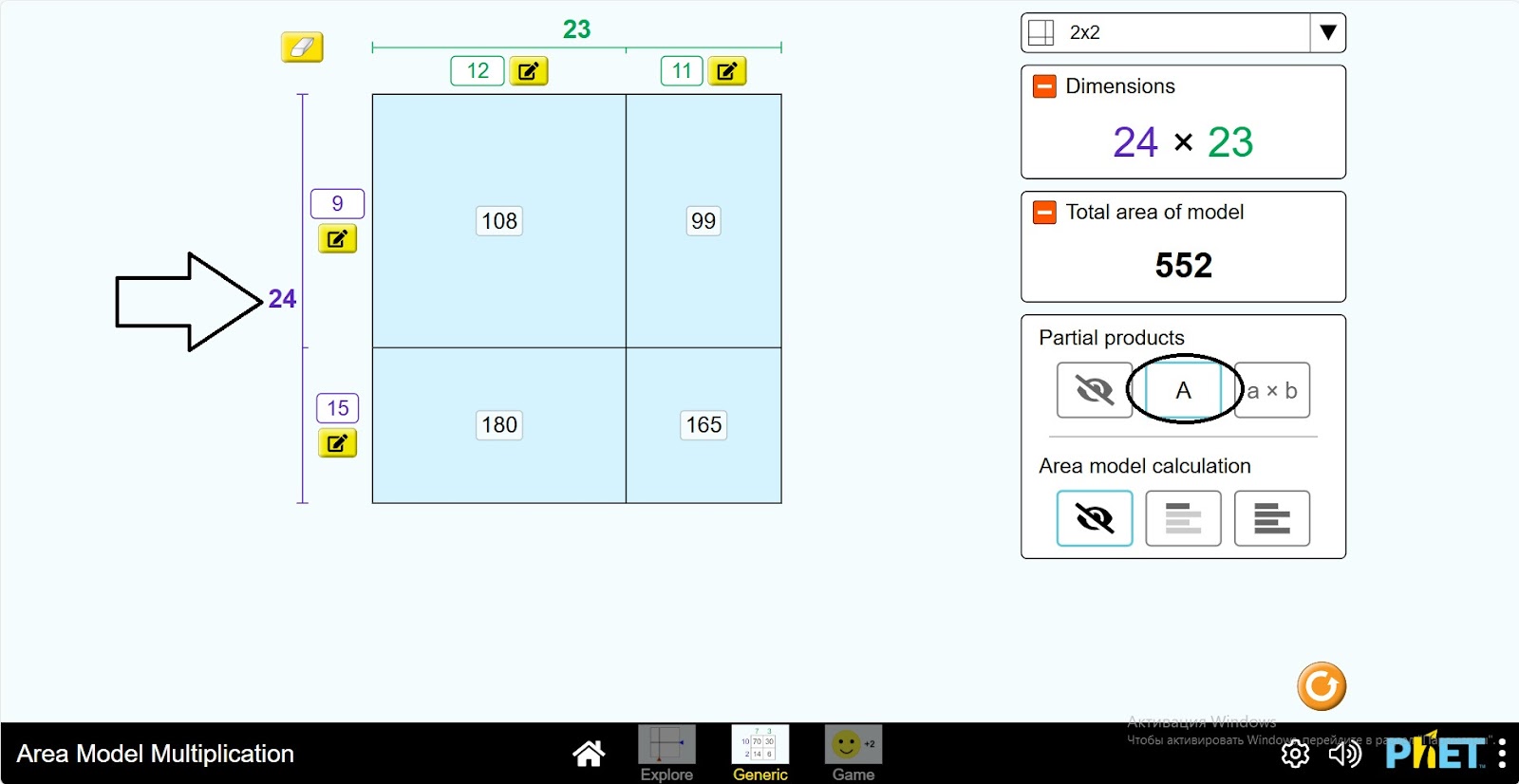
Step 6. You can see the result of the area for each rectangle by clicking the “A” button.
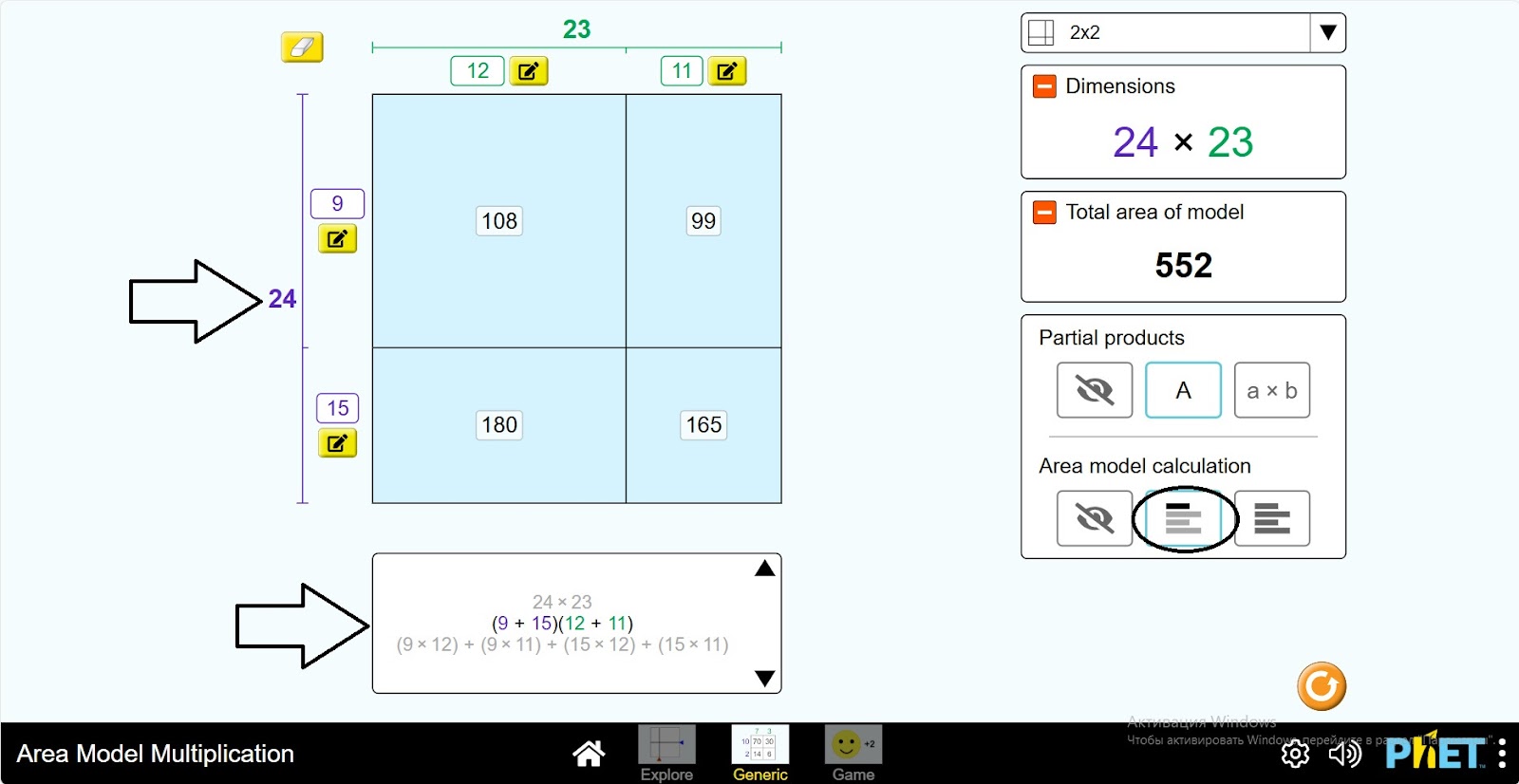
Step 7. There are 2 views of the calculation panel. They show the calculation of the area. In one of them you will see the expression step by step by clicking the “Next” button, and in the other you will see the complete calculation at once.
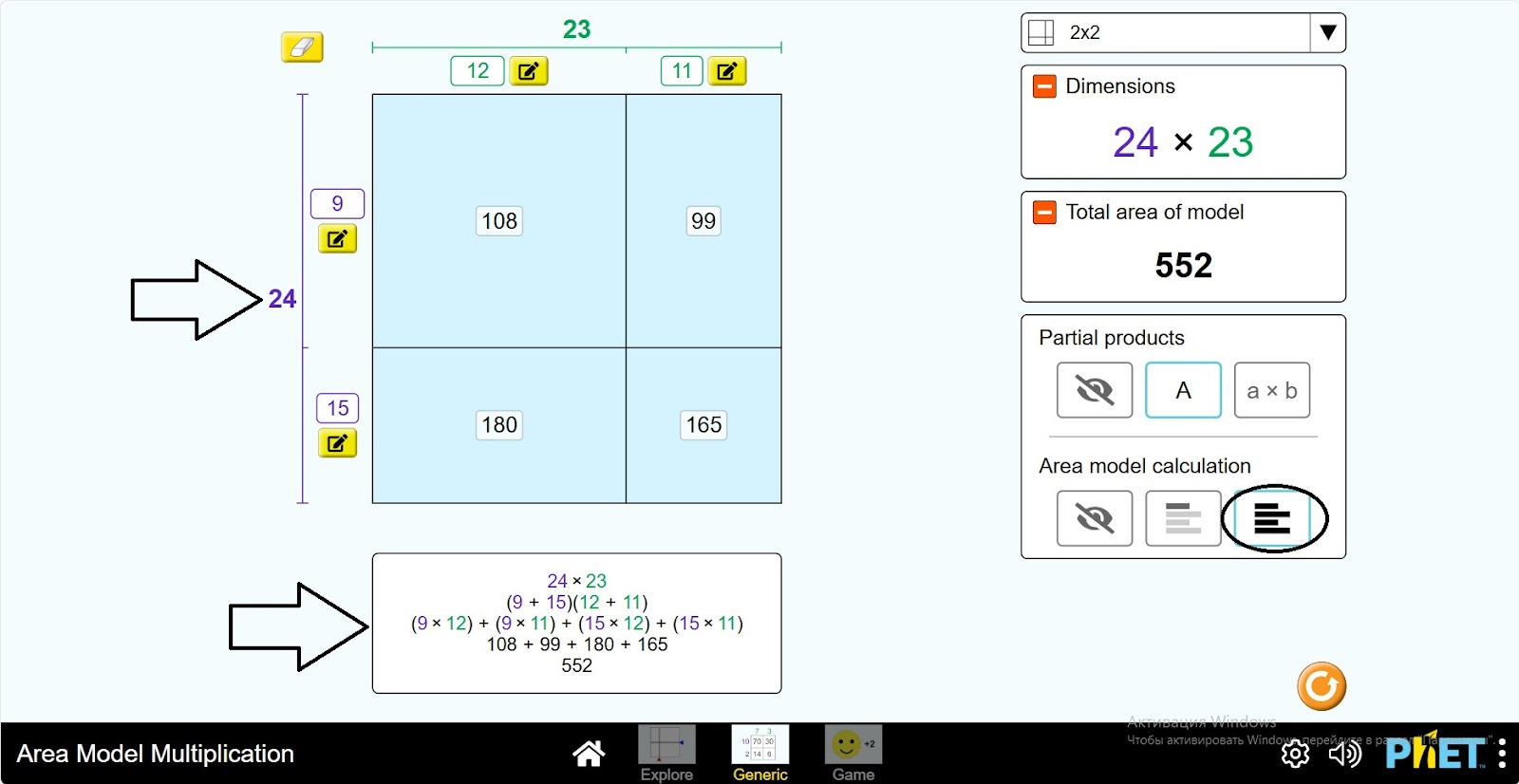
Step 8. Change the length and width of the rectangle and calculate the area again. Construct several expressions in this way.
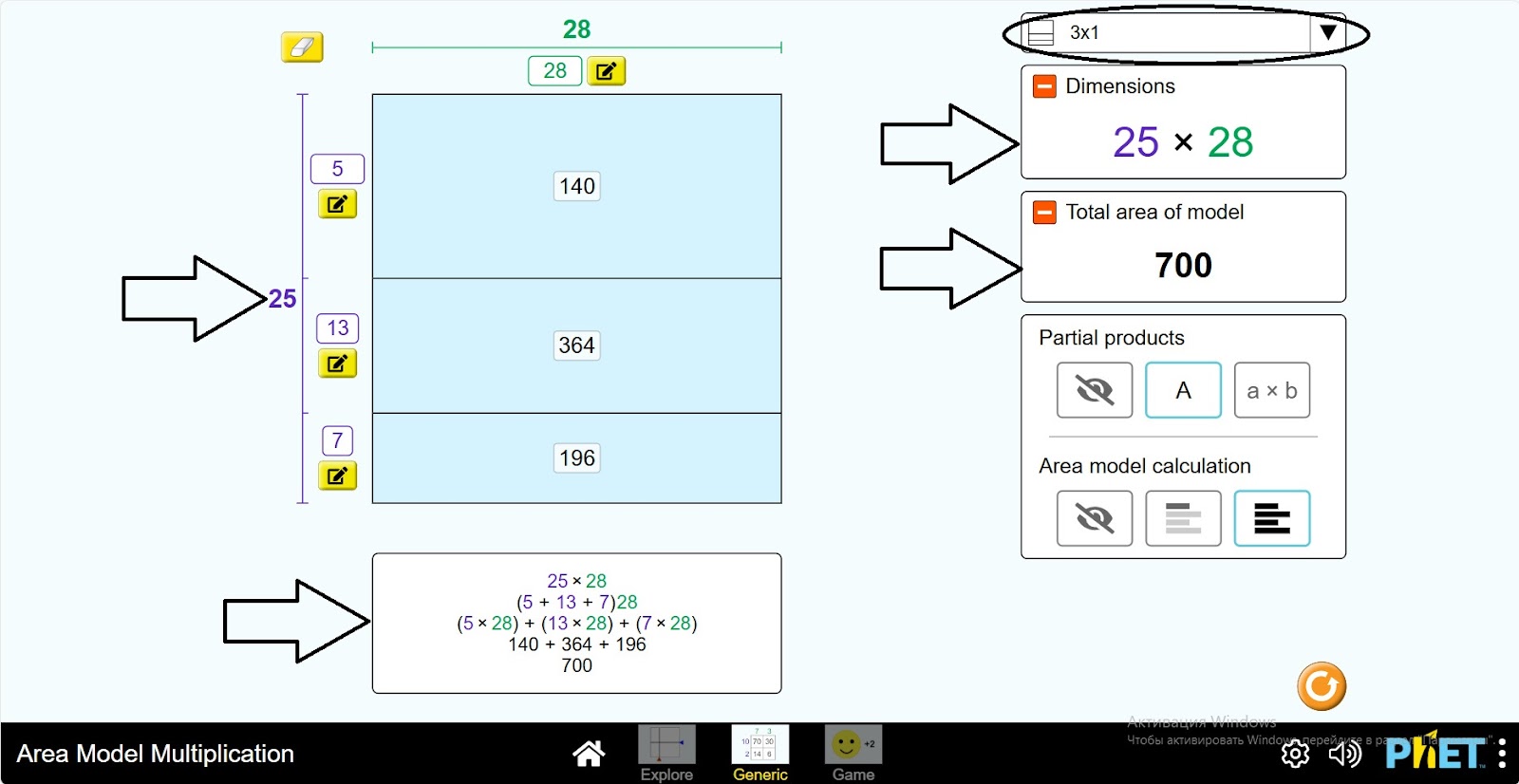
Step 9. Change the type of subdivision of the rectangle. Repeat the above steps.
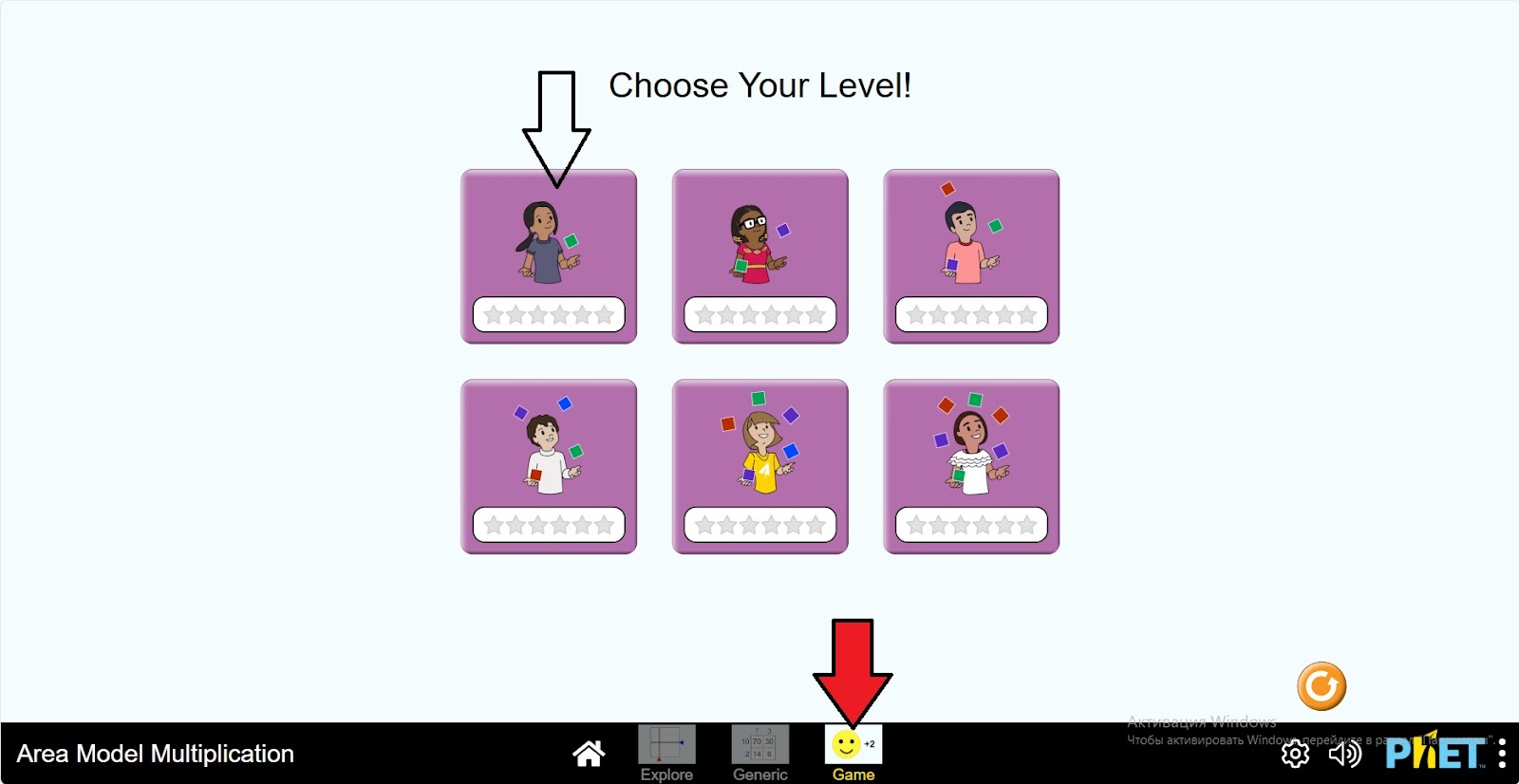
Step 10. Open the “Game” section. You will be presented with games on 6 different levels. Select the first level.
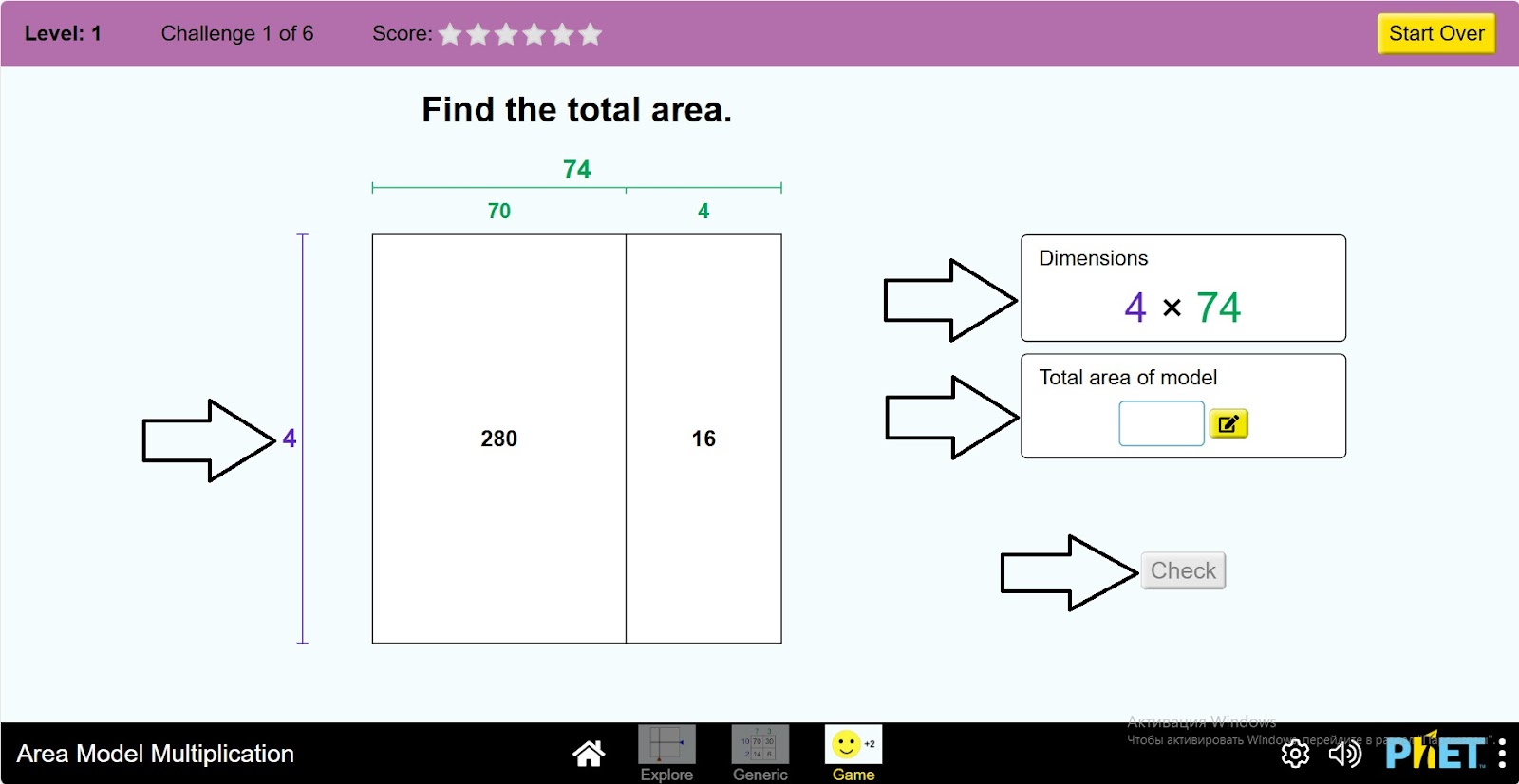
Step 11. In the workspace you will see
- A rectangle and its dimensions;
- A table with information about the length and width of the rectangle;
- The area results panel;
- A check button.
Step 12. The game requires you to find the unknown number associated with the rectangle. Do the calculation and find the number.
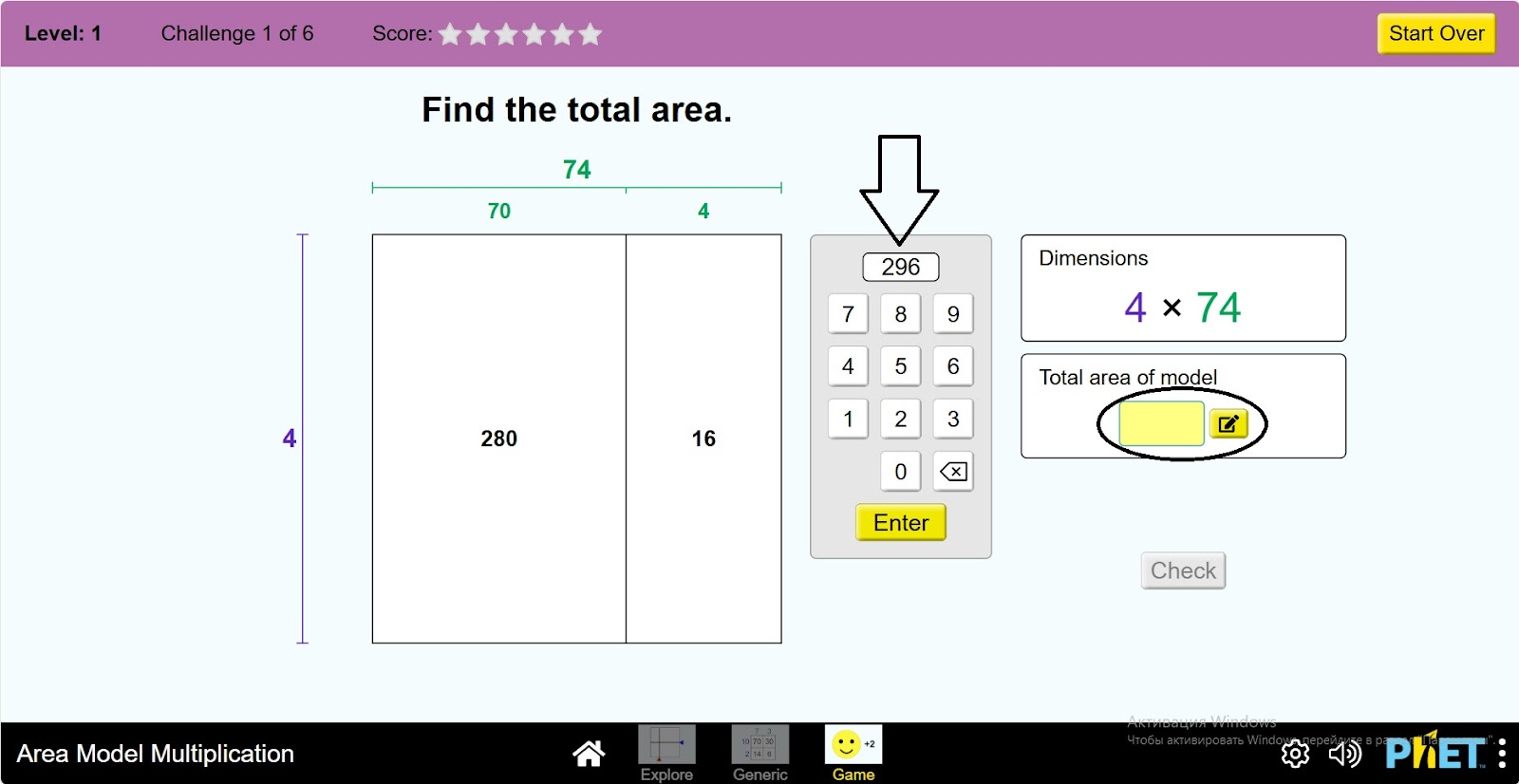
Step 13. Check if the expression is correct by clicking the Check button.
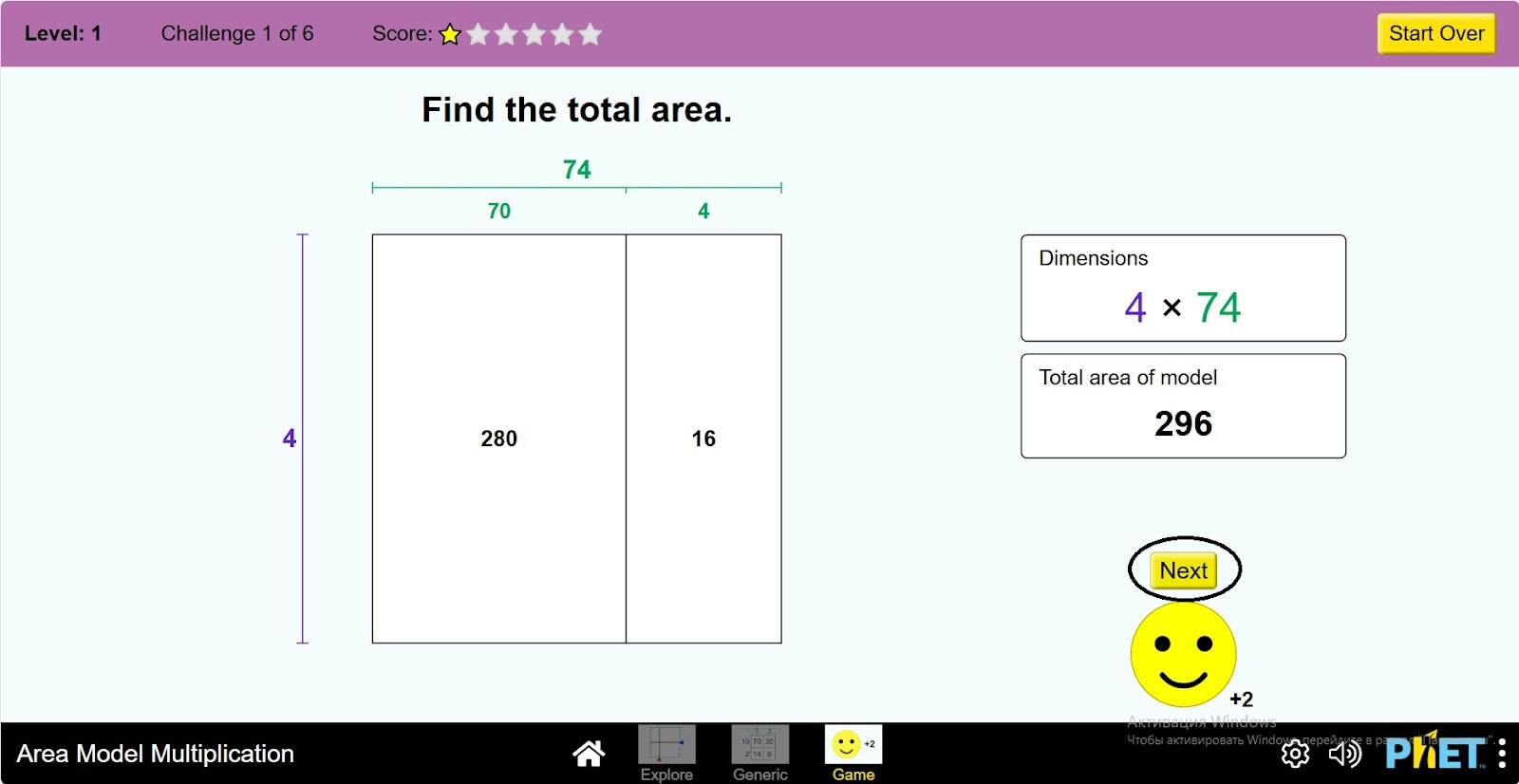
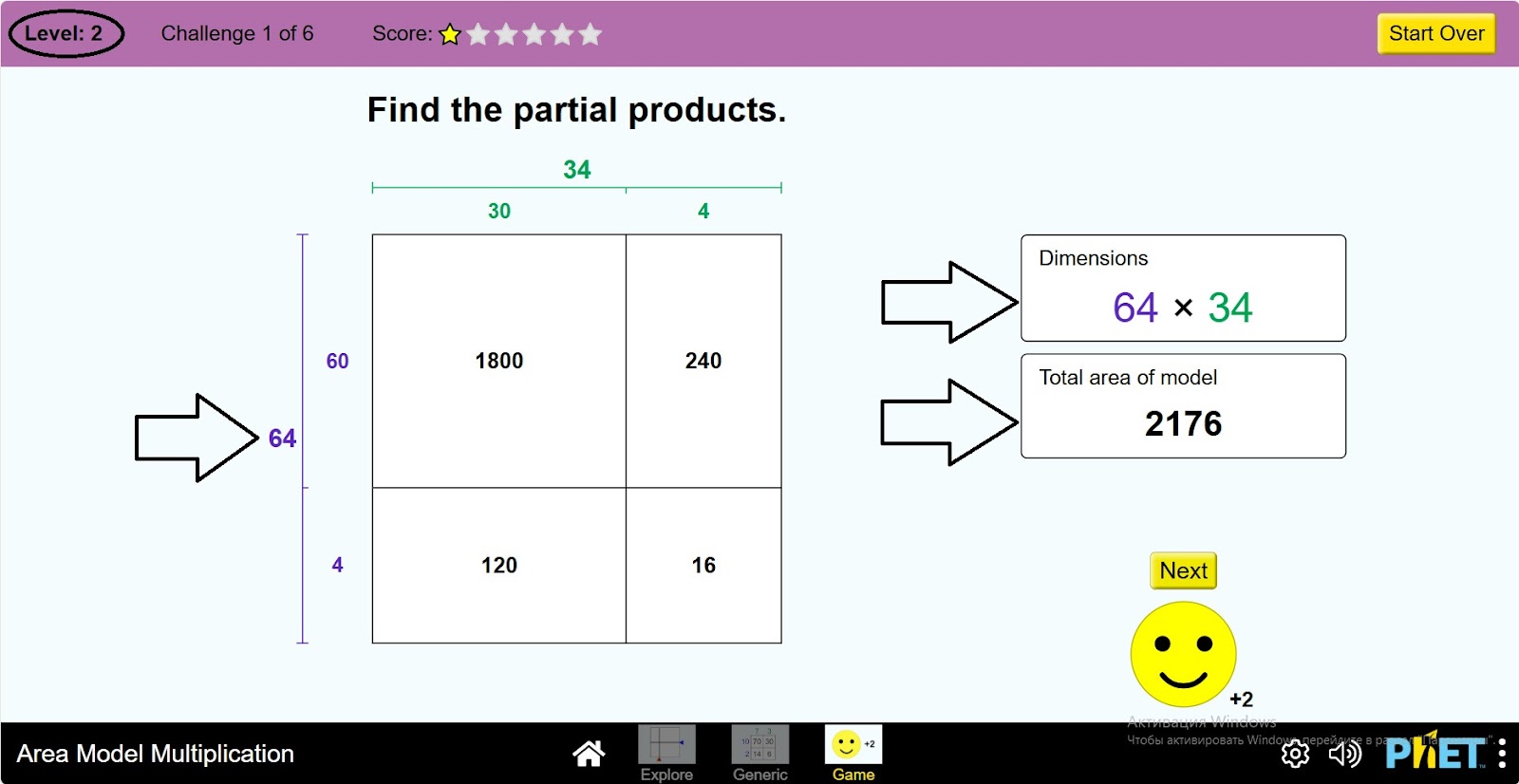
Step 14. Continue playing the game. After completing one level, you can solve the problems in the next levels.
Conclusion
By creating this virtual activity, students can further develop their knowledge of the area. They perform different investigations on the area of a rectangle and create problems in a game-like way. This makes the lesson more fun and easier to learn.