
Application of the operation of addition and subtraction of rational numbers
Number Line: Operations by PhET Interactive Simulations, University of Colorado Boulder, licensed under CC-BY-4.0 (https://phet.colorado.edu)
Objective:
- To perform addition and subtraction of whole numbers using a coordinate line;
- Perform addition and subtraction of rational numbers using the same and different symbols;
- To find distances between points on a coordinate line.
This virtual activity is designed to be used in the math lessons in the next chapter:
- Grade 6. “Rational numbers and applying techniques to them”
Theoretical part
1. Definition and representation
- Positive numbers are numbers greater than zero (0).
- Negative numbers are numbers less than zero (0).
- Zero (0) is neither a positive nor a negative number.
Examples:
- Positive numbers: 1, 2, 3, 10, 100, …
- Negative numbers: -1, -2, -3, -10, -100, …
2. Comparing positive and negative numbers on the number axis
- Positive numbers are to the right of zero on the number axis.
- Negative numbers are to the left of zero on the number axis.
- The further a number is from zero, the greater it is (modulo).
3. Operations on positive and negative numbers
Addition:
- The sum of two numbers with the same sign (positive or negative) is a number with the same sign.
- The sum of two numbers with different signs is the difference of the moduli of these numbers, and the sign of the sum is the same as the sign of the larger number.
Subtraction:
- Subtracting a number of one sign from a number of another sign is equal to adding the moduli of those numbers, and the sign of the result is the same as the sign of the first (decreasing) number.
4. Modulus of a number
The modulus of a number is its absolute value, i.e., its distance from zero. The modulus of a number is always a non-negative number.
Notation: The modulus of a is written as |a|.
Examples: |5| = 5, |-3| = 3, |0| = 0.
Virtual Experiment
The “Number Line: Operations” simulator is based on integers, which allows you to perform operations on integers.
Workflow:
Step 1. Start the simulation: you will be offered 4 different modes: “Chips”, “Net Worth”, “Operations” and “Generic”. Open the “Chips” section.
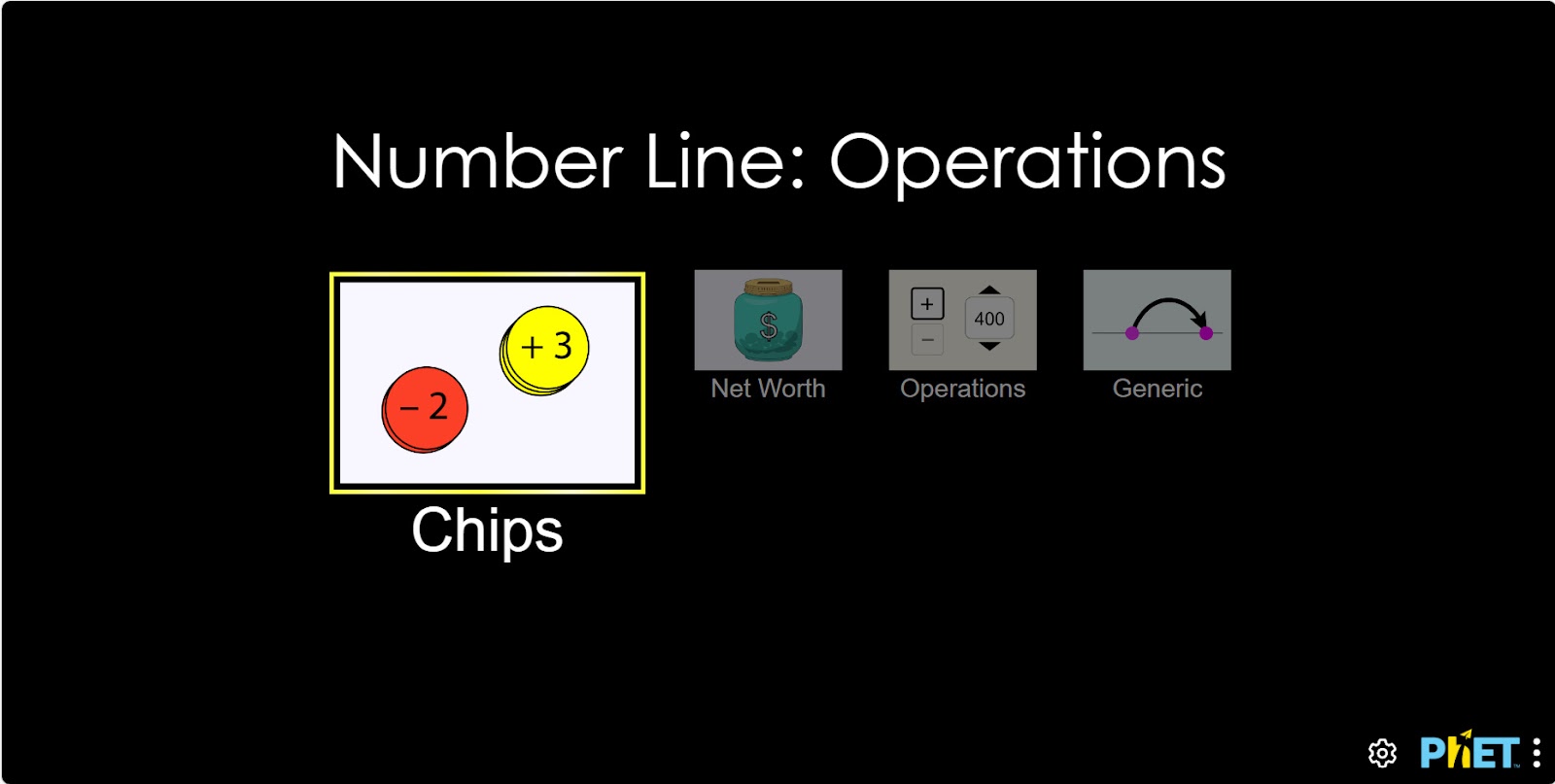
Section 1. Calculating Coins
Students can play by adding and subtracting integers using the coin pattern.
Step 2. In the work area, you will find
- Coordinate axis (1);
- Purse: green ribbon indicates a winning purse, red ribbon indicates a losing purse (2);
- Coins: red – loss, yellow – gain (3);
- Calculation table (4);
- Buttons to show and hide data on the coordinate axis (5);
- Reload button (6).
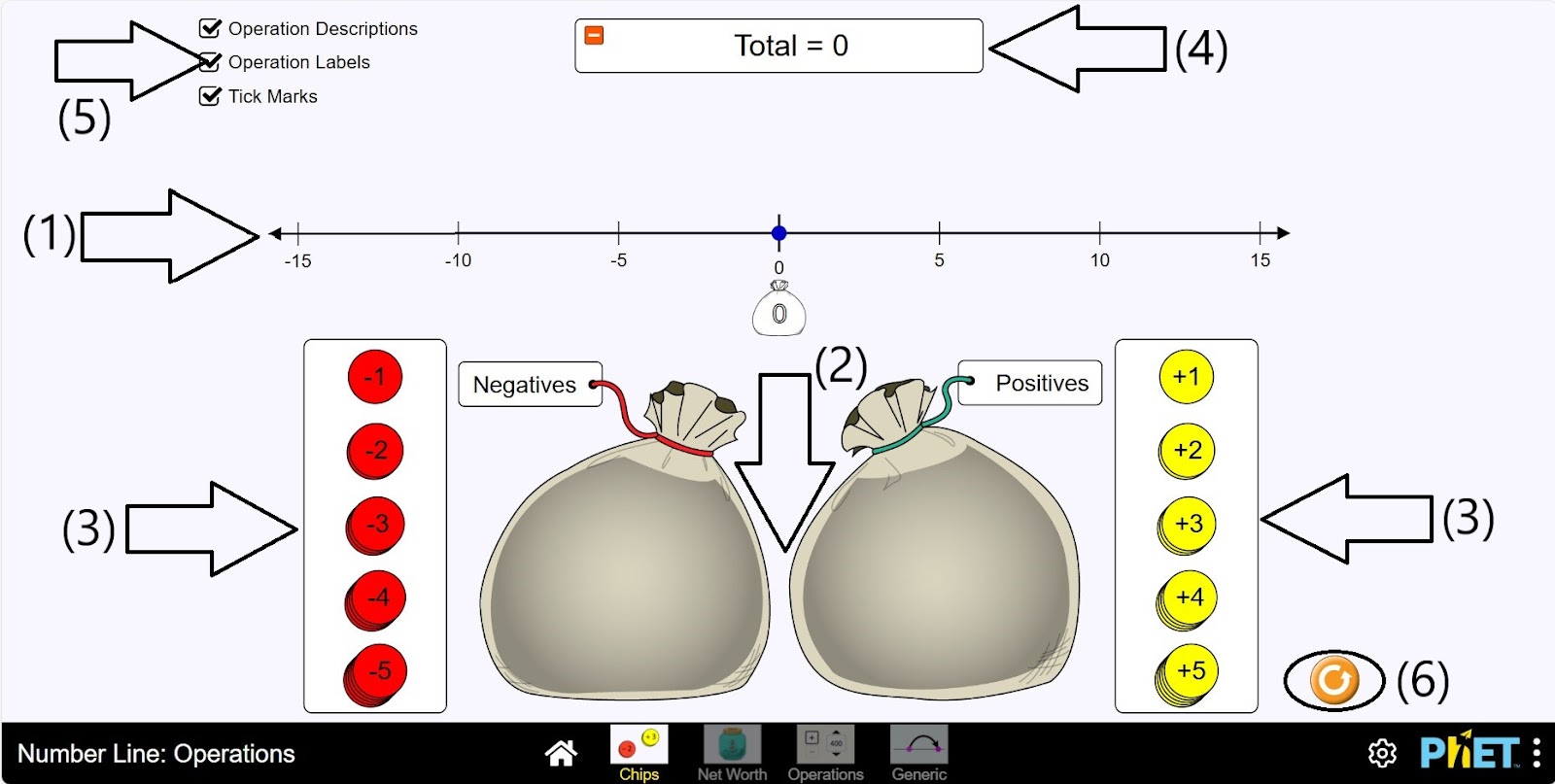
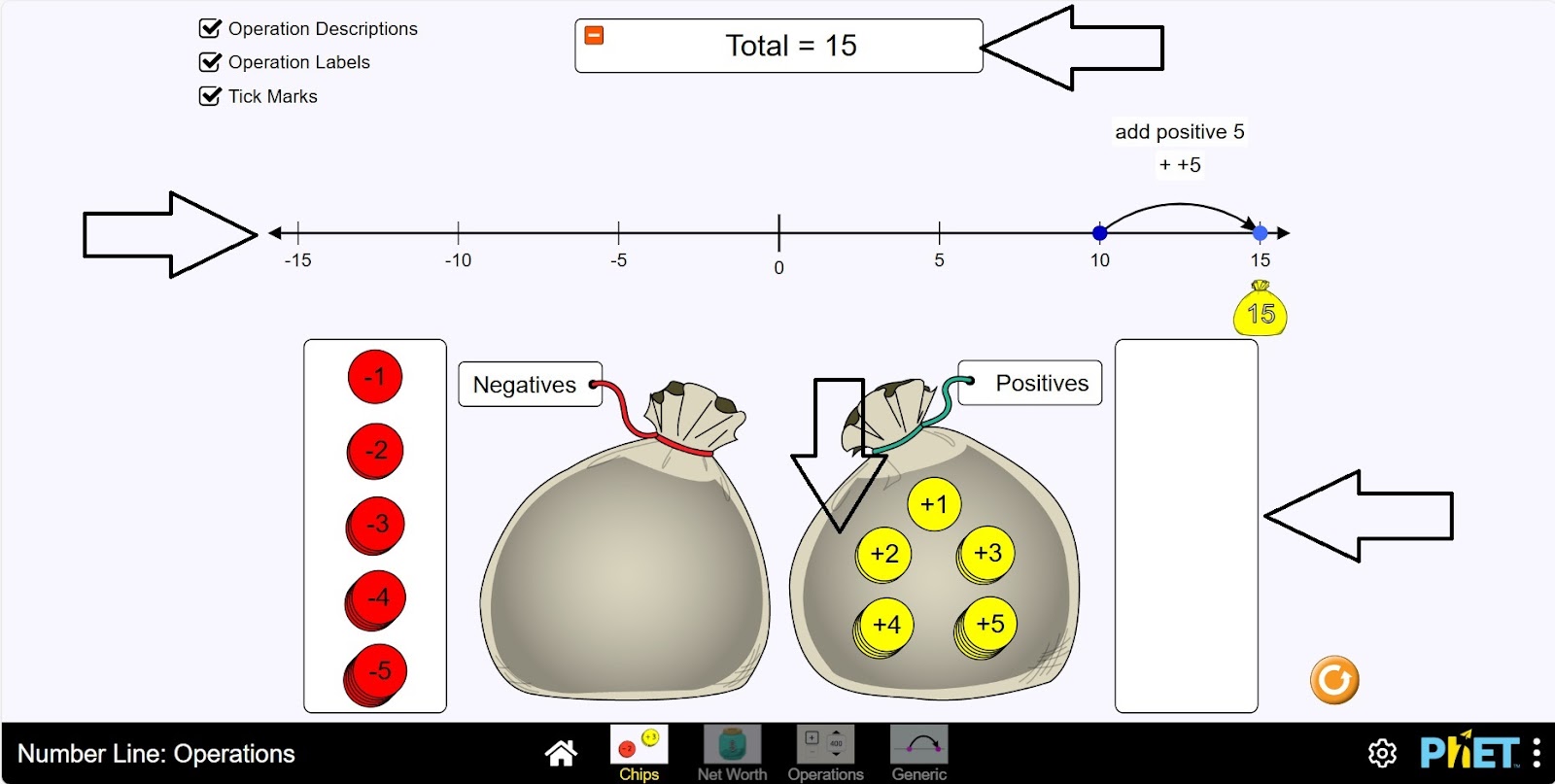
Step 3. Put the coins into the bag with the green strap. You can put in up to 15 coins. Calculate your income by adding the coins.
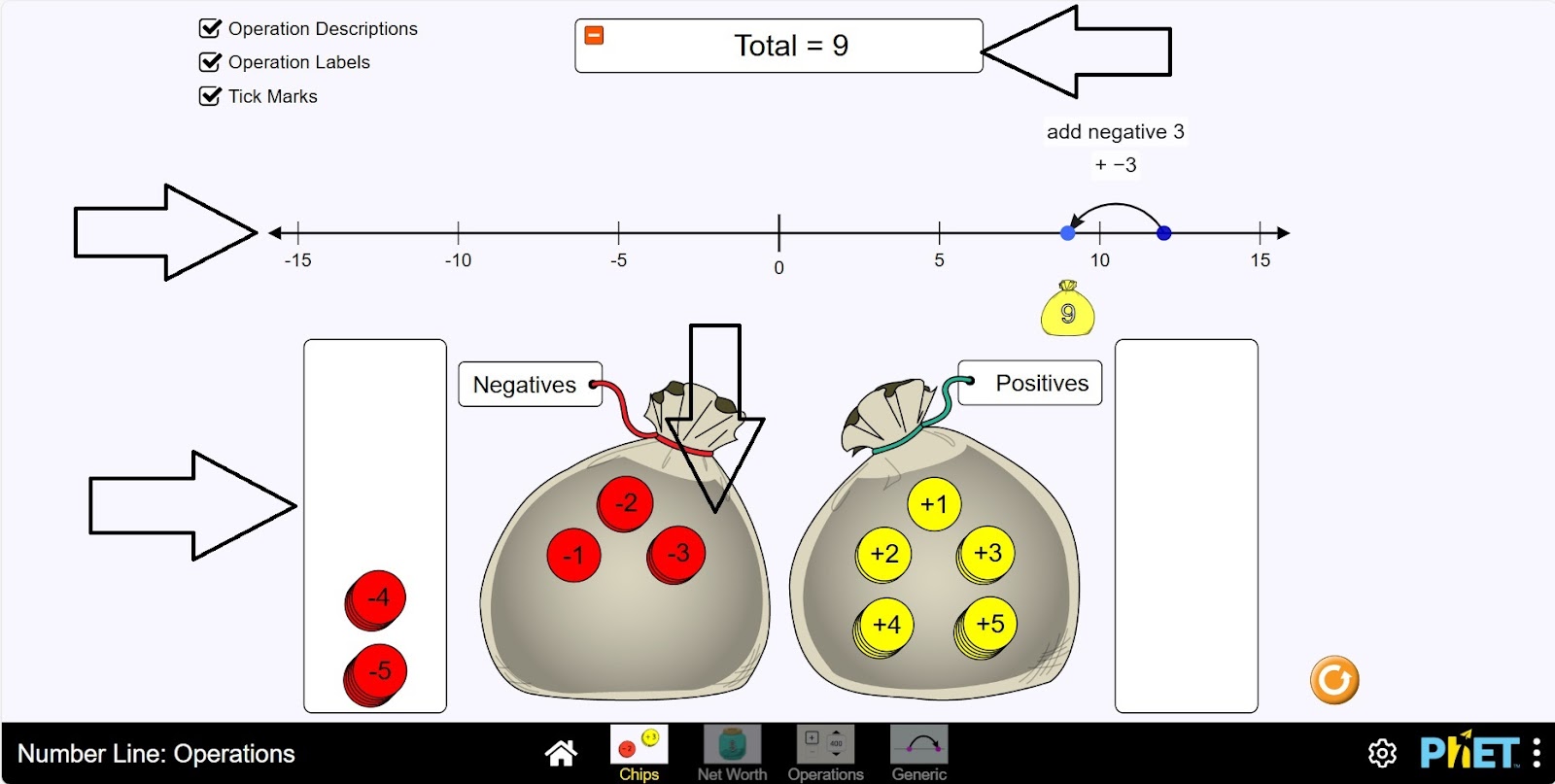
Step 4. Put the coins into the bag with the red ribbon. You can put up to 15 kopecks. Calculate your expenses by adding the coins. If your income is equal to your expenses, your score is 0. Show negative numbers by coordinates if you have more expenses. Shows positive numbers by coordinates if your income is higher.
Part 2. Status Screen
Students can use real-world examples to reinforce their understanding of integer operations.
Step 5. Open the Net Worth section. In the workspace, you will see:
- Coordinate axis (1);
- Purses: with green ribbon – assets, with red ribbon – debts (2);
- Credits: credit cards and loans (3);
- Assets: money, TV, bicycle, jewelry (4);
- Calculation board (5);
- Coordinate axis data show and hide buttons (6);
- Reset button (7).
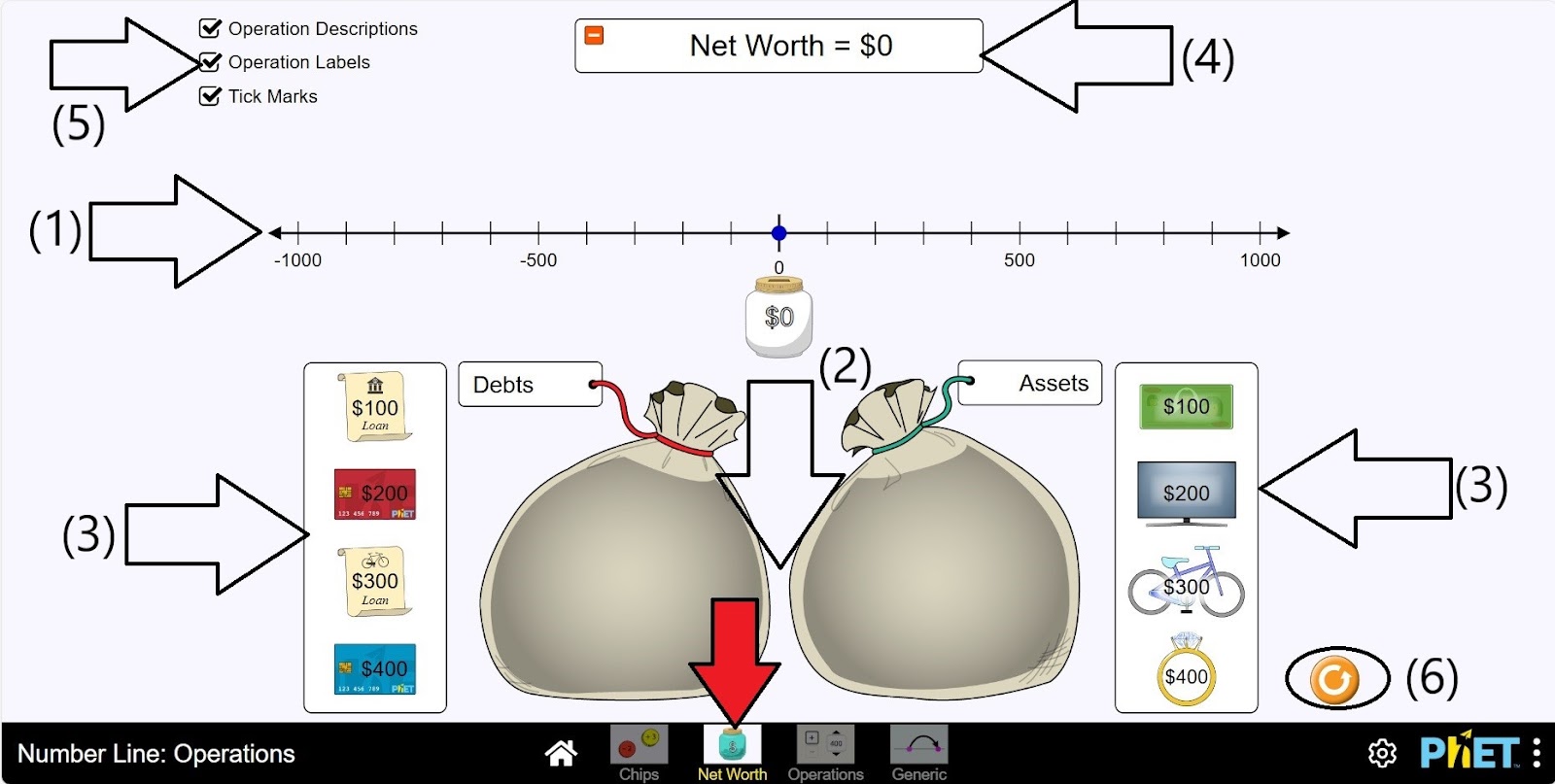
Step 6.Here you can perform various operations and calculations on your assets and liabilities.
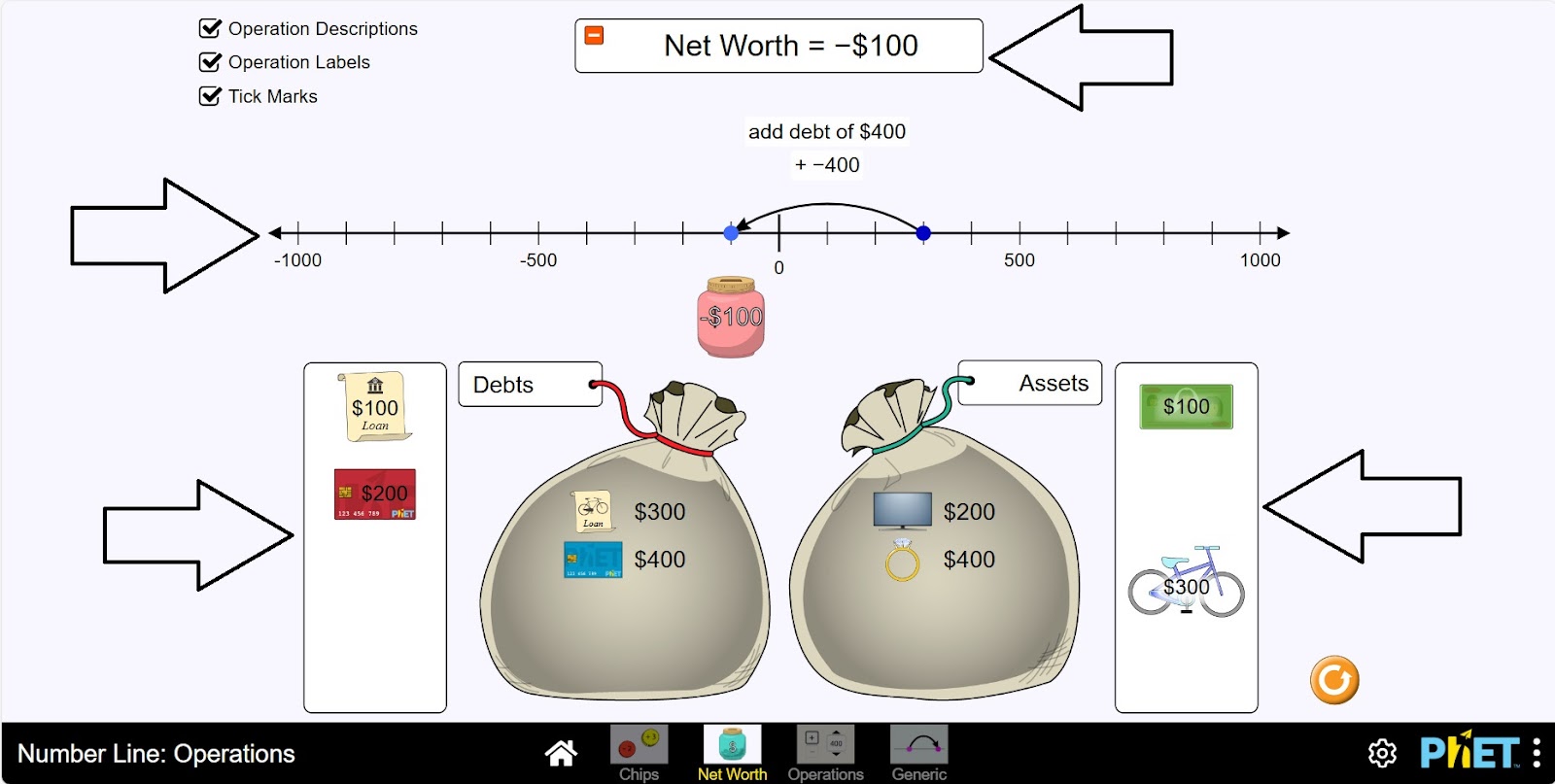
Section 3. Operations Screen
Students can set an initial net worth and then perform operations on it. In this section, you will only work with hundredths of a percent. For example, 100 200 300.
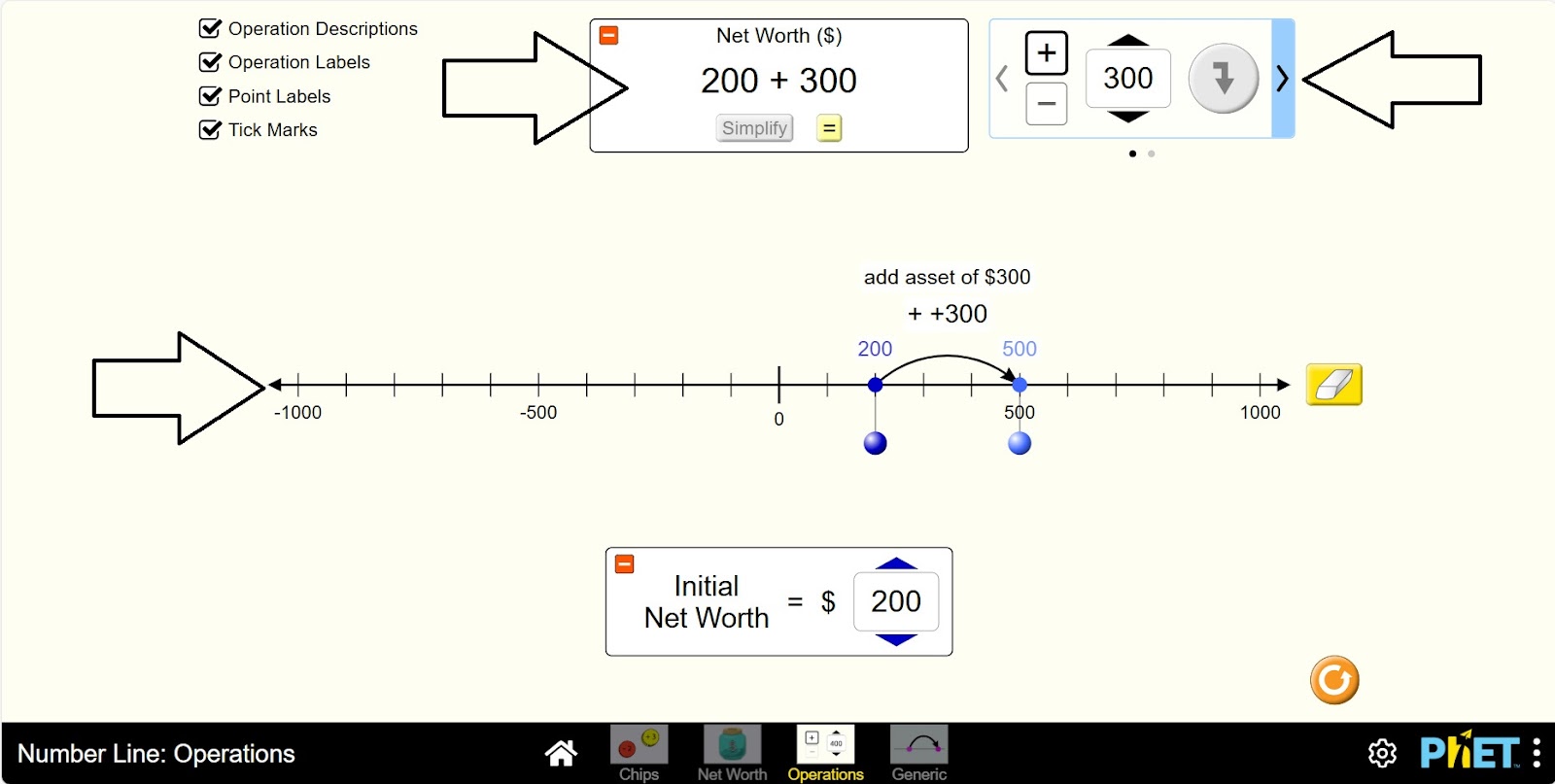
Step 7. Open the Operations Section. In the work area you will find
- Coordinate axis (1);
- The “Mark Initial Net Cost” button (2);
- The Calculation panel (3);
- The buttons for showing and hiding the coordinate axis data (4);
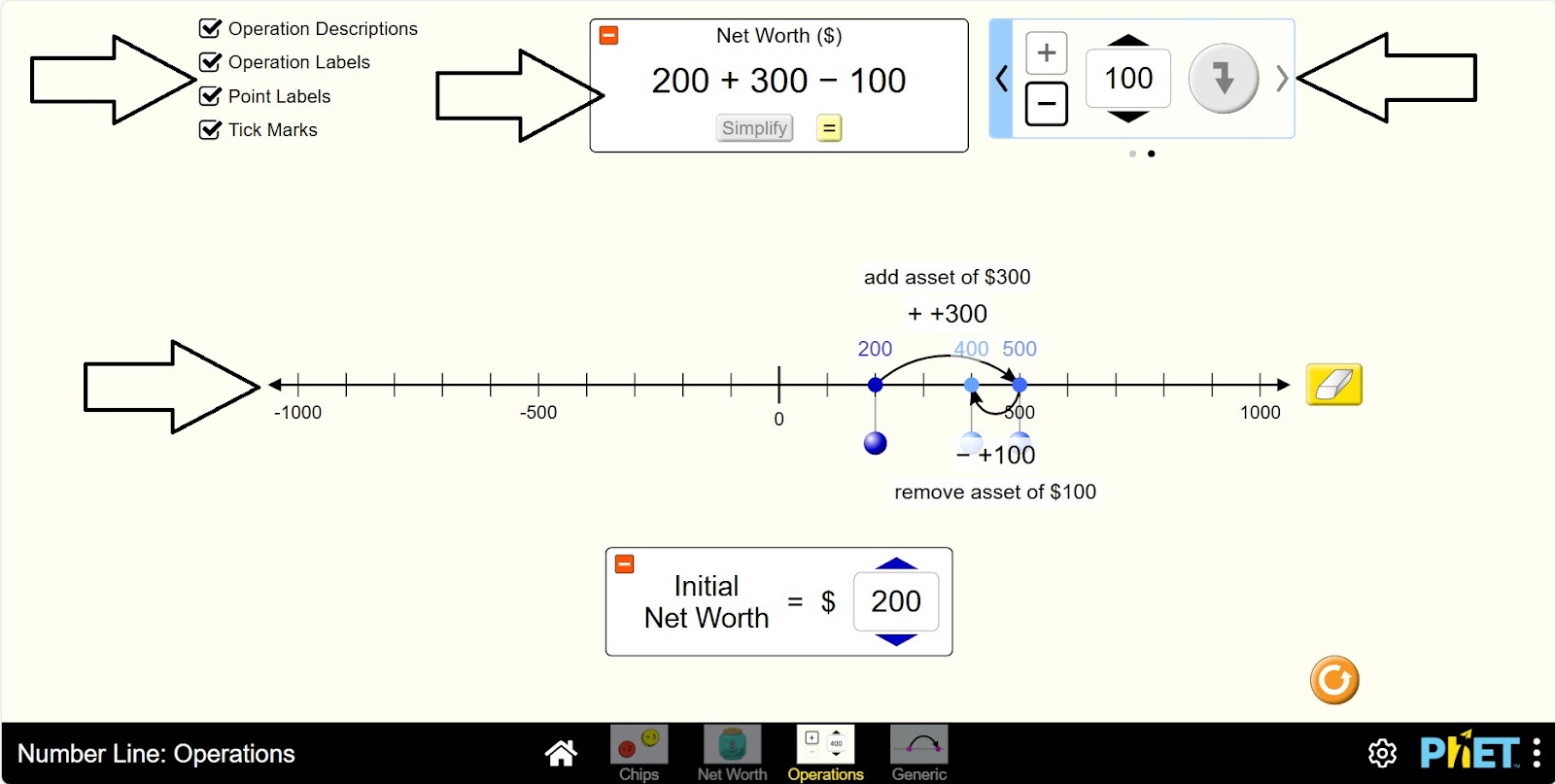
- Hundreds addition and subtraction panel (5);
- Reset button (6).
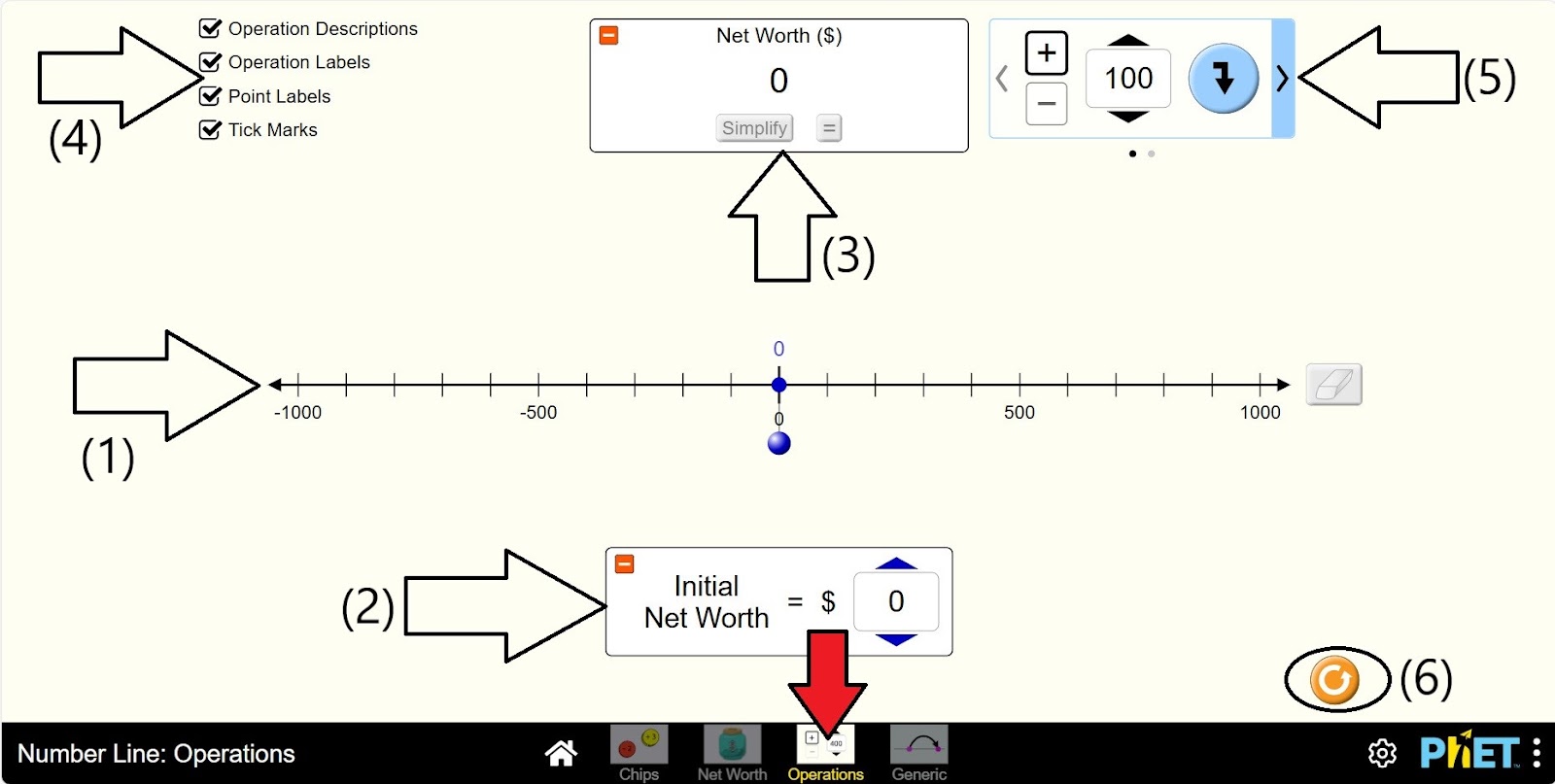
Step 8. Set the initial net cost.
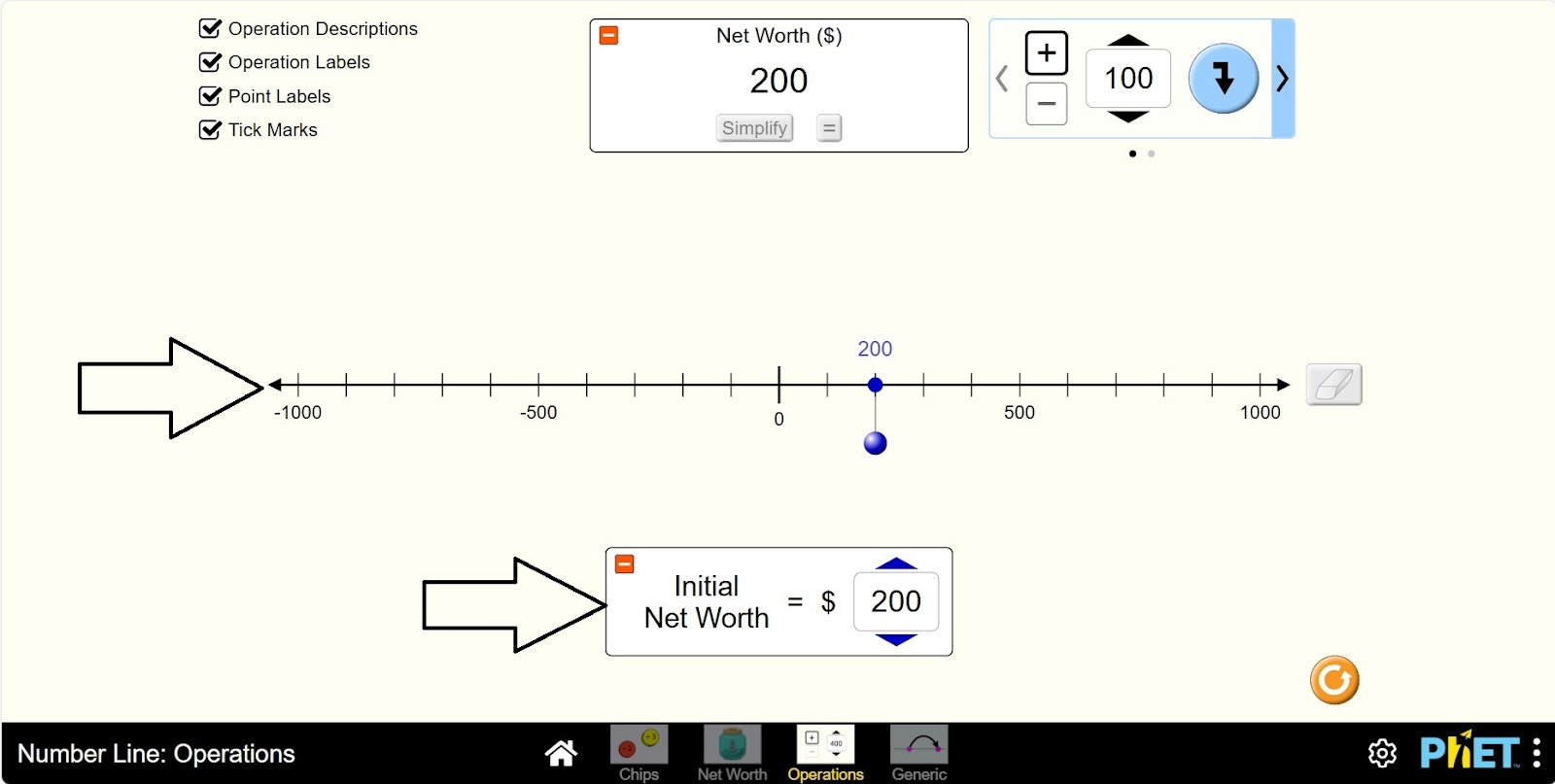
Step 9. Select any hundred on the hundredths board and add it.
Step 10. Go to the second hundred board and mark and subtract some hundreds. In this way, try different operations and make calculations.
Section 4. Generic Screen
The Generic screen provides flexibility in modeling operations with integers, working with numbers up to 100, and using the number line to reinforce abstract understanding of operations.
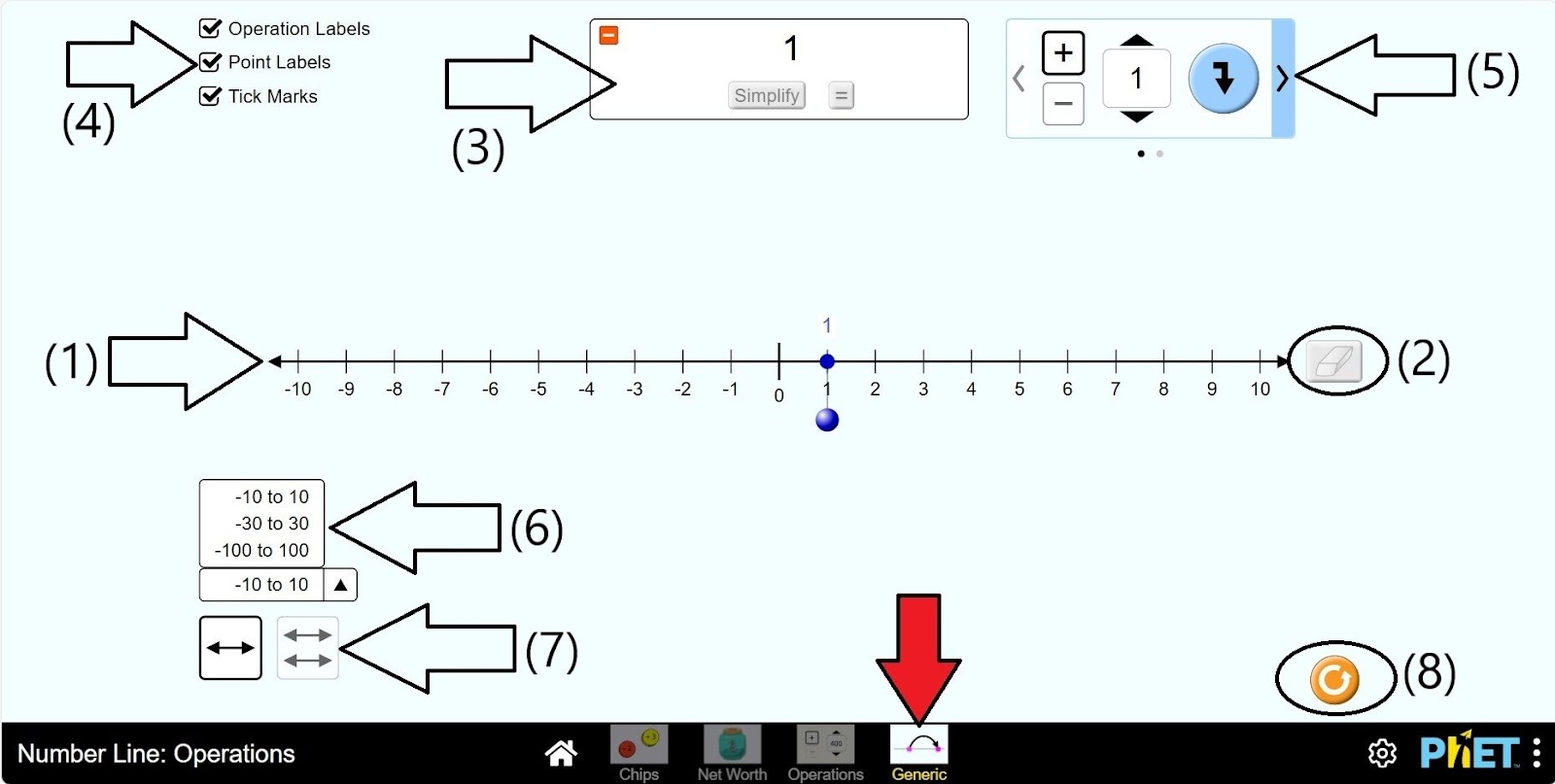
Step 11. Open the Generic Section. The work area provides you with
- Coordinate axis (1);
- Eraser (2);
- Calculation board (3);
- Buttons to show and hide the coordinate axis data (4);
- Numerical addition and subtraction table (5);
- You can select the coordinate length: (-10;10), (-30;30), (-100;100) (6);
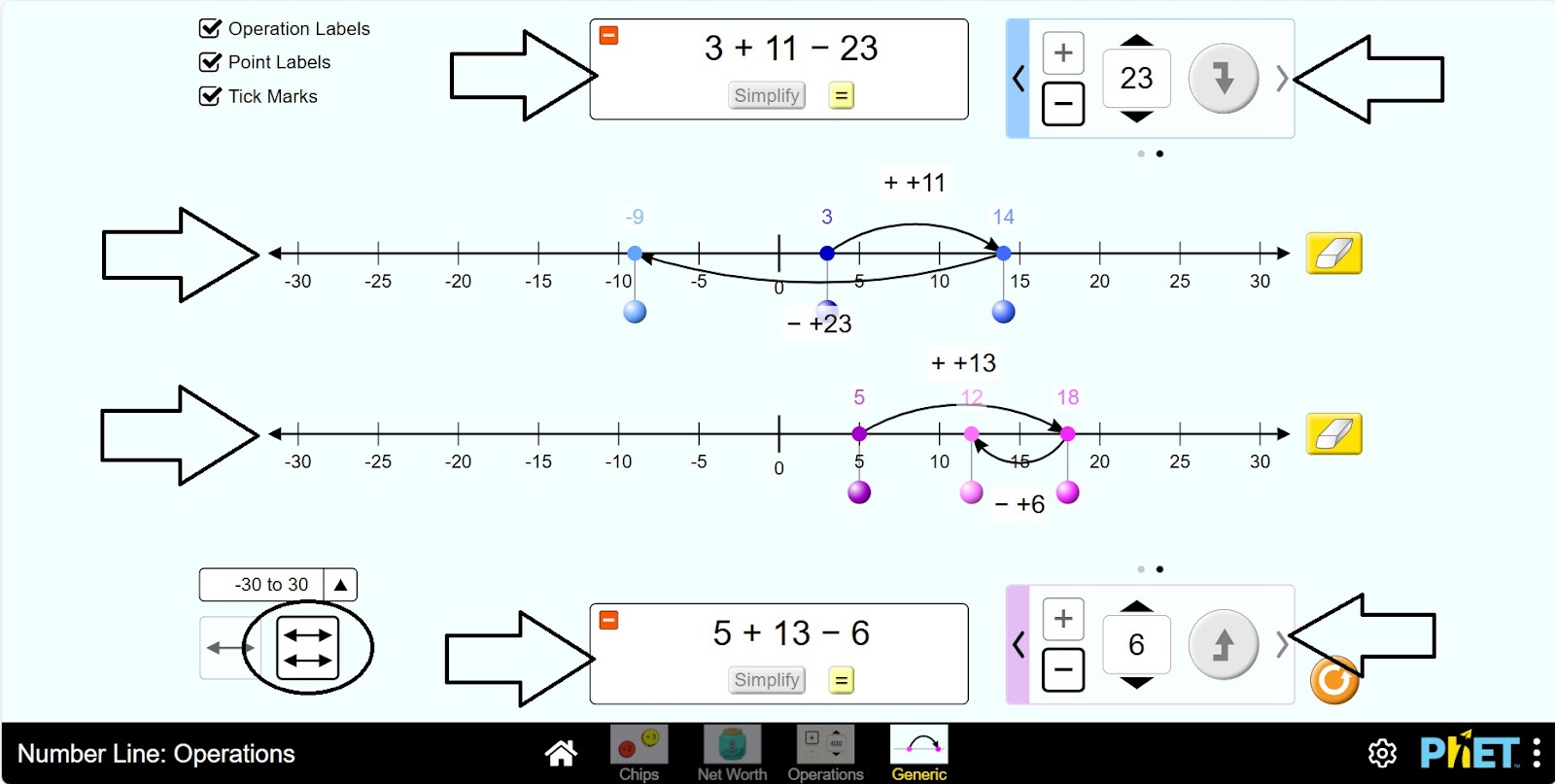
- Number of coordinate axes: 1 и 2 (7);
- Reload button (8).
Step 12. Mark the initial number by moving the blue point.
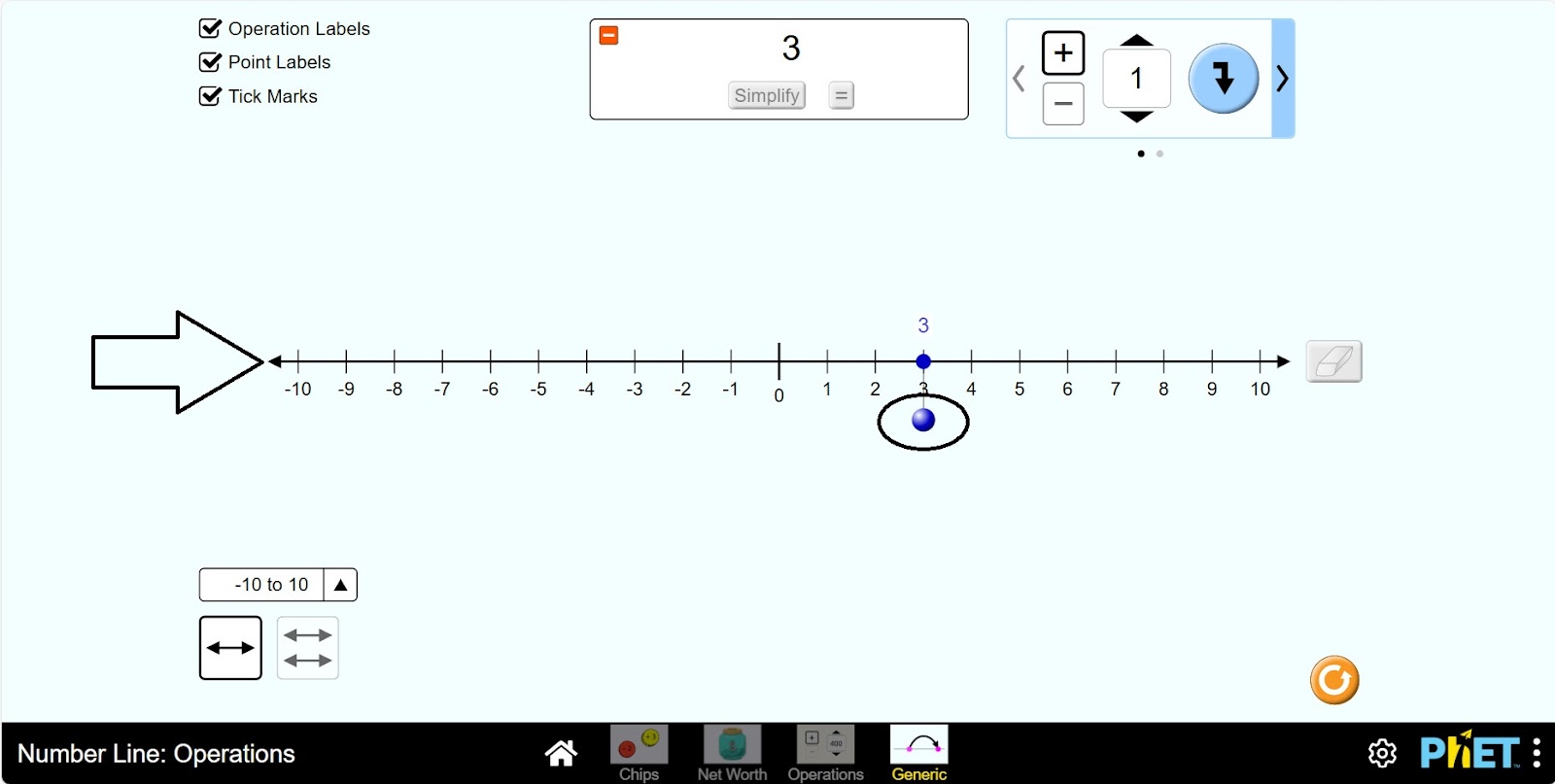
Step 13. Mark and add any number in the number field.
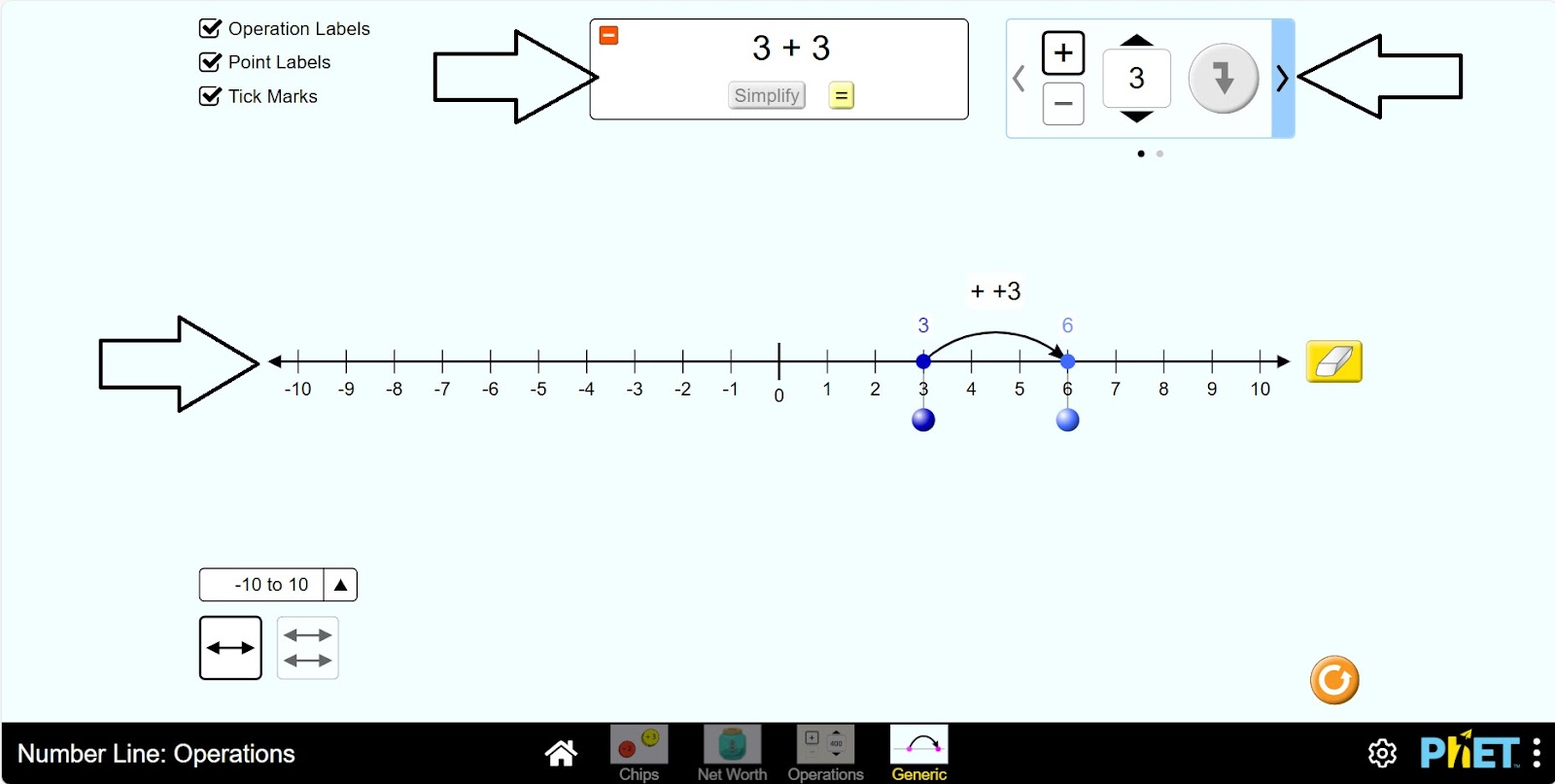
Step 14. Go to the second number board and mark and subtract any number. In this way, try different operations and perform calculations.
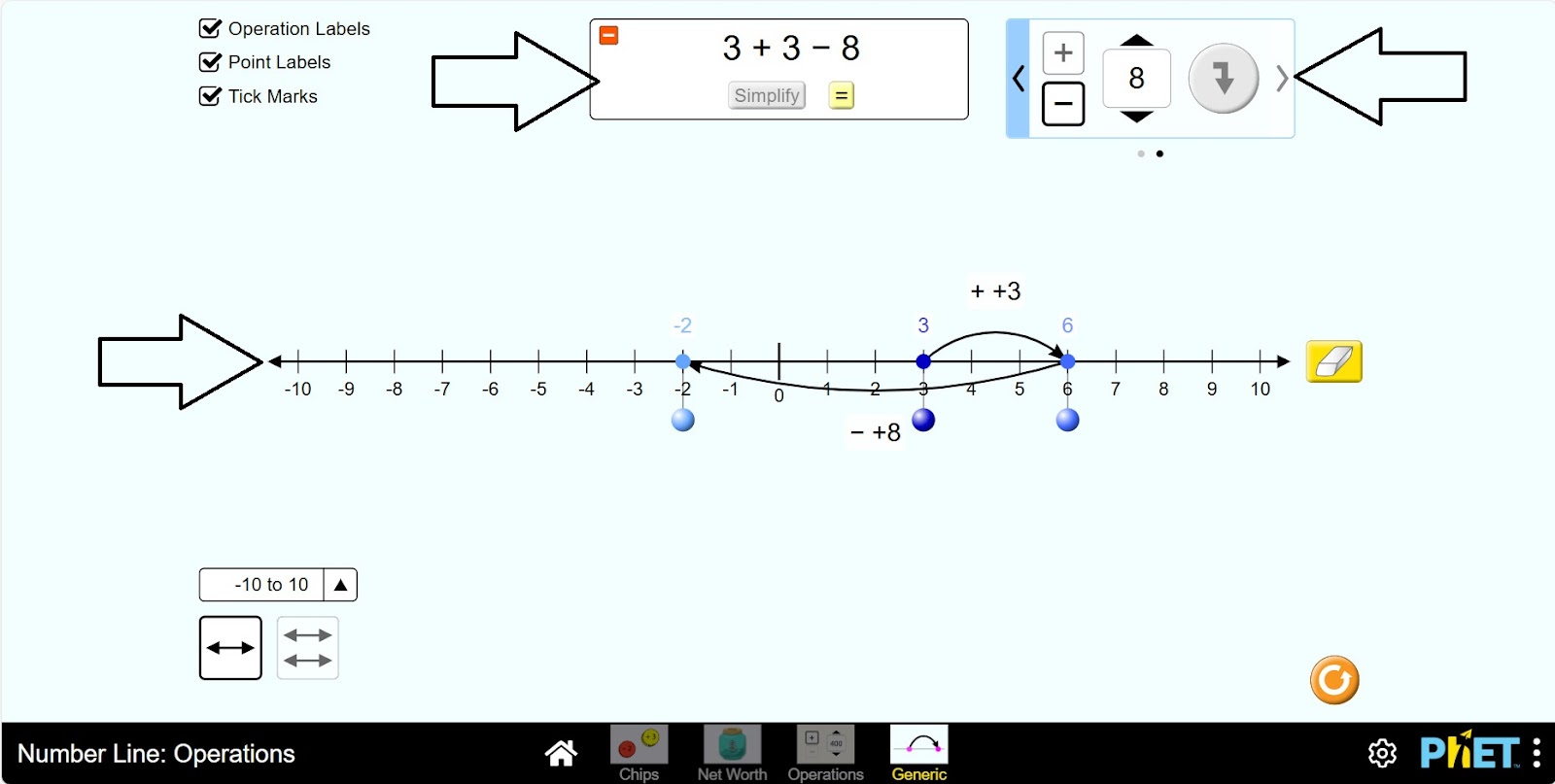
Step 15. Mark two coordinate axes for the work area. Perform two separate calculations on each axis. Compare the axes.
Conclusion
On the horizontal number line, the addition and subtraction of whole numbers has been pictorially calculated in terms of the order of the numbers. Recognized and created equivalence classes of whole number sums and differences. Verified that the sum of a number and its additive inverse is 0.