Lesson 2
In the second week, you will continue to connect the sensors to the Arduino and the GSM module.
Arduino based meteostation system with GSM alert transmission.
First check you have the Arduino IDE installed, if not installed install
You can find a video tutorial on installing the Arduino IDE at this link.
Then we have to install the LiquidCrystal_I2C library.
To download this library follow the link LCD I2C library
You can find a video tutorial on installing the library at this link.
Now that we have installed everything we need, let’s start creating our device.
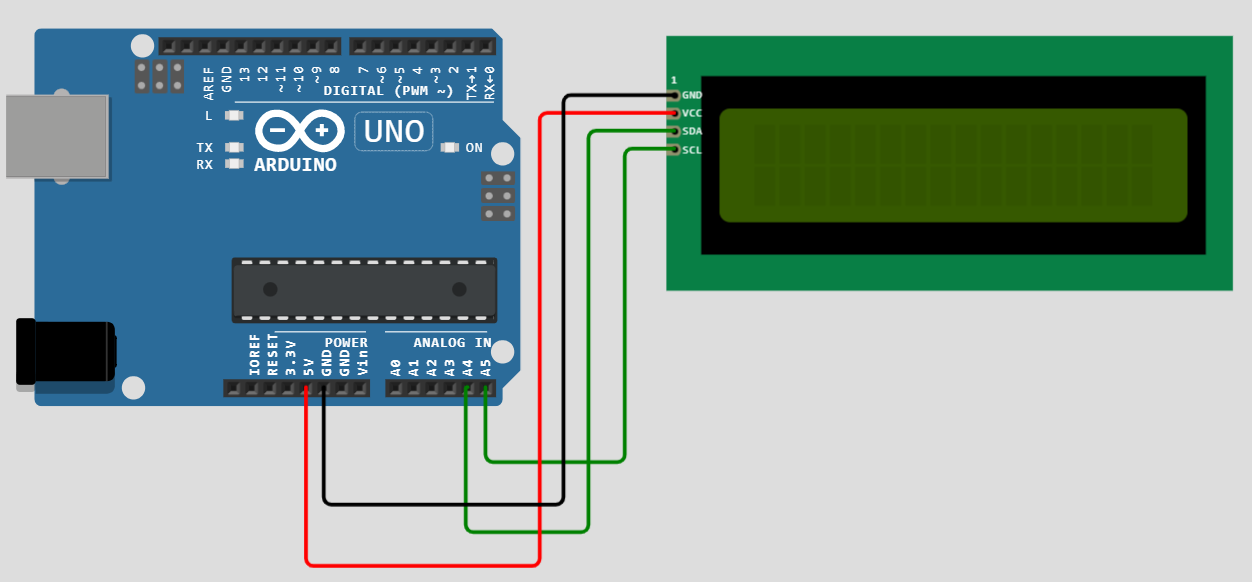
Step 1. Connect the display to the arduino
Below is a diagram of connecting an LCD display to an arduino
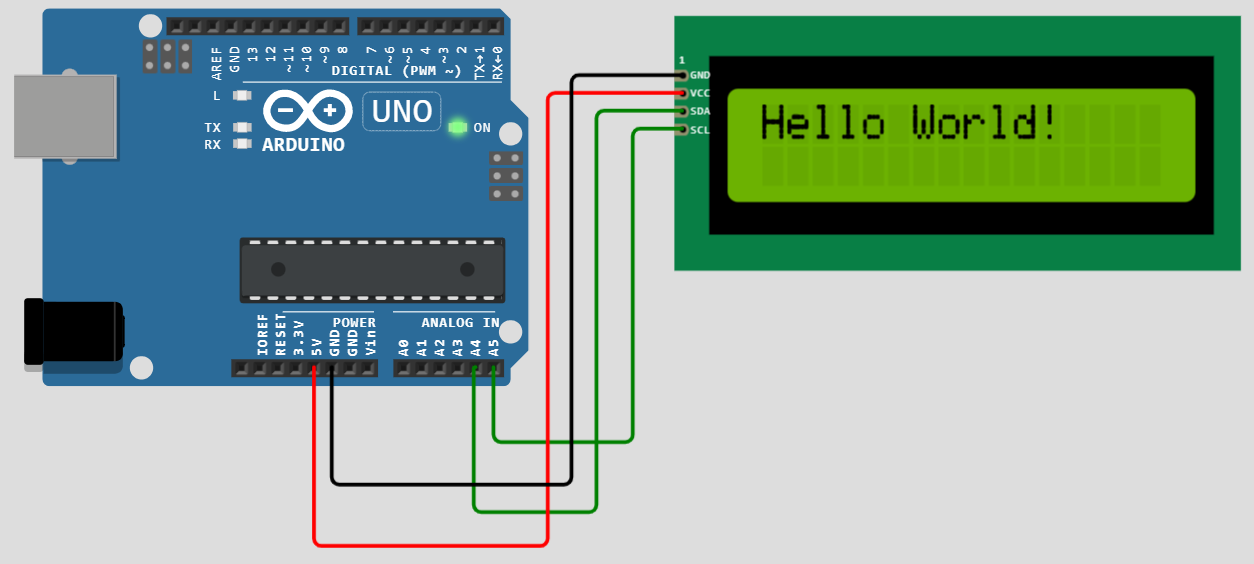
Step 2. Now we display the inscription Hello World on the display screen
After installing the library, open the Arduino IDE and run this sketch
#include <LiquidCrystal_I2C.h> // подключаем библиотеку

#include <Wire.h>

LiquidCrystal_I2C lcd(0x27,16,2);

void setup(){

  lcd.init();

  lcd.backlight();

  lcd.setCursor(0,0);

  lcd.print("Hello World!");

}

void loop() {

}
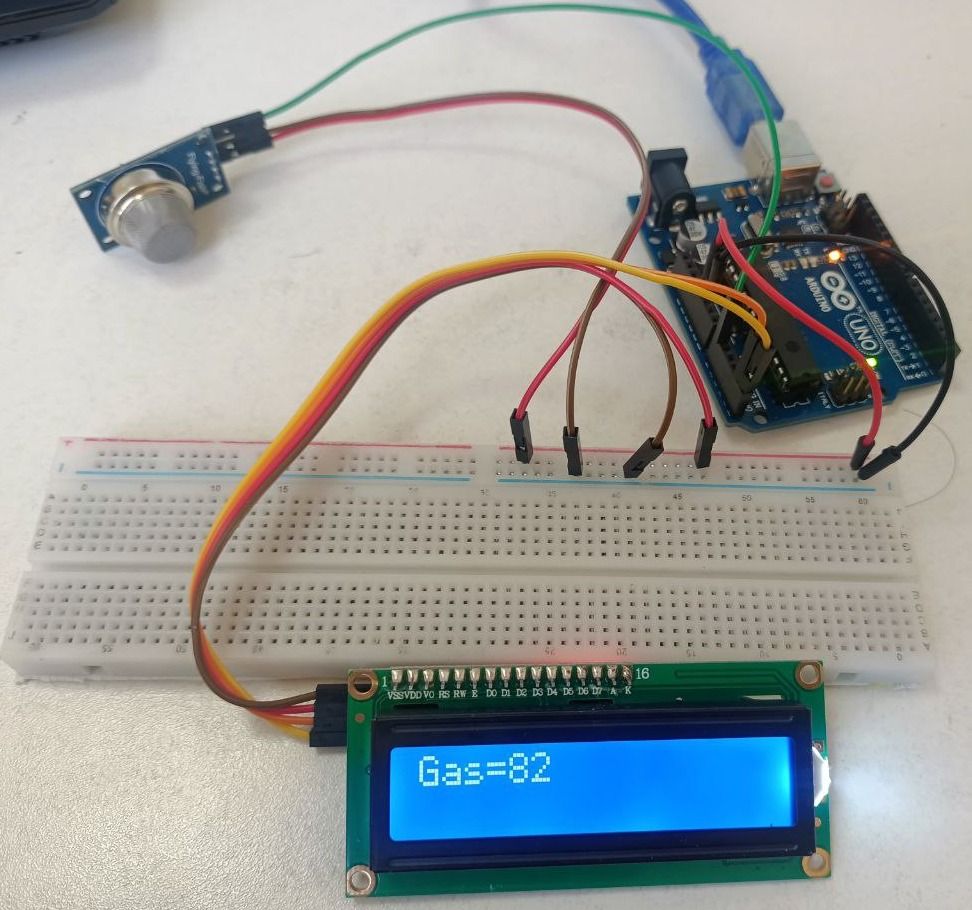
Step 3. Now we must connect the gas sensor to the arduino and display the problem on the screen
To do this, we connect the arduino, display, sensor to the circuit board as shown in the figure below.
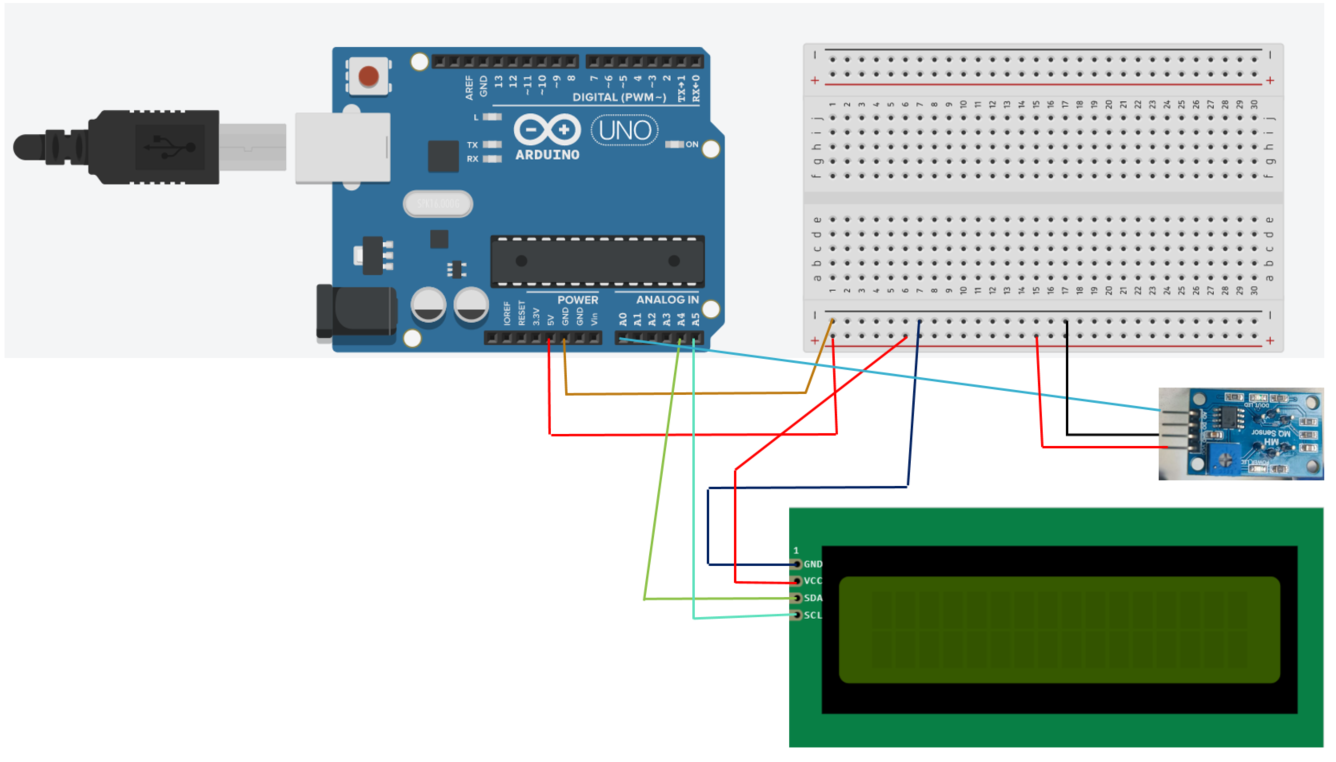
Then we run this sketch.
#include <LiquidCrystal_I2C.h>

#include <Wire.h>

#define analogsignal A0

int gas = 0;

LiquidCrystal_I2C lcd(0x27,16,2);

void setup(){

  lcd.init();

  lcd.backlight();

}

void loop() {

  lcd.clear();

  gas = analogRead(analogsignal);

  lcd.setCursor(0,0);

  lcd.print("Gas=");

  lcd.setCursor(4,0);

  lcd.print(gas);

  delay(500);

}
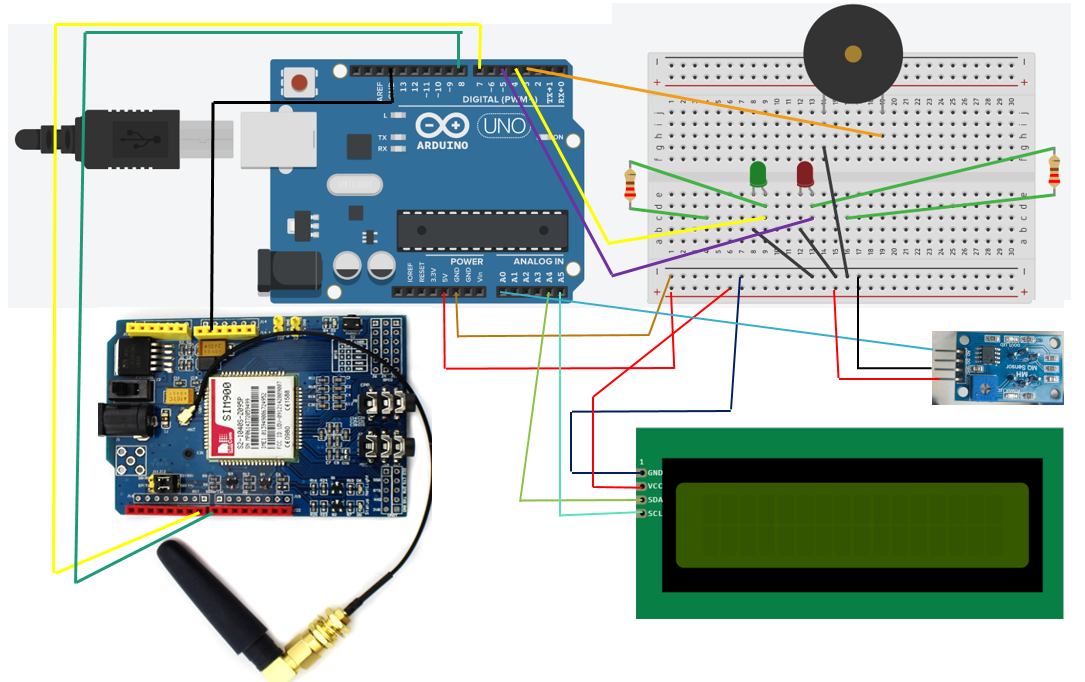
Step 4. We connect to our scheme GSM SIM900
We connect the GSM module as shown in the figure below