
Area. The unit of measurement of area
Area Model Introduction by PhET Interactive Simulations, University of Colorado Boulder, licensed under CC-BY-4.0 (https://phet.colorado.edu)
Objective:
- Familiarity with the concept of area;
- Familiarization with the unit of measurement of area;
- To learn the formula for calculating area.
This virtual activity is designed for use in math lessons on the following topics:
- Grade 3. “Area. Unit of measurement of area”
Theoretical part
Area is a measure of how big a plane figure is. Simply put, it is how much space it takes up on the plane.
How do we measure area?
To measure area, we use special units of measurement called area units. The most common units of area are in square centimeters (cm²) and square meters (m²).
- A square centimeter (cm²)is the area of a square with a side of 1 centimeter.
- A square meter (m²)is the area of a square with a side of 1 meter.
Area of a square:
To find the area of a square, you need to square its side.
For example, if the side of a square is 4 cm, its area would be:
4 cm * 4 cm = 16 cm²
Area of a rectangle:
To find the area of a rectangle, you need to multiply its length by its width.
For example, if the length of the rectangle is 5 cm and the width is 3 cm, then its area will be:
5 cm * 3 cm = 15 cm²
Virtual experiment
The simulation “Area. Unit of Area” will help students learn how to find the area of a rectangle. On the screen, they are introduced to the operation of multiplication in the form of a table. Manipulating the numbers, they get the results of multiplication.
Course of Work:
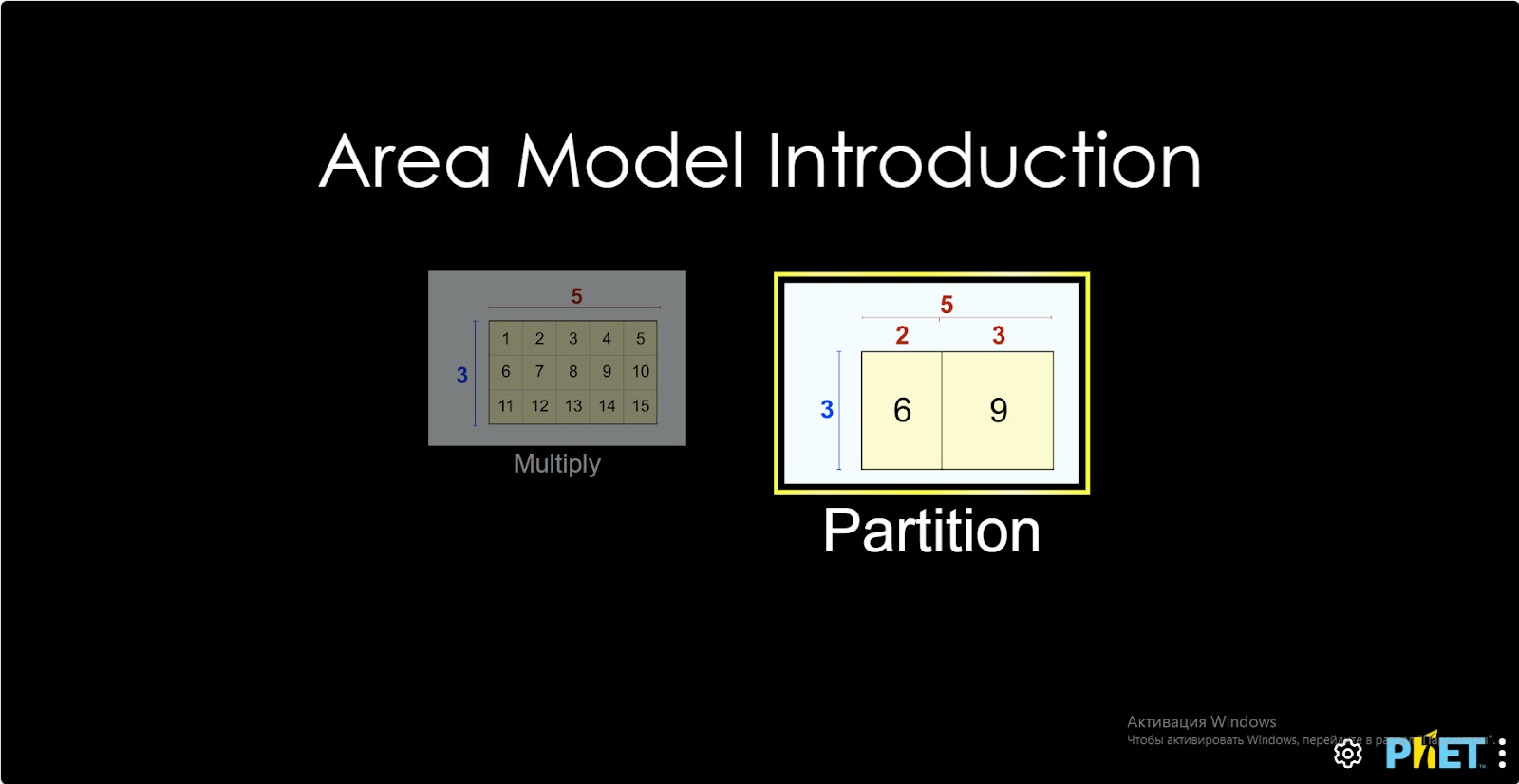
Step 1. Start the simulation: you will be presented with 2 different modes, “Multiply” and “Partition”. You will work on this experiment in the “Partition” section. Open the “Partition” section.
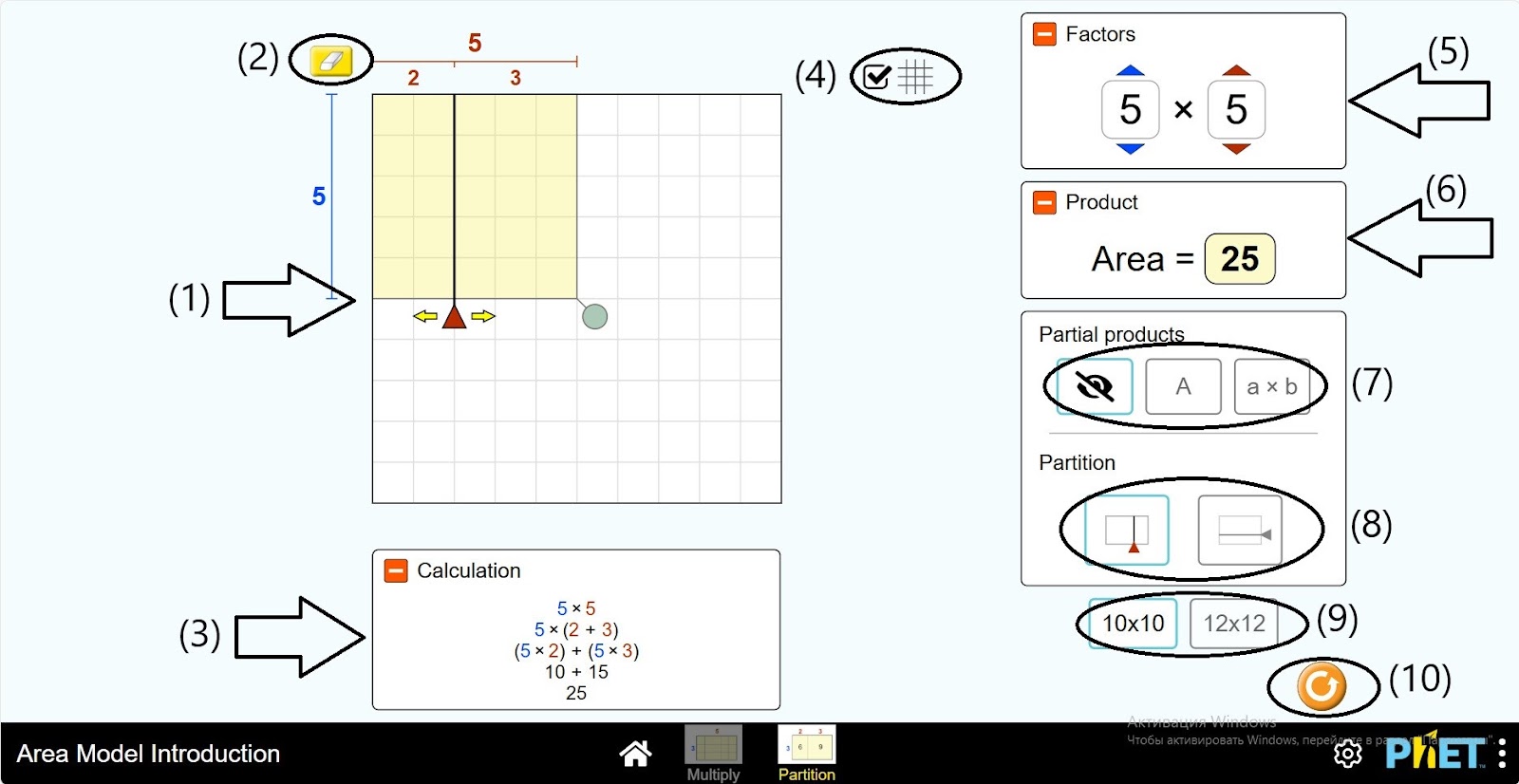
Step 2. Given to you in the workspace:
- A table of size 10*10 (1);
- Eraser (2);
- Calculations panel (3);
- Button to hide the grid in the table (4)
- Multiplication and multiplier number board (5);
- Multiplication results panel (6);
- Rectangle information in the table (7);
- Separation line: vertical and horizontal (8);
- Table size: 10*10 и 12*12 (9);
- Reload button (10).
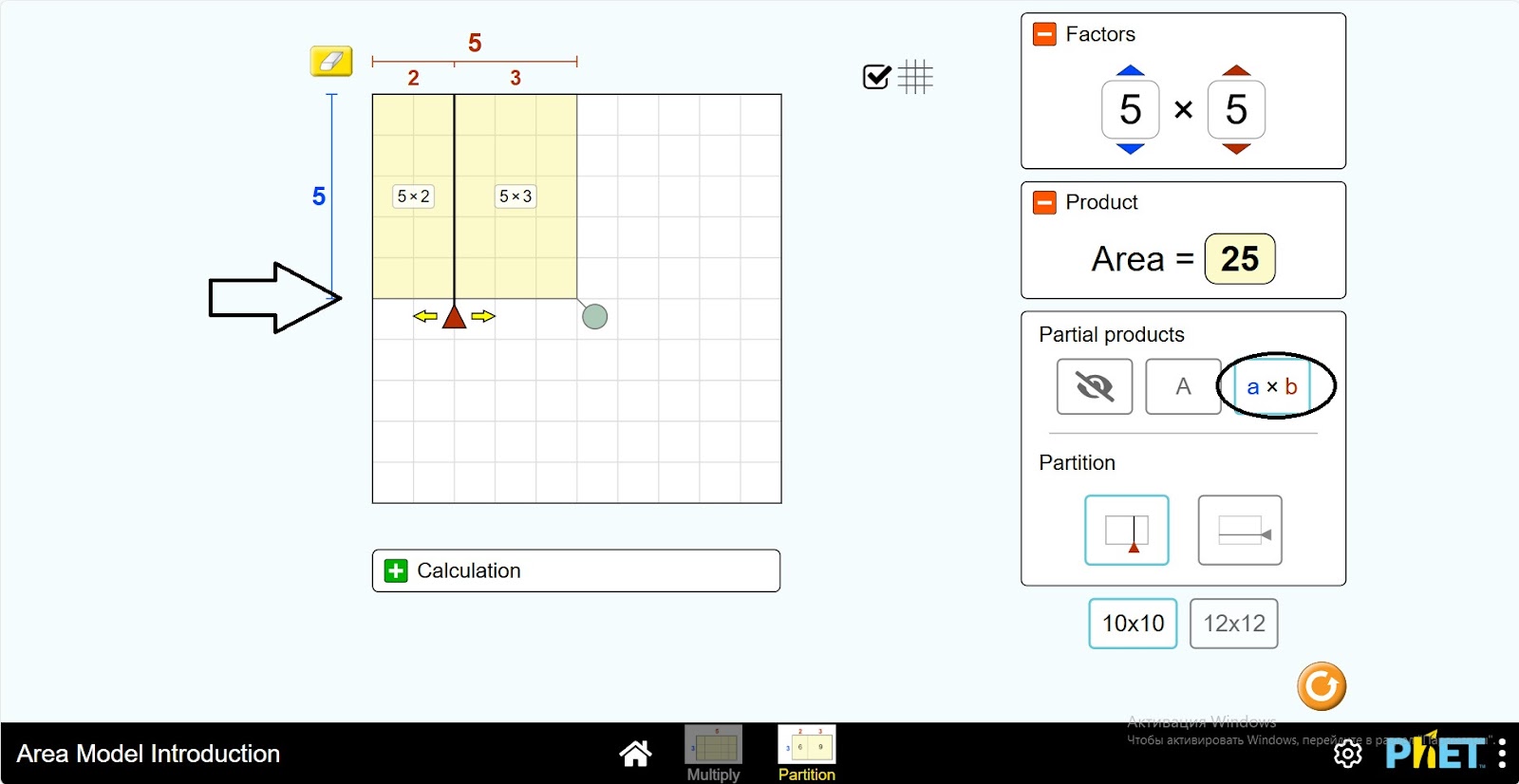
Step 3. The table presents a square of size 5*5. It is vertically divided into (2; 3) parts. The multiplier and multiplicand number board and the multiplication result board show the data. Click “a*b” from the rectangle information in the table. The expressions 5*2 and 5*3 appear on the parts of the square.
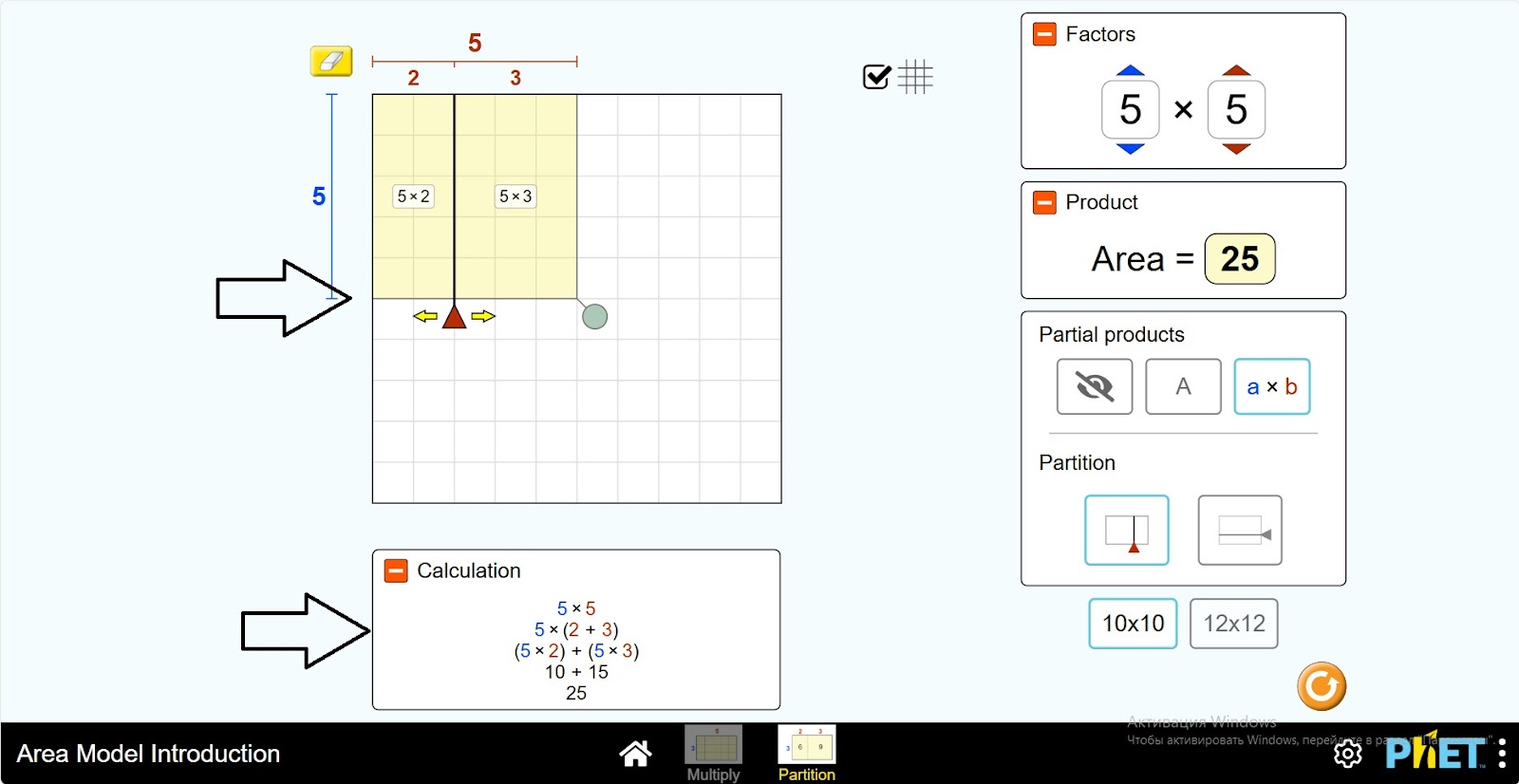
Step 4. Open the calculation panel. This shows the calculation of the area of the square. Because of the division by the vertical (2;3) part, the calculation is expressed as on the screen.
Step 5. Click the “A” button from the rectangle information in the table. In the 10 and 15 parts of the square – the values of the expressions 5*2 and 5*3 appear.
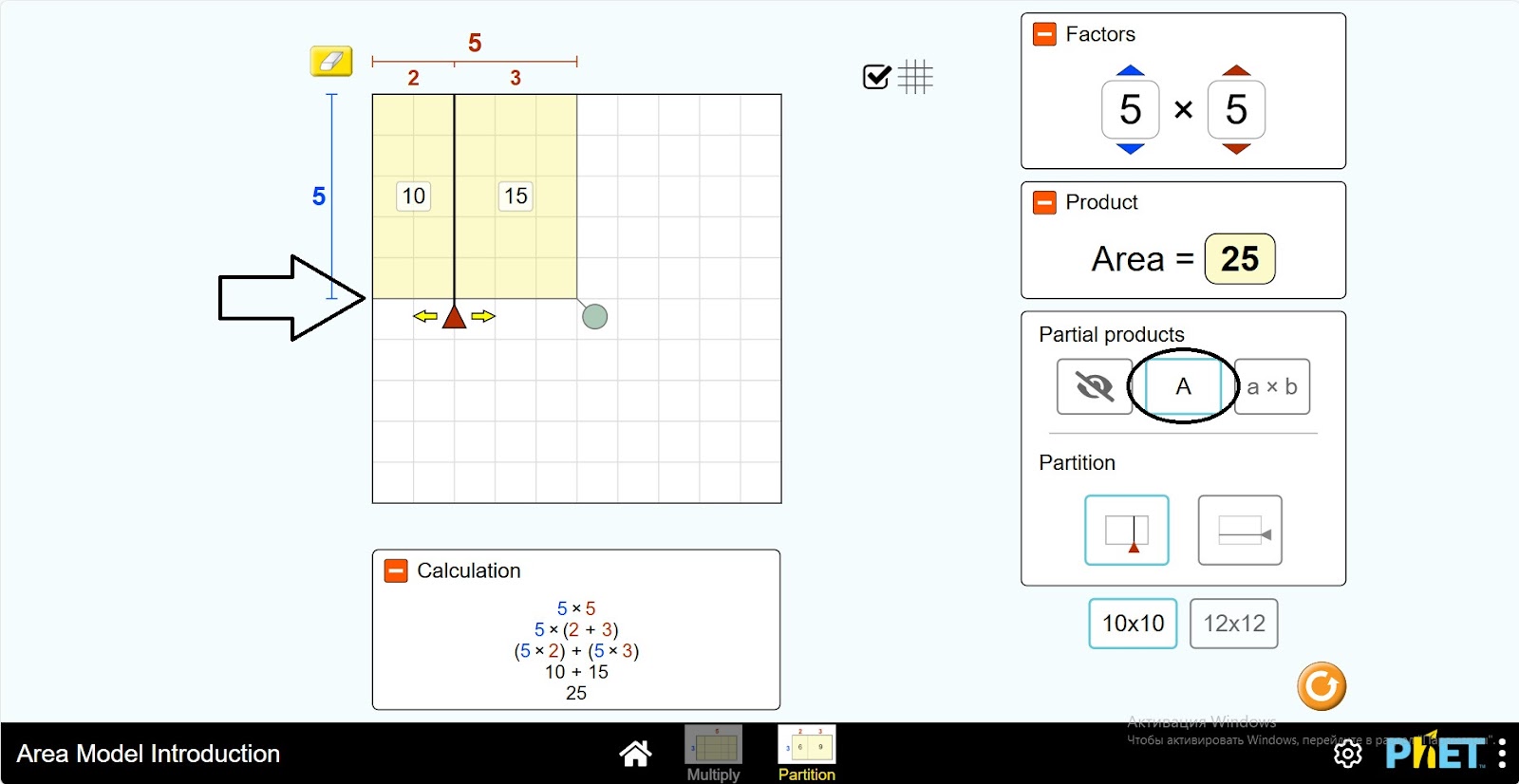
Step 6. Swipe the divider you are dividing right, left across the square and examine the changes in the data.
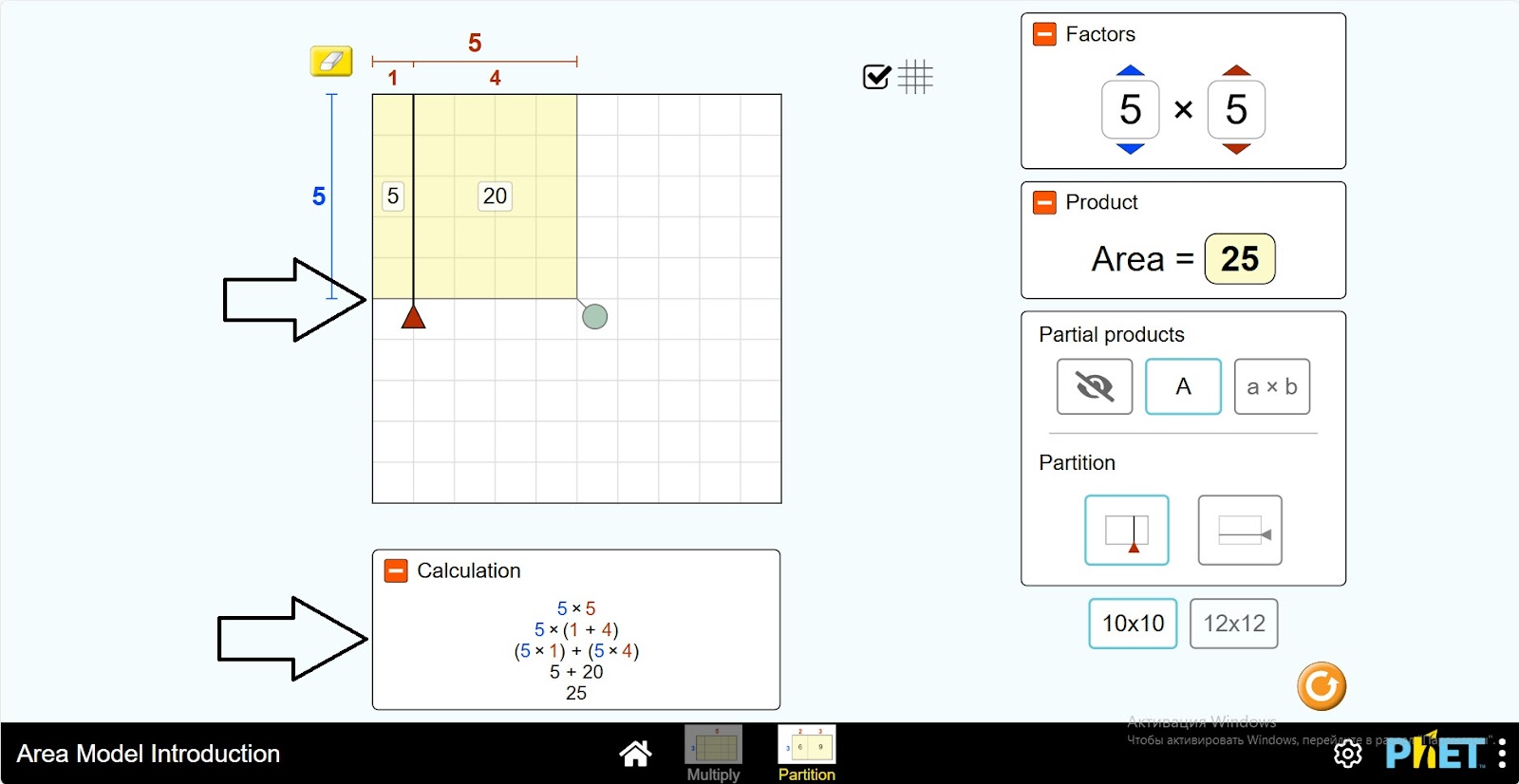
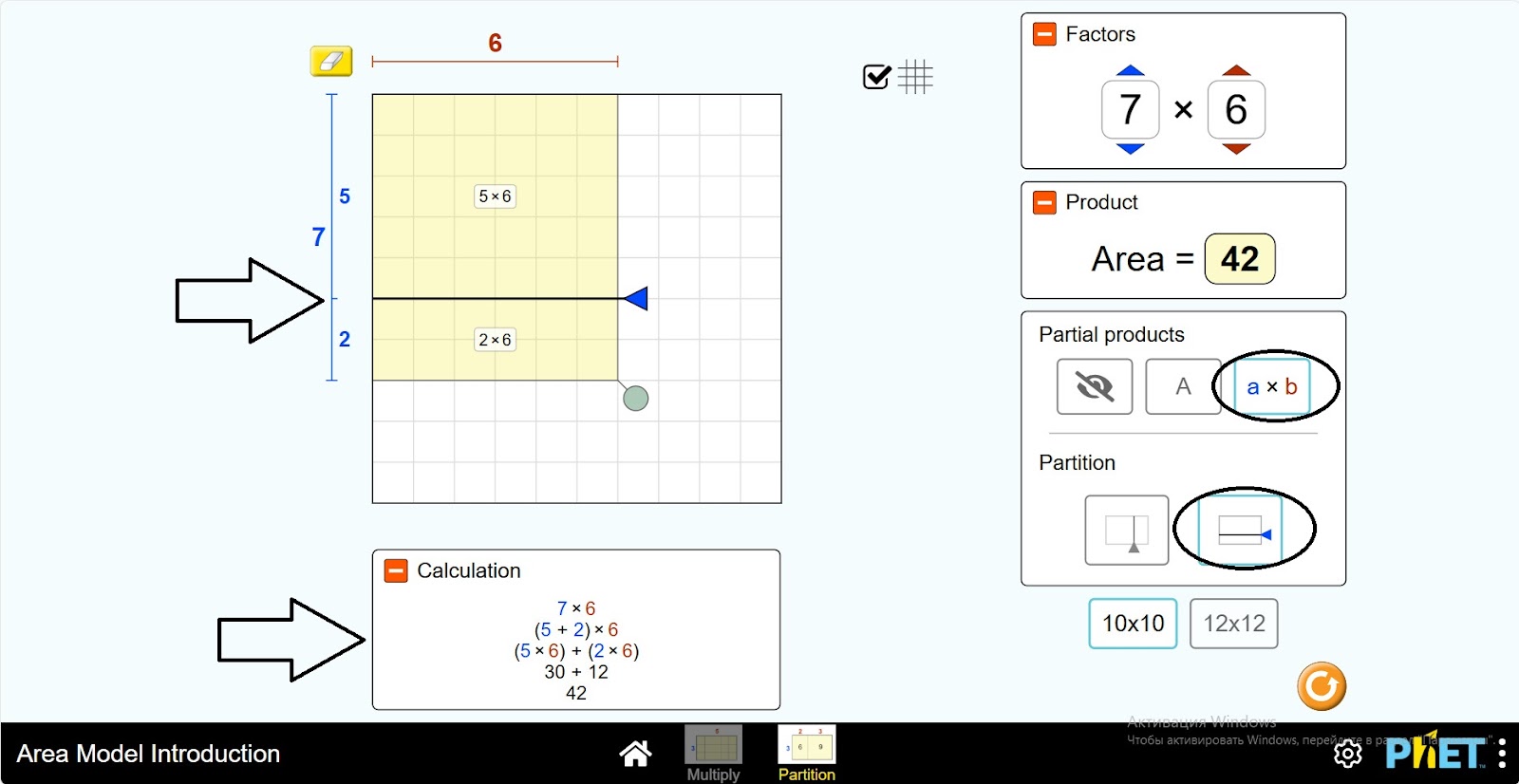
Step 7. Change the dividing line vertically to horizontal. Examine the data. Monitor the changes by moving the divider up and down.
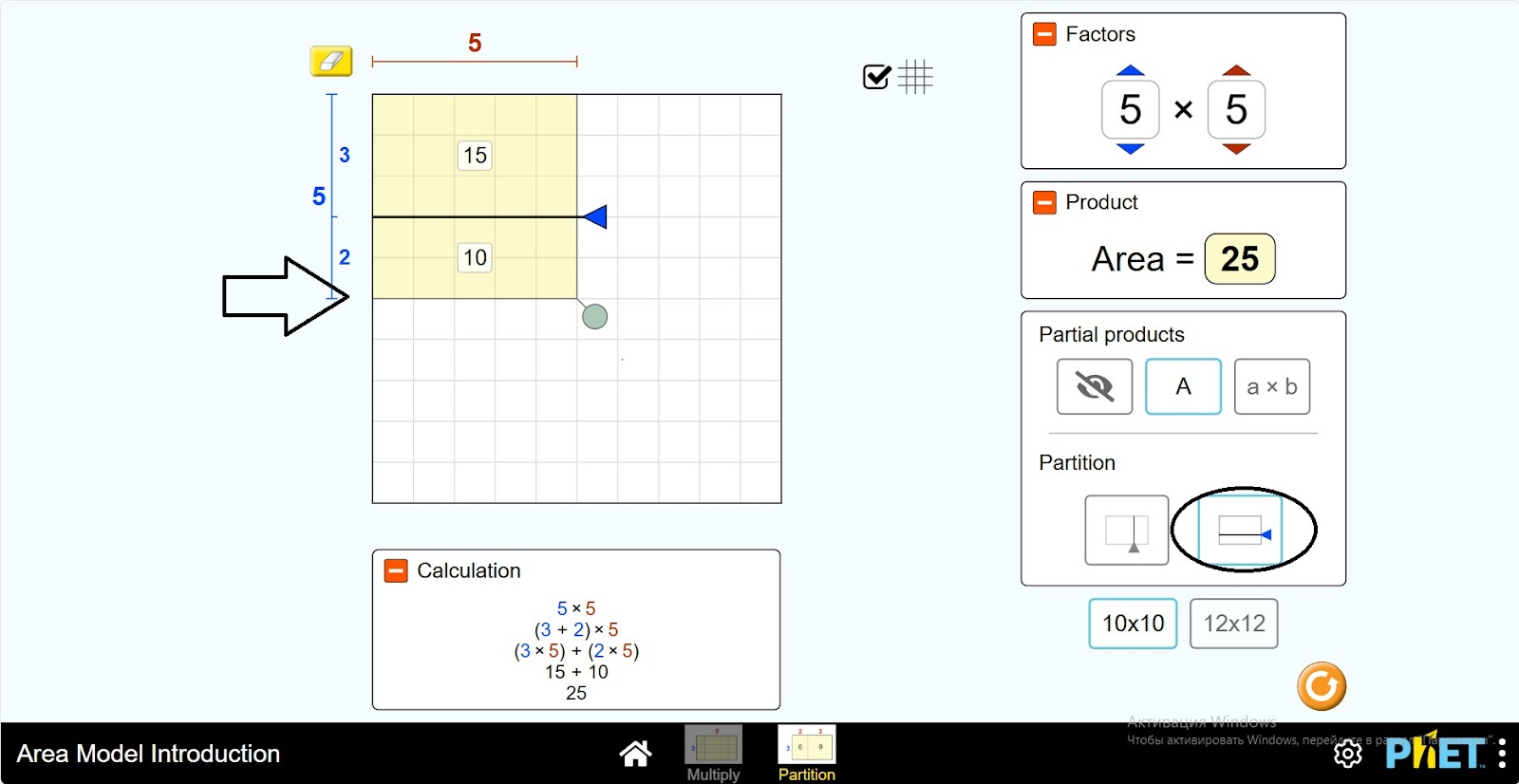
Step 8. Create a new rectangle size by clicking the green button next to the square. Examine the changes in the workspace.
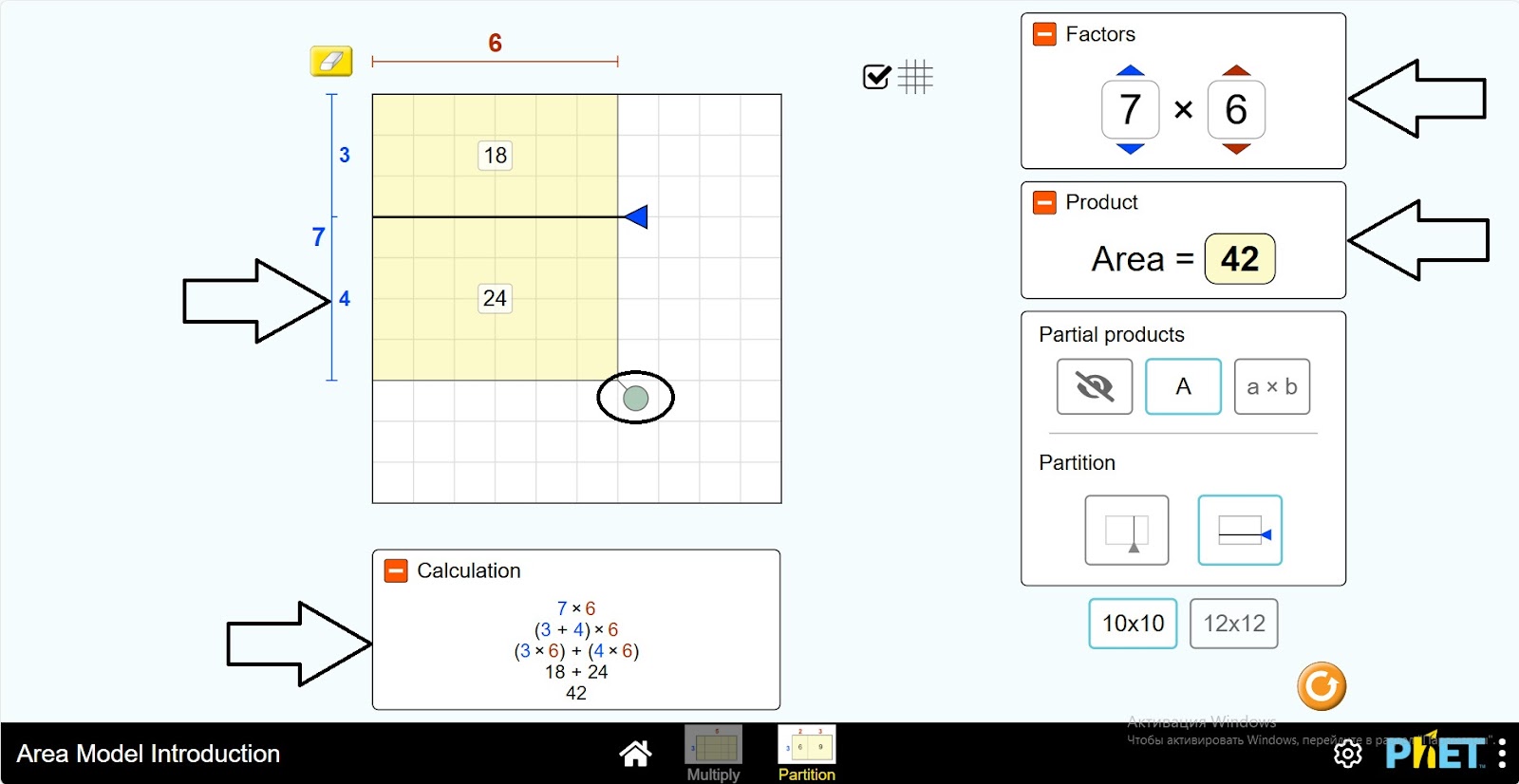
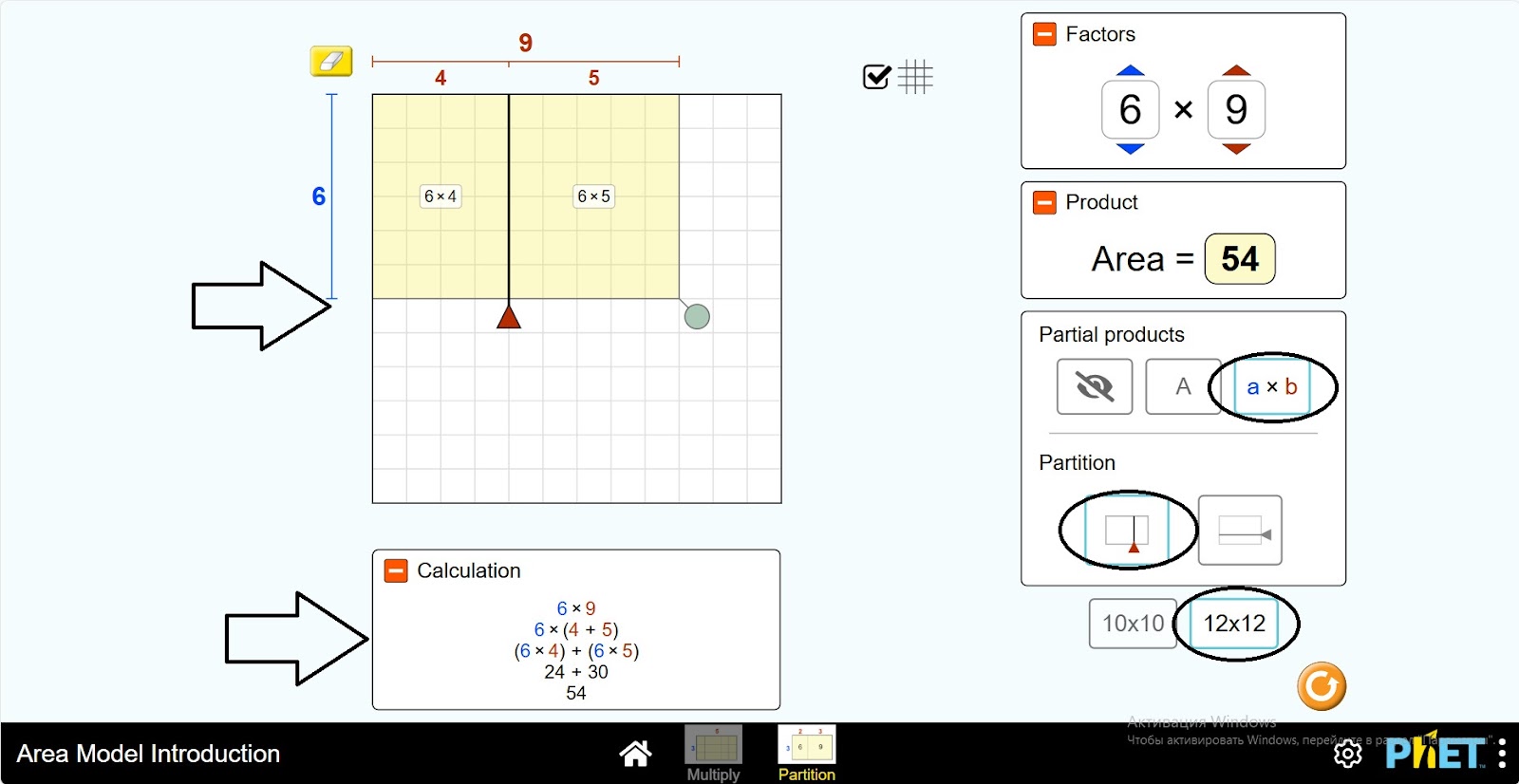
Step 9. Try changing the rectangle information in the table, and the separator line.
Step 10. You can change the size of the table to 12*12. Change the dimensions of the rectangle and calculate the squares.
Conclusion
In this virtual activity, students performed calculations related to area. Changing the size of the rectangle, dividing it into parts gave a deeper understanding of the subject.