
Comparison of rational numbers using a coordinate line
Number Line: Integers by PhET Interactive Simulations, University of Colorado Boulder, licensed under CC-BY-4.0 (https://phet.colorado.edu)
Objective:
- To perform addition and subtraction of whole numbers using a coordinate line;
- Perform addition and subtraction of rational numbers using the same and different symbols;
- To find distances between points on a coordinate line.
This virtual activity is designed to be used in the math lessons in the next chapter:
- Grade 6. “Rational numbers and applying techniques to them”
Theoretical part
1. Definition and representation
- Positive numbers are numbers greater than zero (0).
- Negative numbers are numbers less than zero (0).
- Zero (0) is neither a positive nor a negative number.
Examples:
- Positive numbers: 1, 2, 3, 10, 100, …
- Negative numbers: -1, -2, -3, -10, -100, …
2. Comparing positive and negative numbers on the number axis
- Positive numbers are to the right of zero on the number axis.
- Negative numbers are to the left of zero on the number axis.
- The further a number is from zero, the greater it is (modulo).
3. Modulus of a number
The modulus of a number is its absolute value, i.e., its distance from zero. The modulus of a number is always a non-negative number.
Notation: The modulus of a is written as |a|.
Examples: |5| = 5, |-3| = 3, |0| = 0.
Virtual Experiment
In the “number line: integers” simulation, students can explore the many contexts in which integers can be compared to integers on a number line. After students explore height, bank accounts, and temperature, they can make generalizations about comparing integers and determine absolute value. On the Explore screen, students can compare integers in different contexts. On the Generic screen, students can compare whole numbers on different scales and begin to define absolute value in a general way.
Workflow:
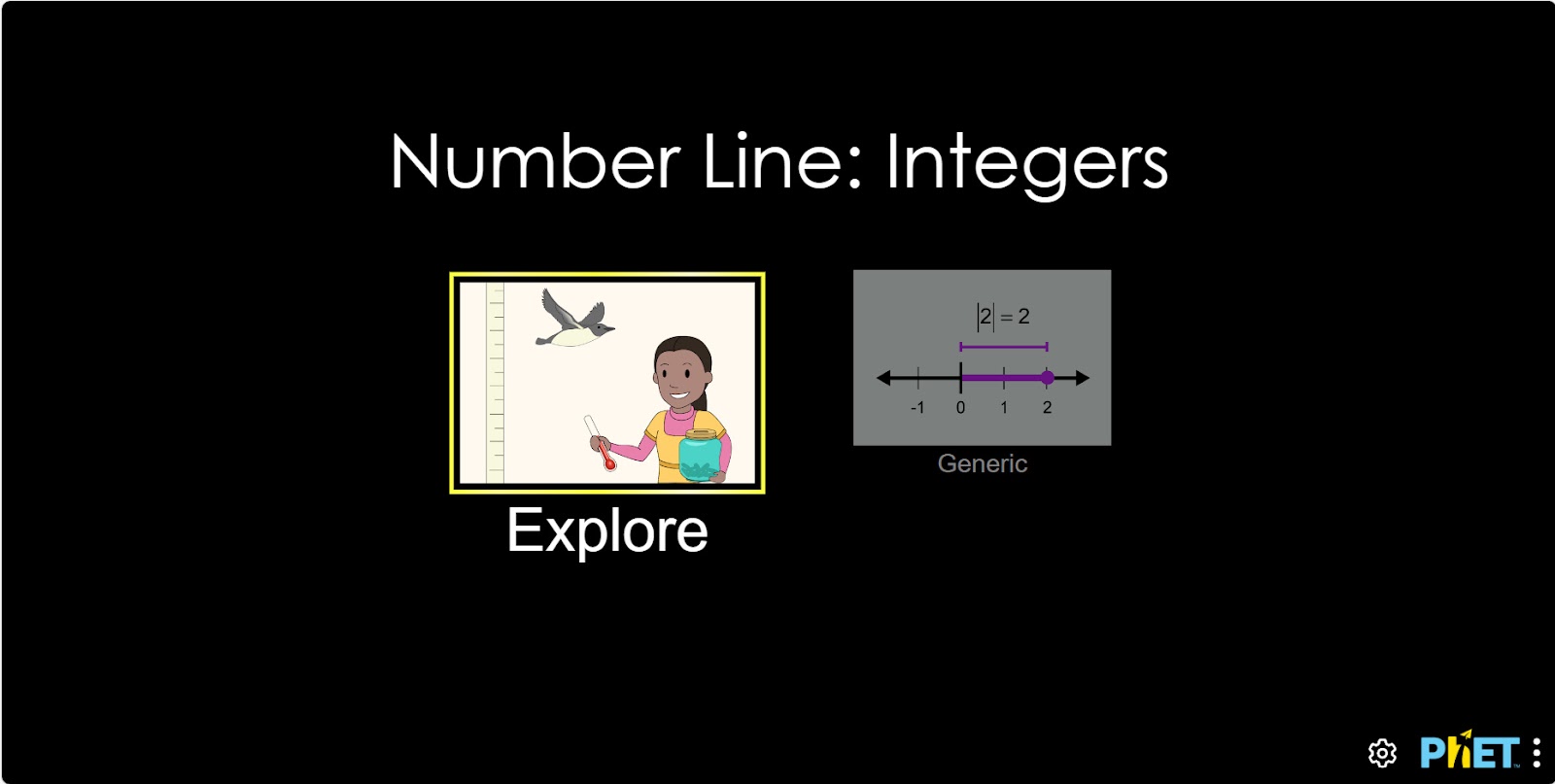
Step 1. Start the simulation: You will be given 2 different modes, “Explore” and “Generic”. Open the “Explore” section.
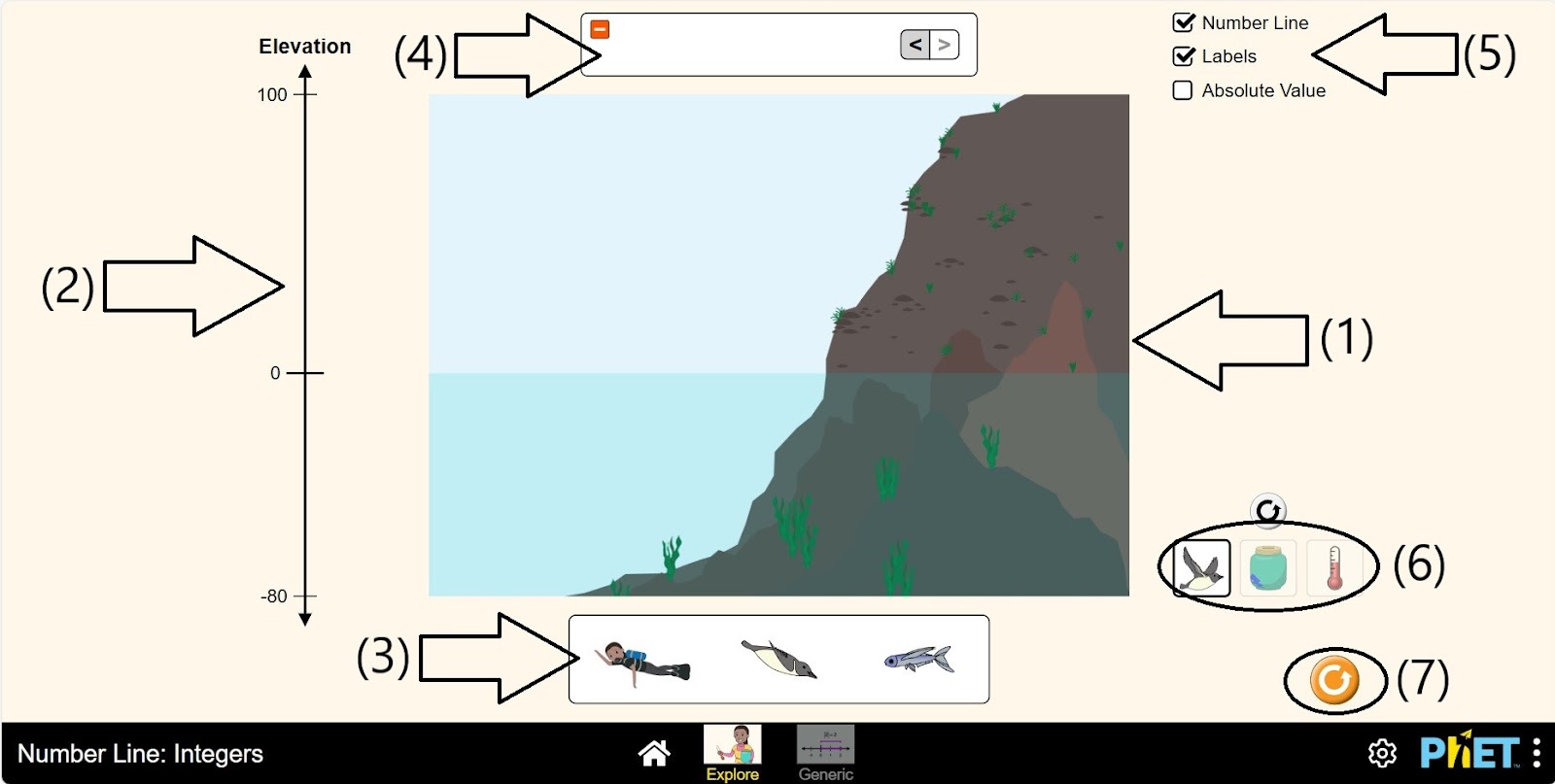
Step 2. In the work area you are given:
- A plane on which the bodies are located: sky, water, mountain (1);
- A coordinate axis showing the height (2);
- Bodies to place: human, bird, fish (3);
- Comparison panel (4);
- Buttons for displaying and hiding data on the coordinate axis (5);
- Different conditions for calculation (6);
- Reload button (7).
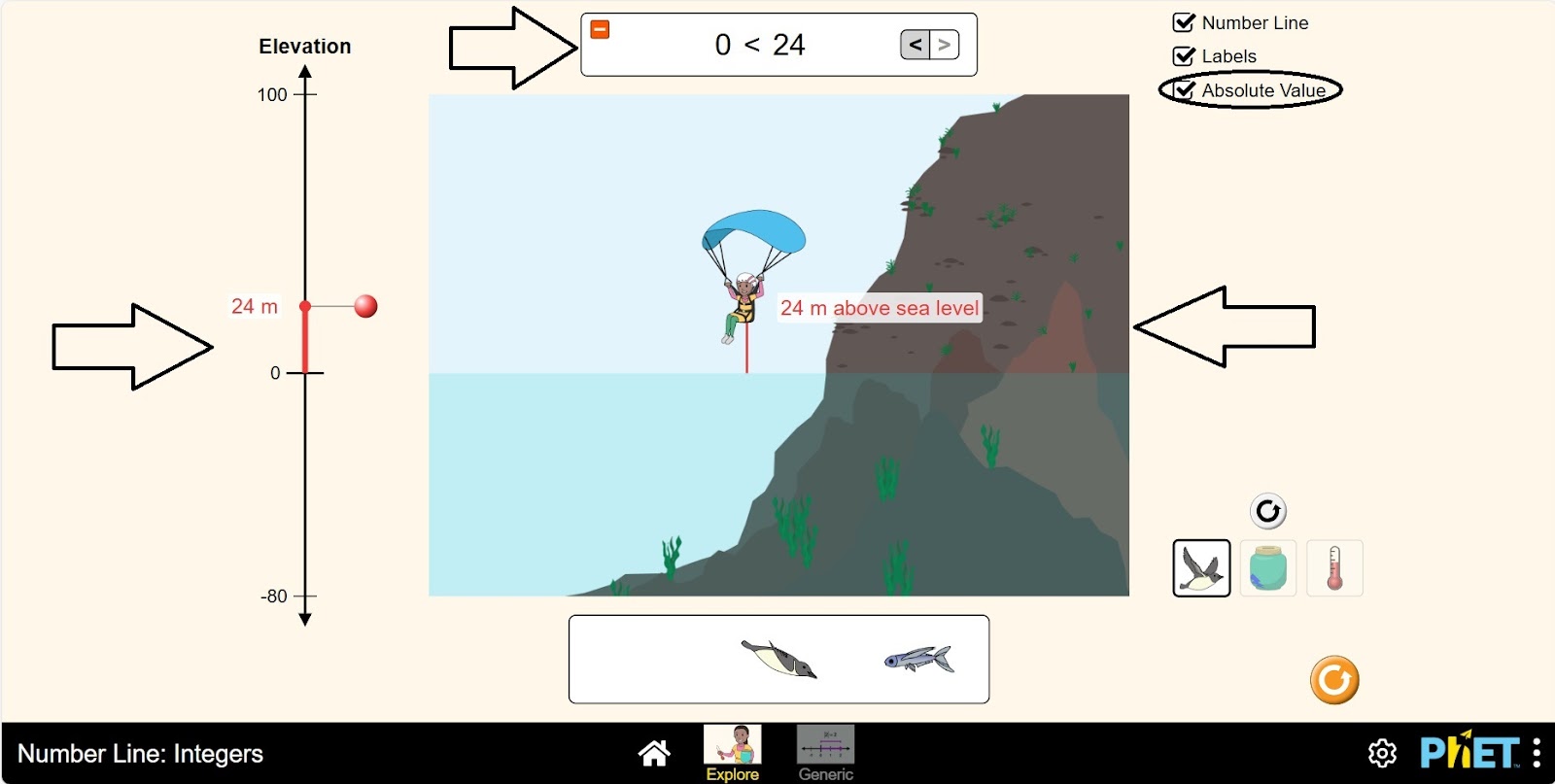
Step 3. Position the person on the plane. Start the absolute value button. Explore the data from the coordinate axis associated with altitude, moving the person across the water, sky, and mountains.
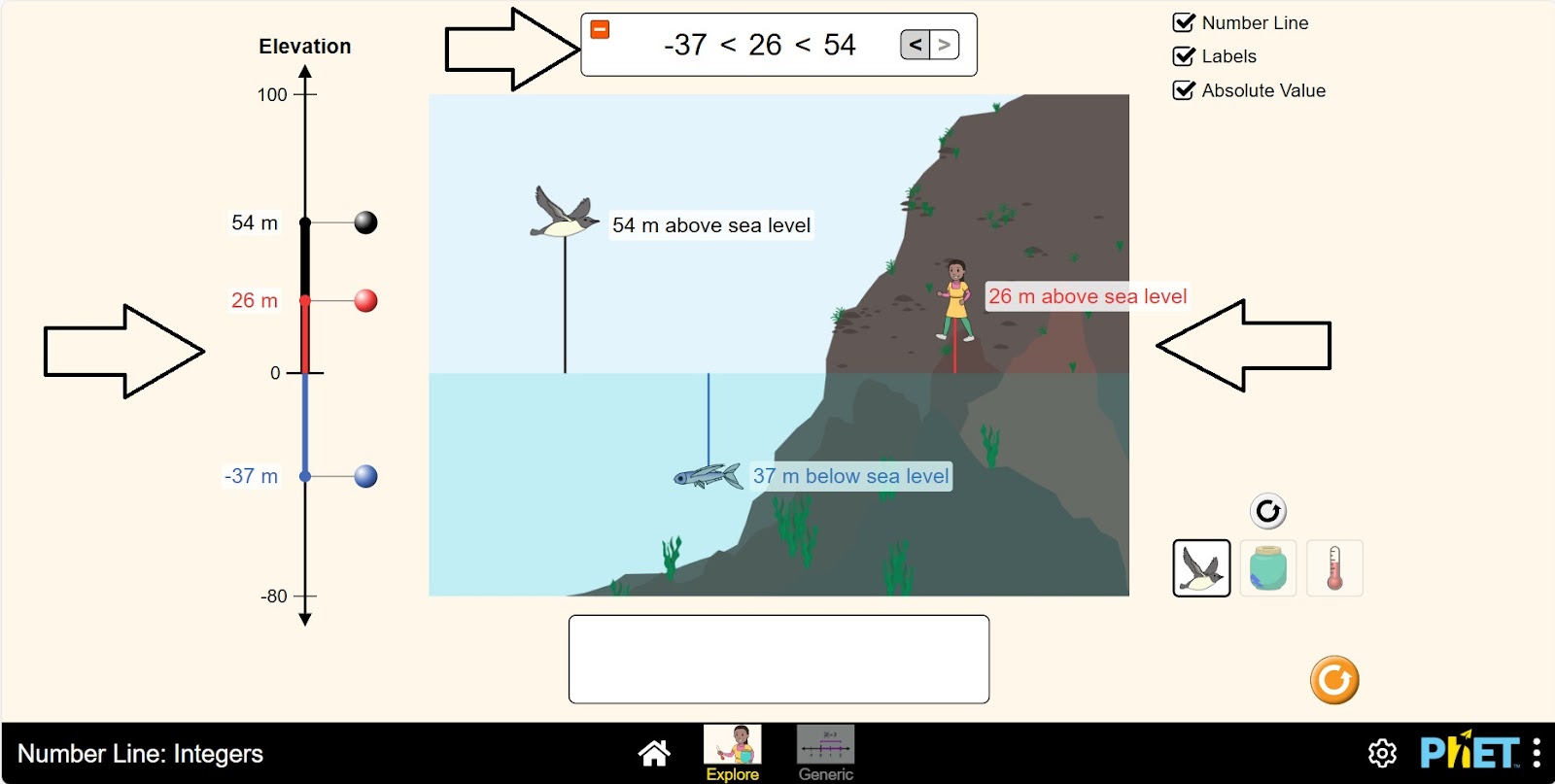
Step 4. Place the bird and fish on the plane. Explore data from the comparison panel by moving 3 objects to different locations on the plane.
Step 5.Open the section with the piggy bank image. You are given:
- A coordinate axis representing a balance, with a collector box (1);
- Buttons for removing a coin from the piggy bank and inserting it into the piggy bank (2);
- Comparison panel (3);
- Buttons for displaying and hiding coordinate axis data (4);
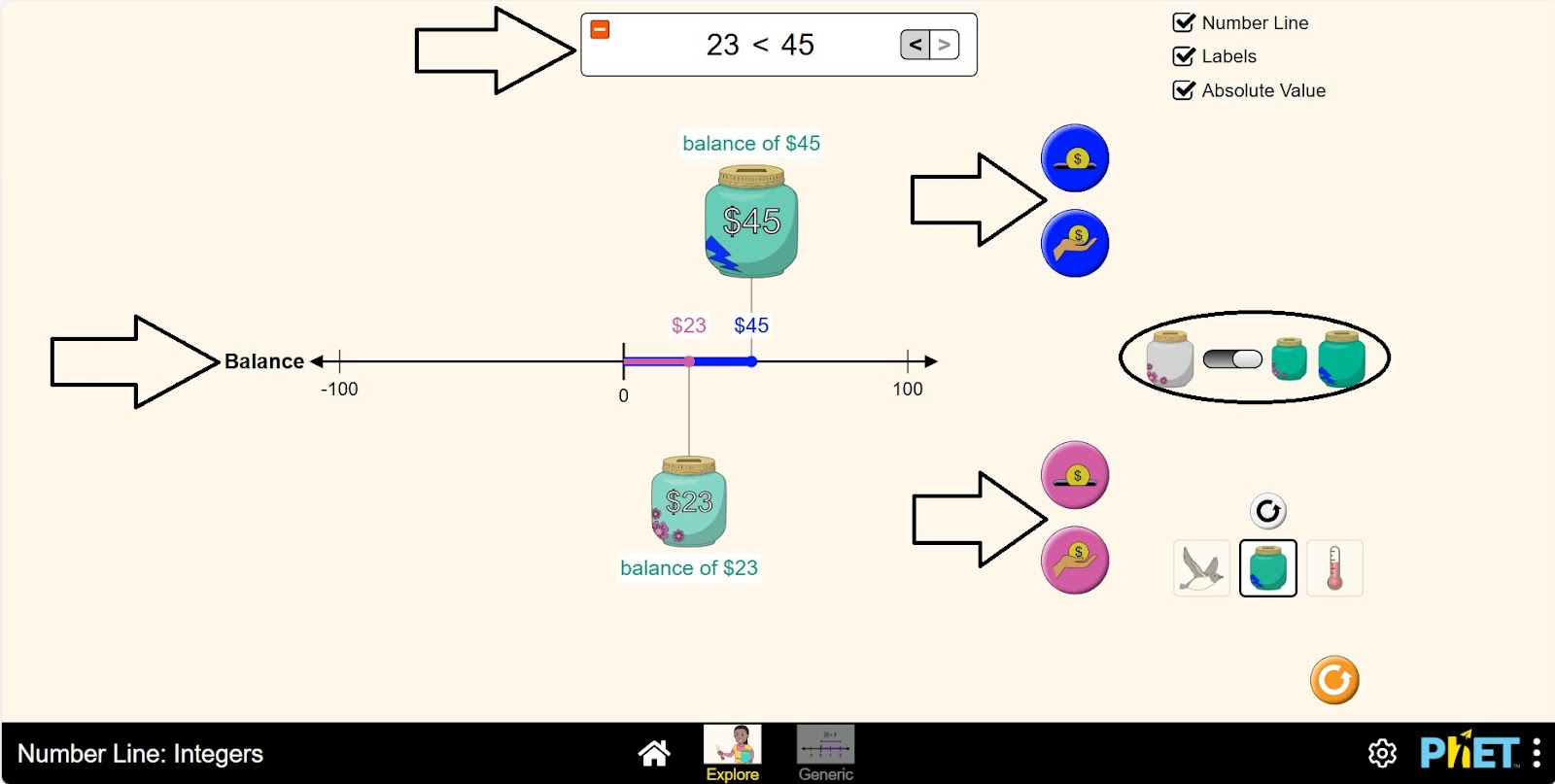
- Adding 2 coordinate axis piggy banks showing the balance (5);
- Different conditions for calculation (6);
- Reload button (7).
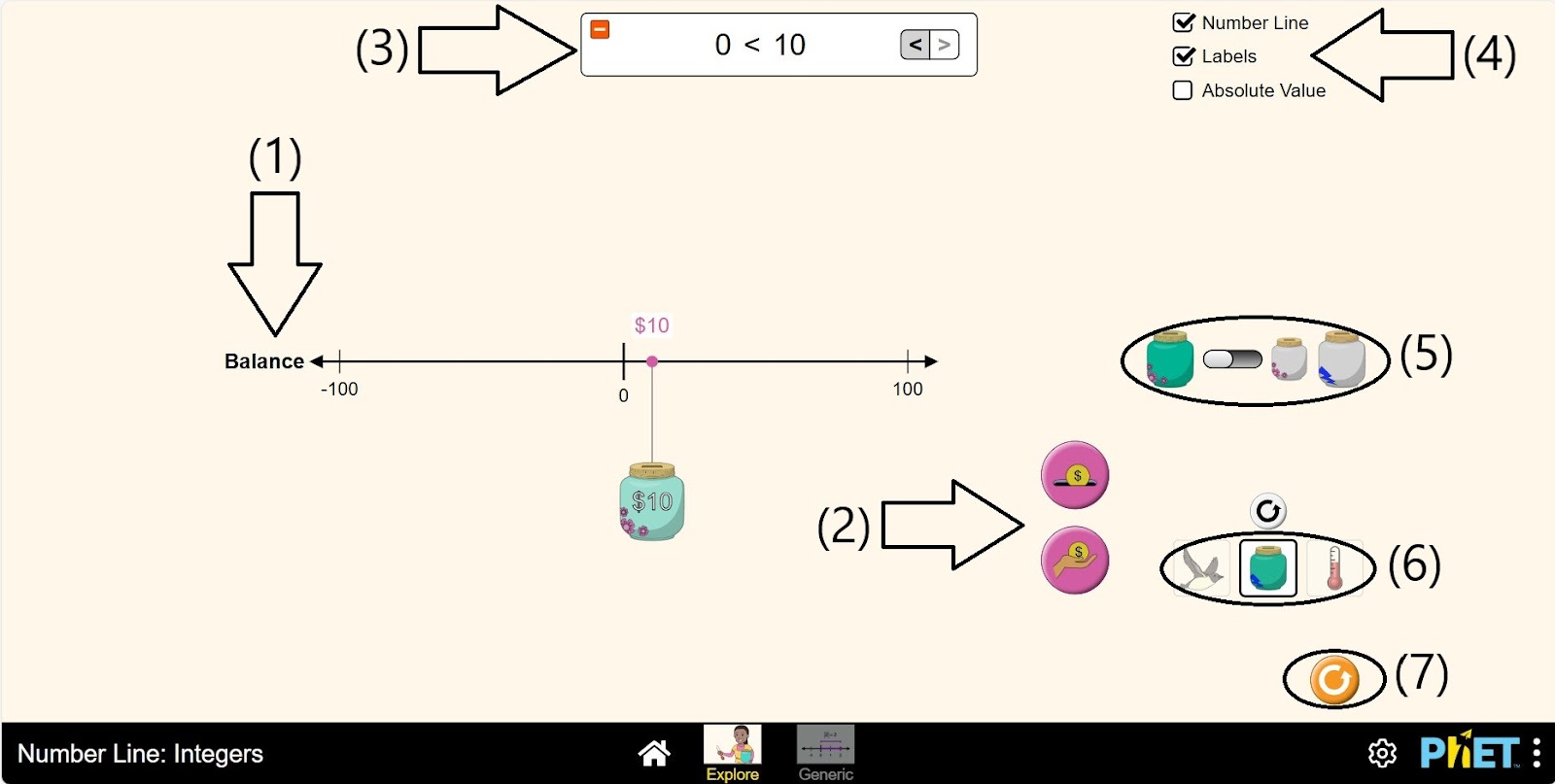
Step 6. Click the absolute value. Do some operations and make a comparison by picking up and licking a coin on the piggy bank.
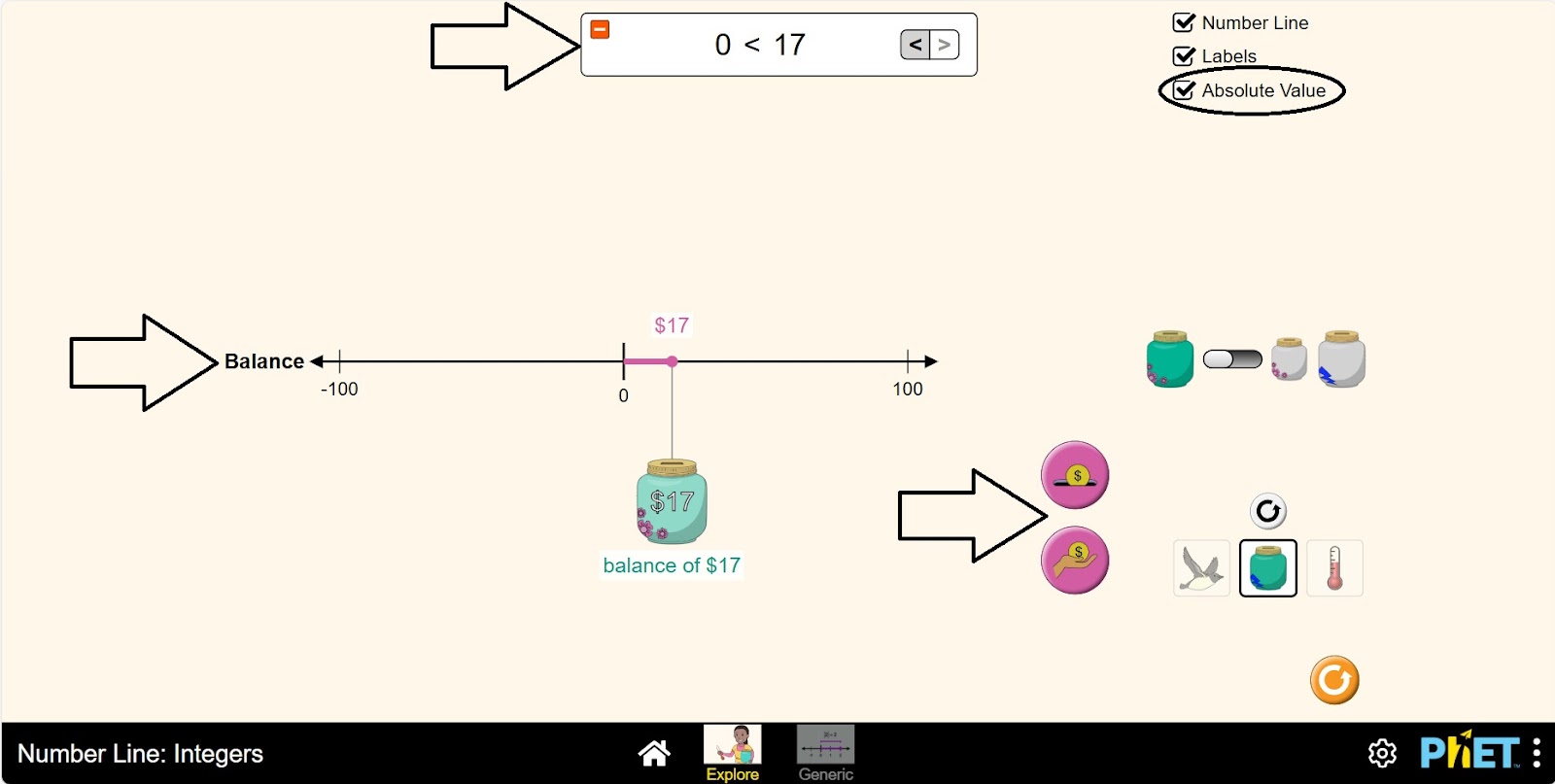
Step 7. Add 2 piggy banks to the coordinate axis that shows the balance. Do a comparison by counting the coins in these 2 piggy banks.
Step 8. Open the section showing the thermometer. You are given:
- A map of the world (1);
- A coordinate axis showing temperature: Fahrenheit and Celsius (2);
- Thermometers to measure the temperature at different locations on the map (3);
- Comparison panel (4);
- Buttons to show and hide coordinate axis data (5);
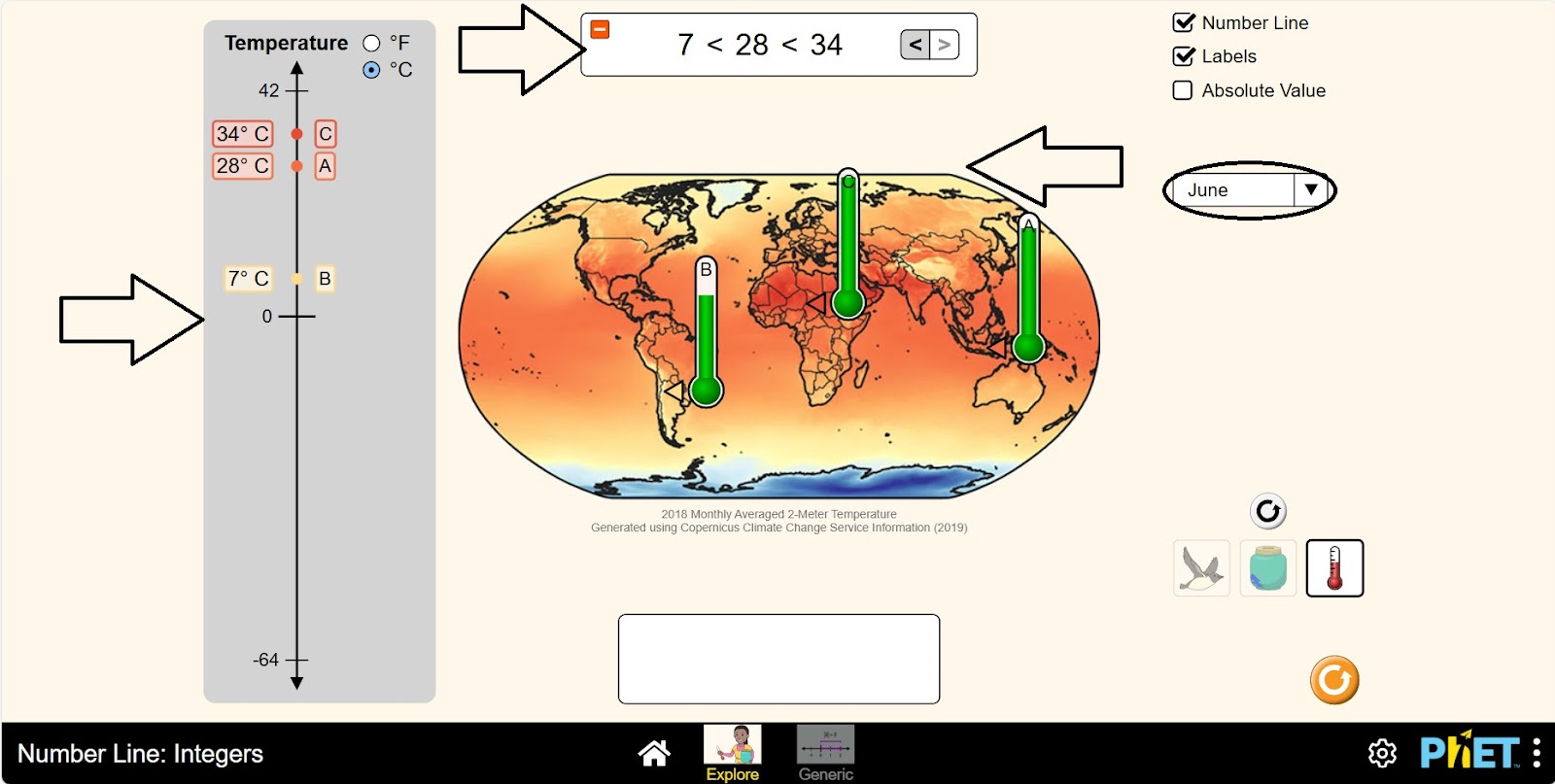
- Month selection panel to see temperatures for different months around the world (6);
- Different conditions for calculation (7);
- Reset button (8).
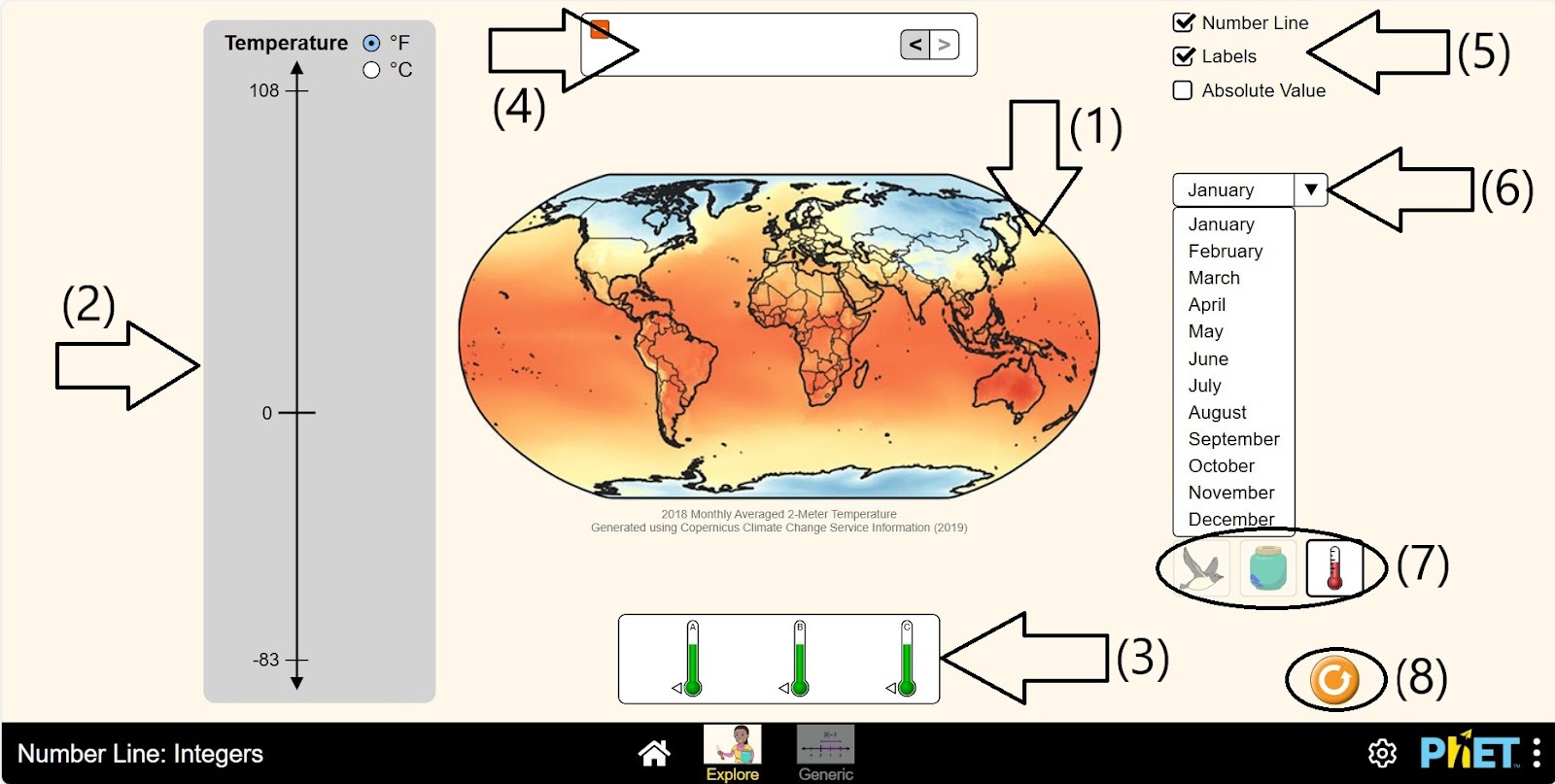
Step 9. Change the unit of temperature measurement to degrees Celsius. Place the thermometer on the map and measure temperatures in different parts of the Earth.
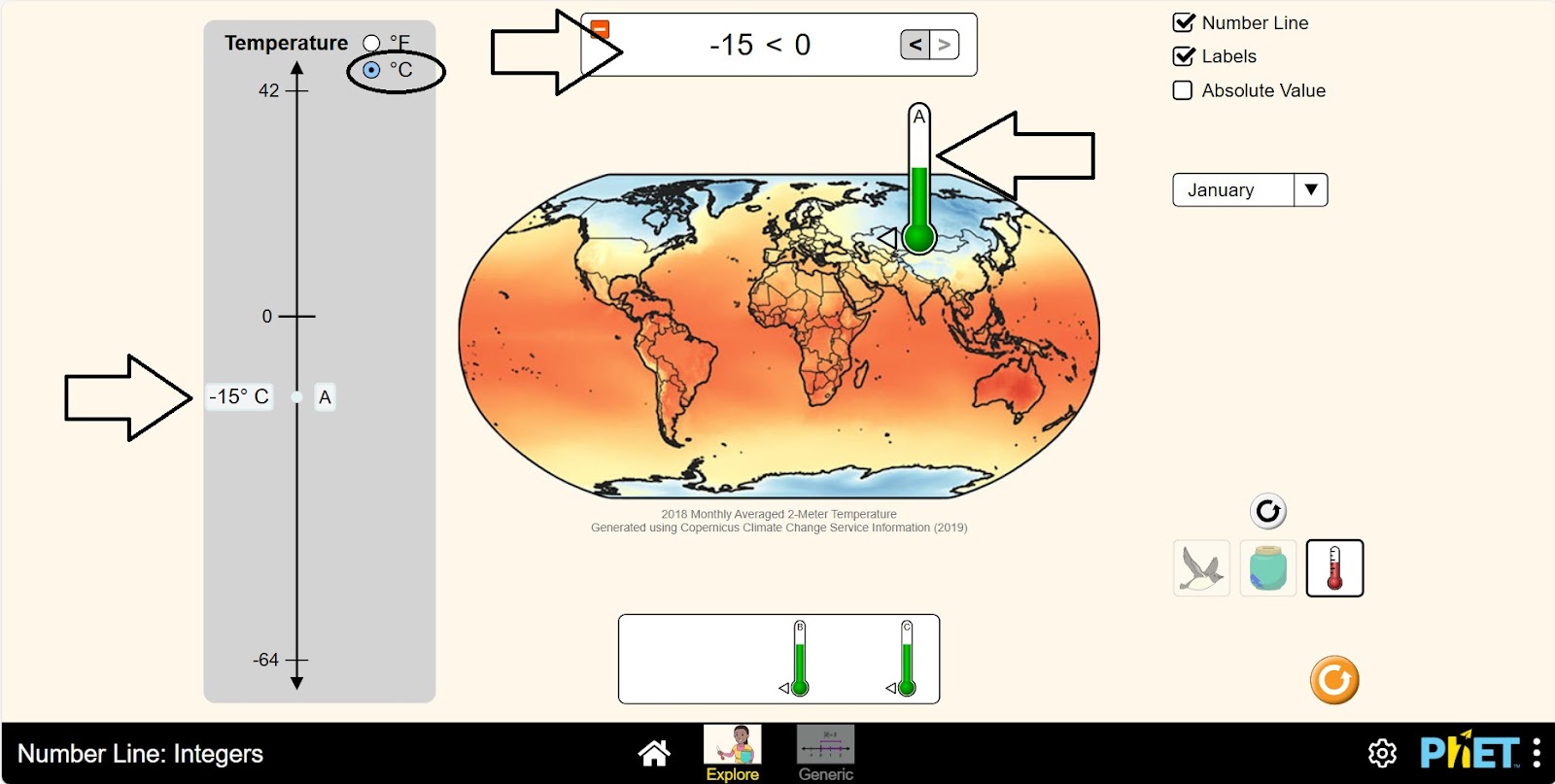
Step 10. Place the remaining 2 thermometers on the map and make a comparison by examining the temperature changes in each part of the world.
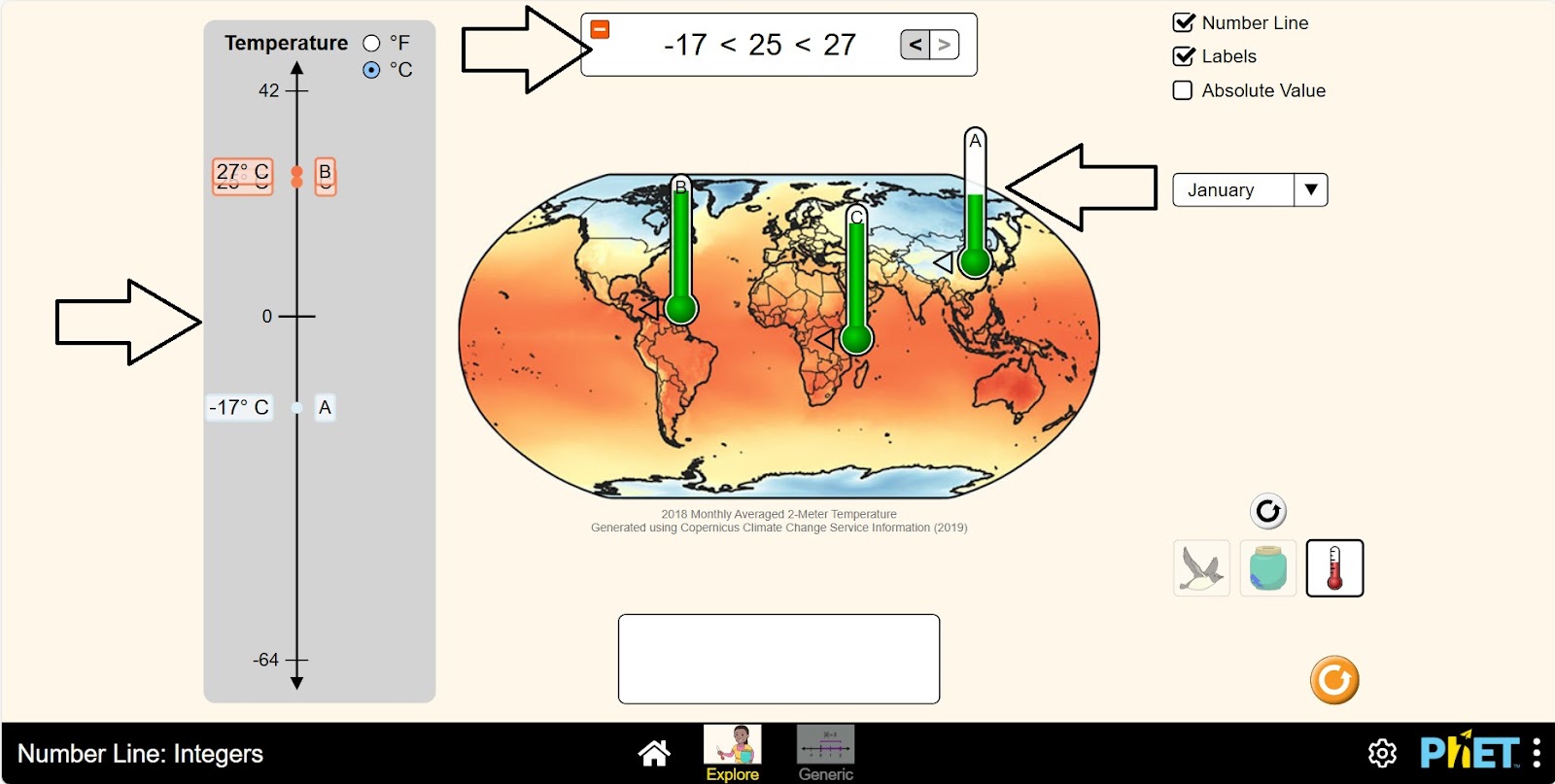
Step 11. Change the month from January to another month and examine and compare the temperature changes.
Step 12. Open the Generic section. In the workspace you are provided with:
- Coordinate axis (1);
- Placement points (2);
- Comparison panel (3);
- Buttons to show and hide coordinate axis data (4);
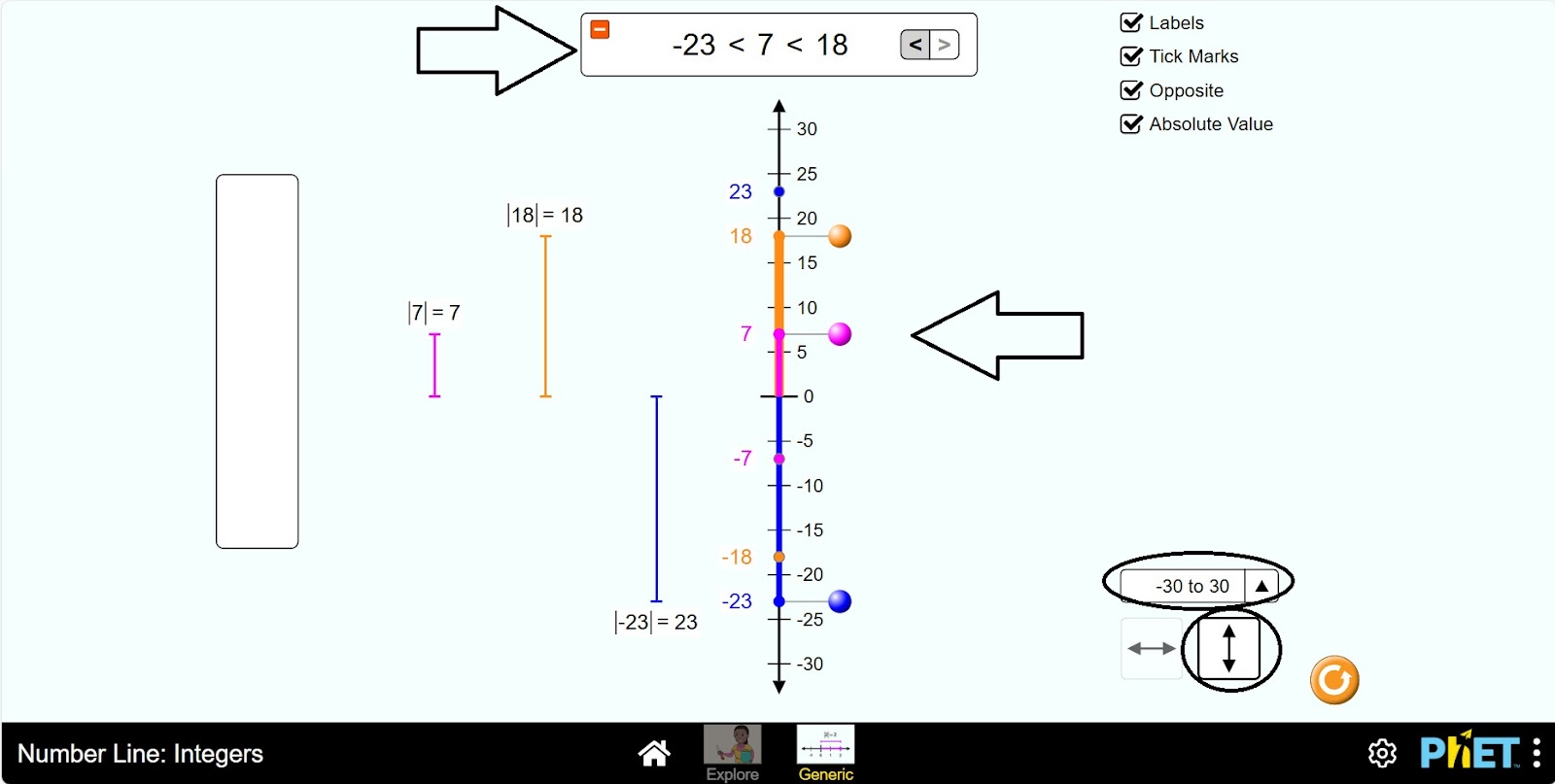
- Coordinate axis length: (-10;10), (-30;30), (-100;100) (5);
- Coordinate axis location: horizontal and vertical (6);
- Reload button (7).
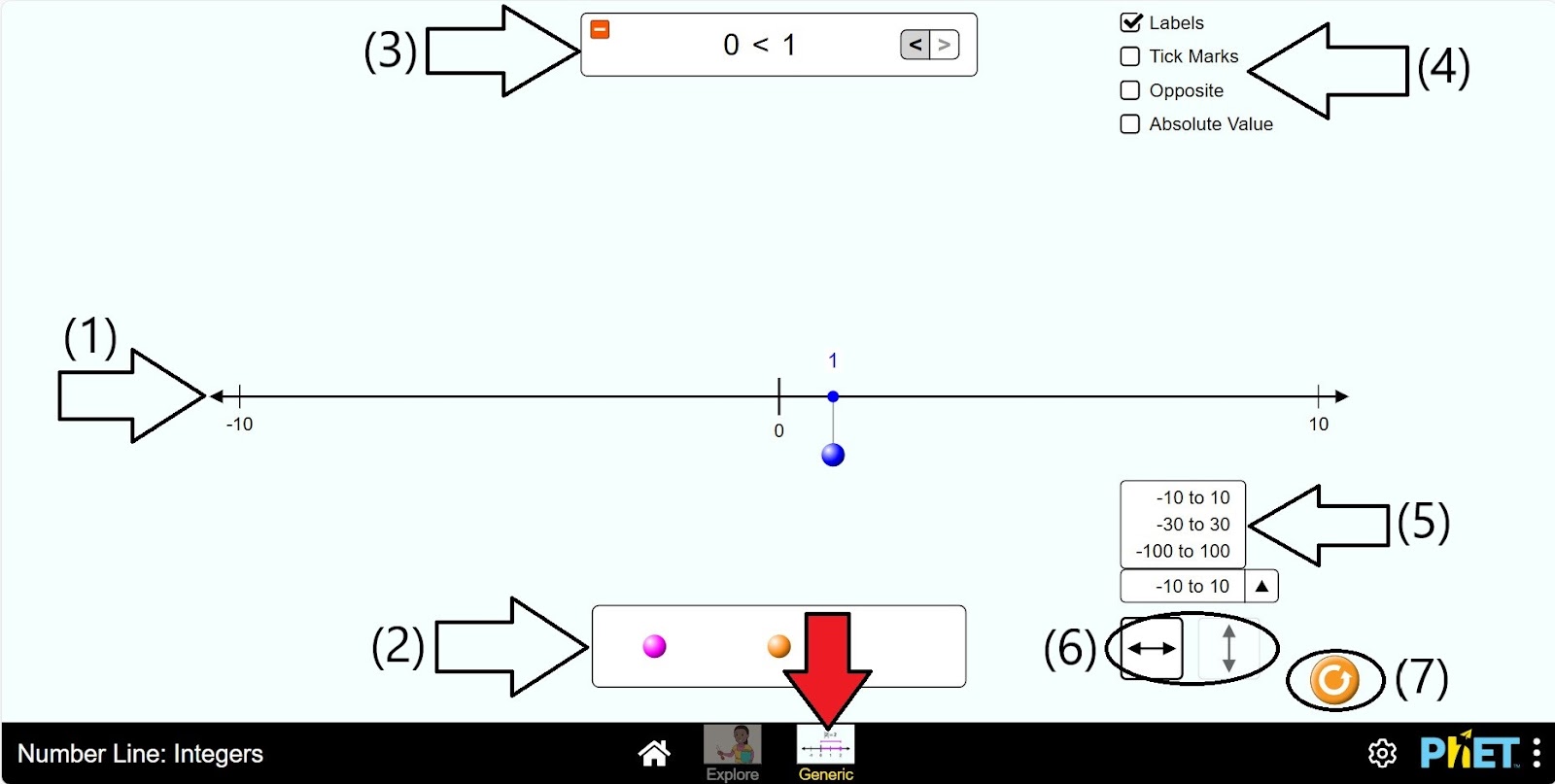
Step 13. Activate the data display buttons on the coordinate axis. Explore the data by moving the point on the coordinate axis.
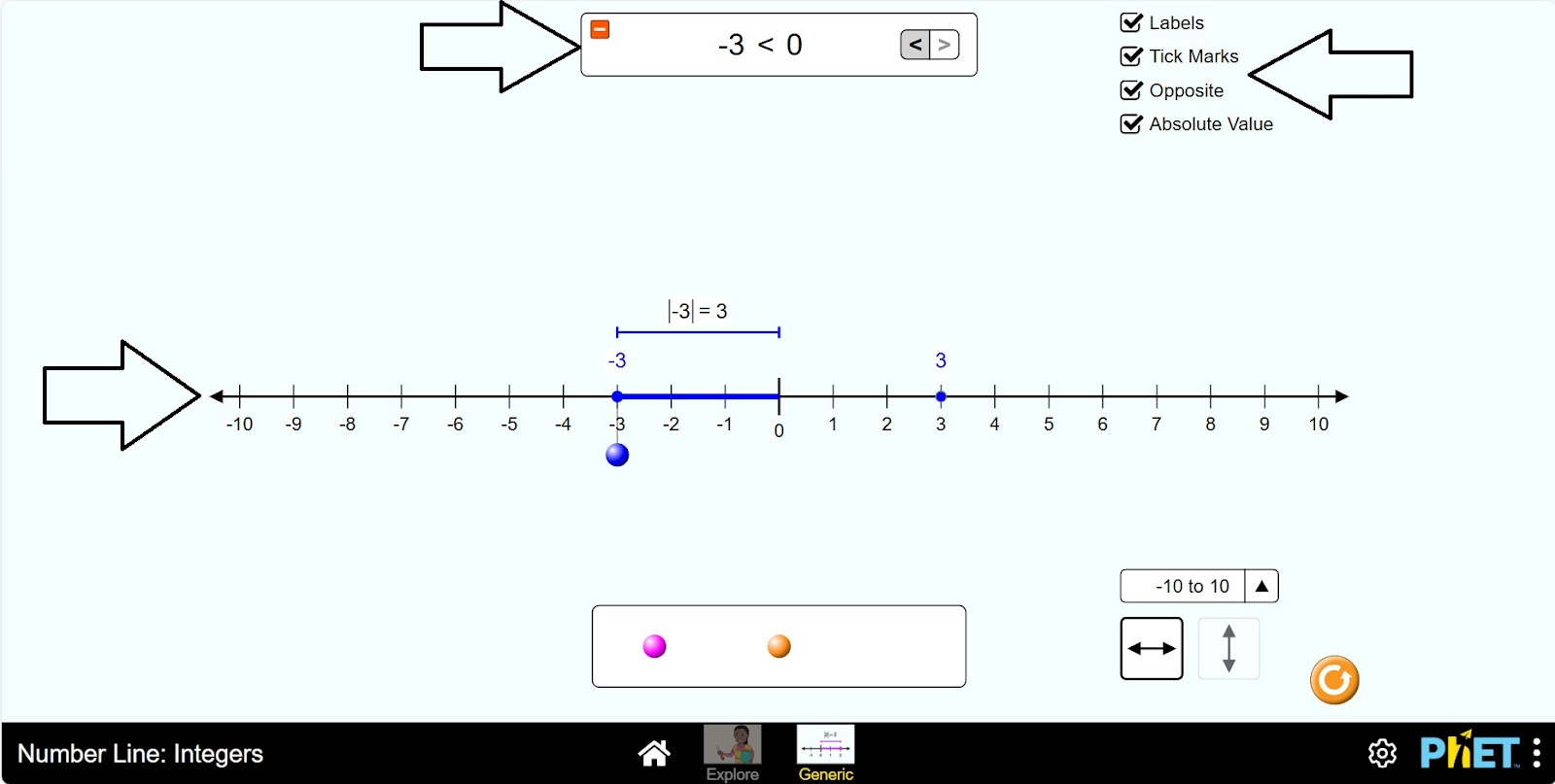
Step 14. Add 2 more points to the coordinate axis and make a comparison by moving them.
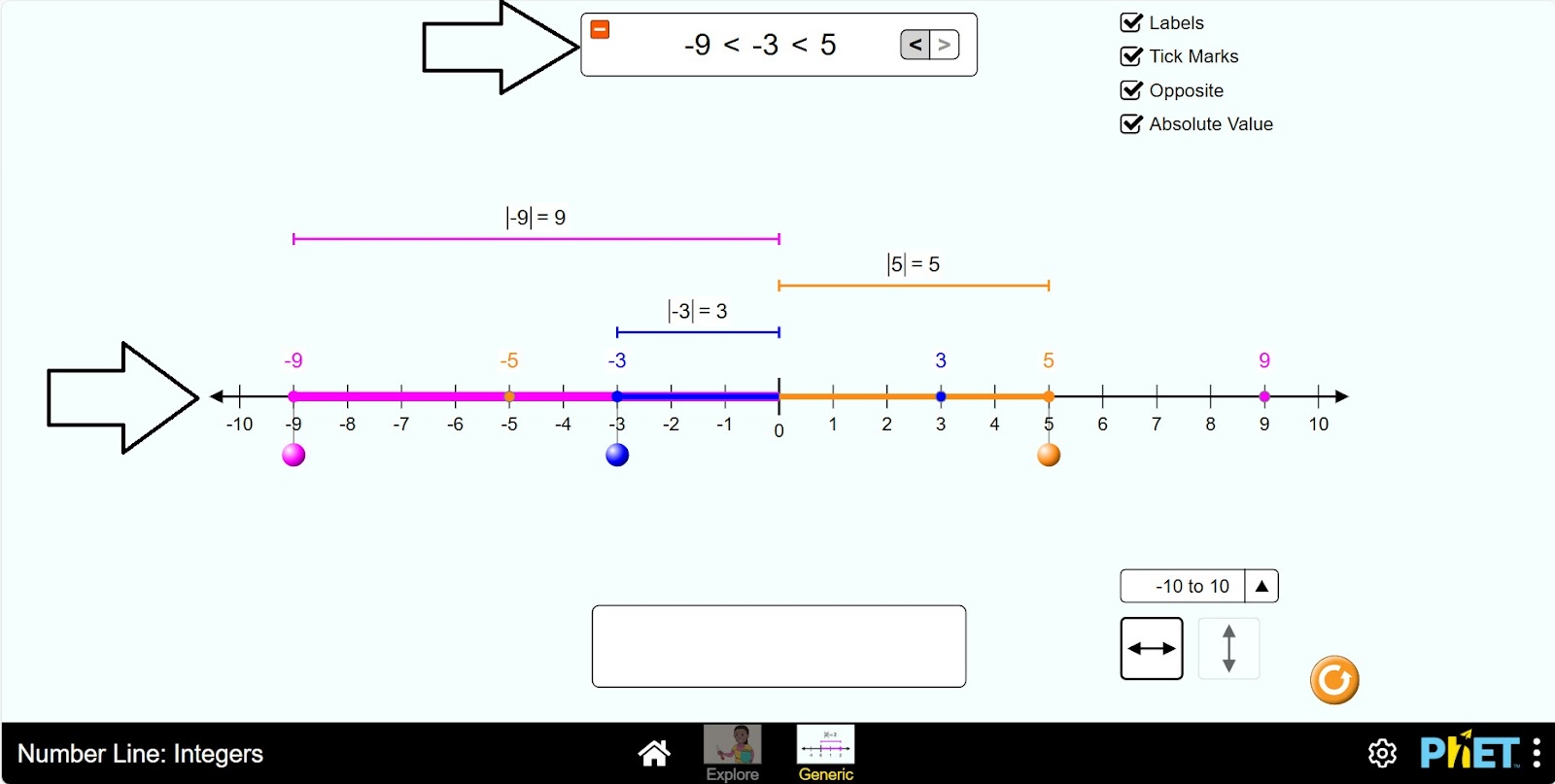
Step 15. Change the length and position of the coordinate axis and make some more comparisons.
Conclusion
The simulator can be an aid in mastering the concept of absolute value so that students can familiarize themselves with negative numbers. Describing the position of a point in a number line with respect to another number, describing the position of a number line with respect to the opposite side of a point, they made sure that the negative number was smaller than the positive number each time.