
Lesson 2
The theoretical part
Scratch is the world’s largest programming community for children and a programming language with a simple visual interface that allows young people to create digital stories, games and animations. Scratch develops computational thinking and problem solving skills; creative teaching and learning; self-expression and collaboration; and equality in computing.
First, let’s get acquainted with the interface and navigation.
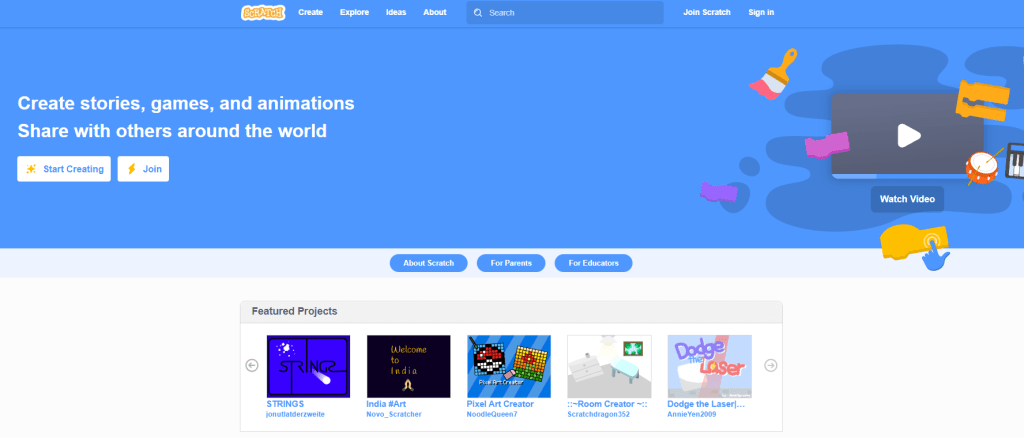
1. To get started, follow the link https://scratch.mit.edu/ . You can work online on the website or download the program.
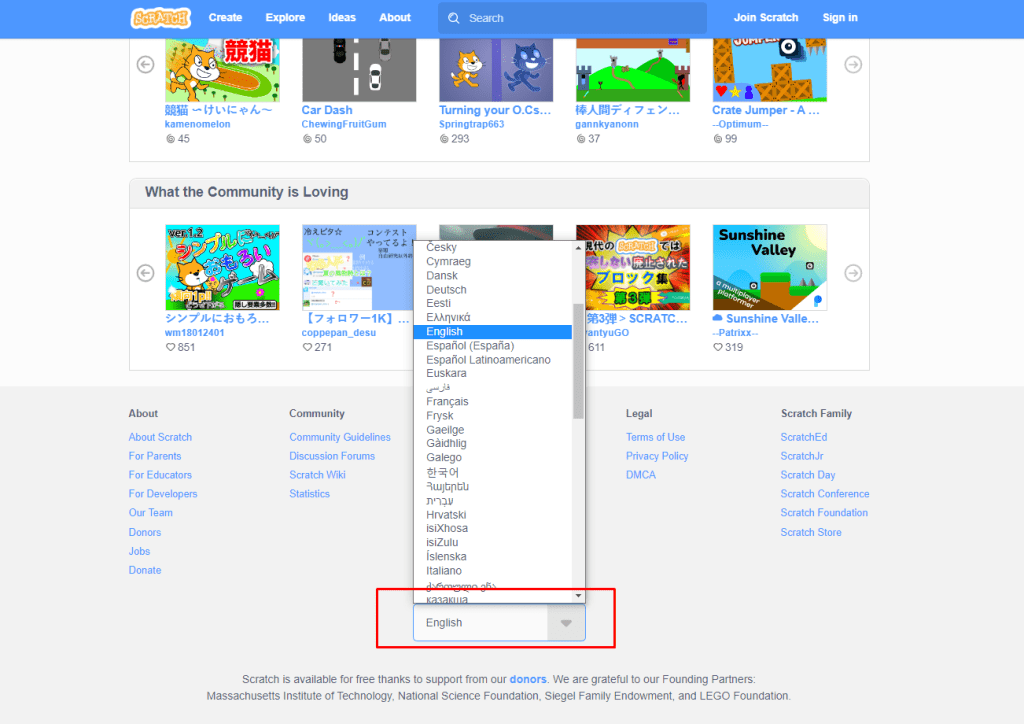
2. Going down below, you can change the interface language.
3. To start working, click the “Start Creating” button.
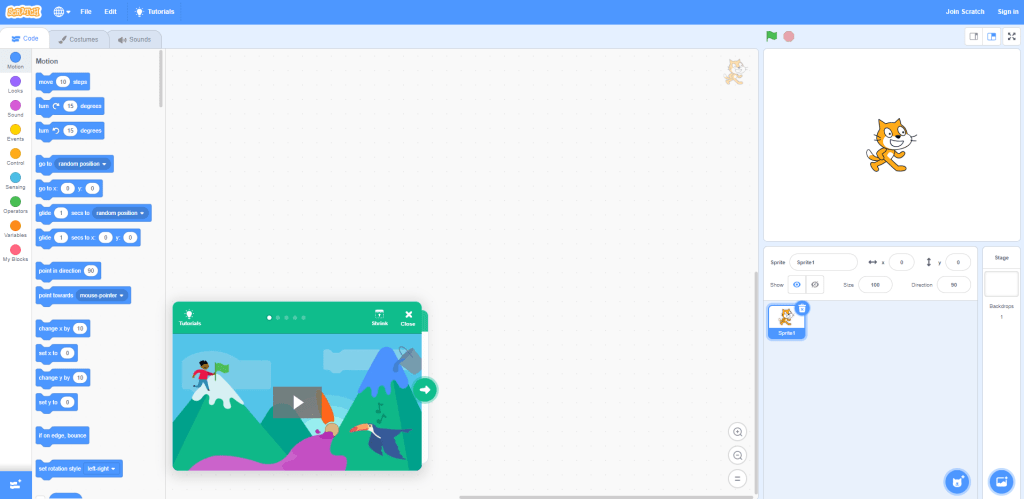
4. Now let’s get acquainted with each block separately.
– The upper part of the window is the menu area. Here you can choose a language, work with files. In the Tutorials section you will find tutorial videos from developers.

– The scripts area is located on the left. This is where the writing of programs takes place. On the left we see groups of teams that differ in colors. These are all the instructions we can give the character. You can see that different blocks have different colors, so you will be able to navigate by color where which block is located. To get started, just drag the desired block to the empty area on the right.
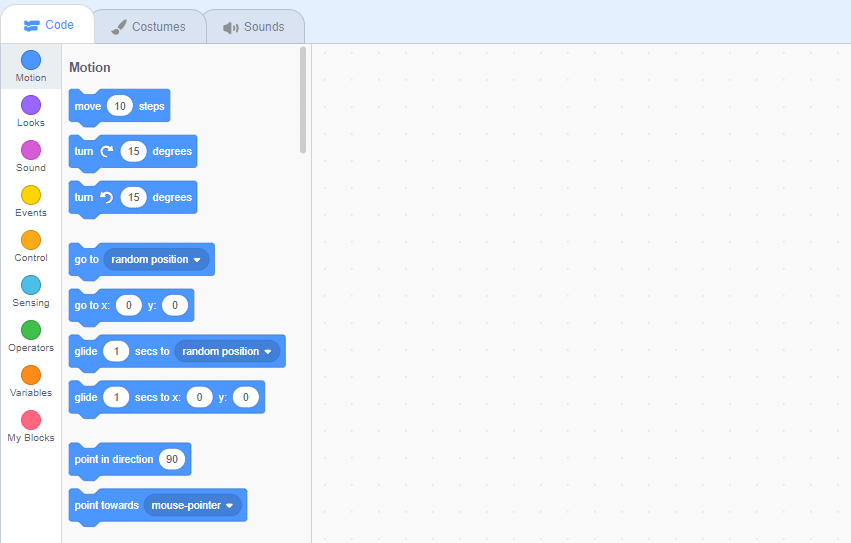
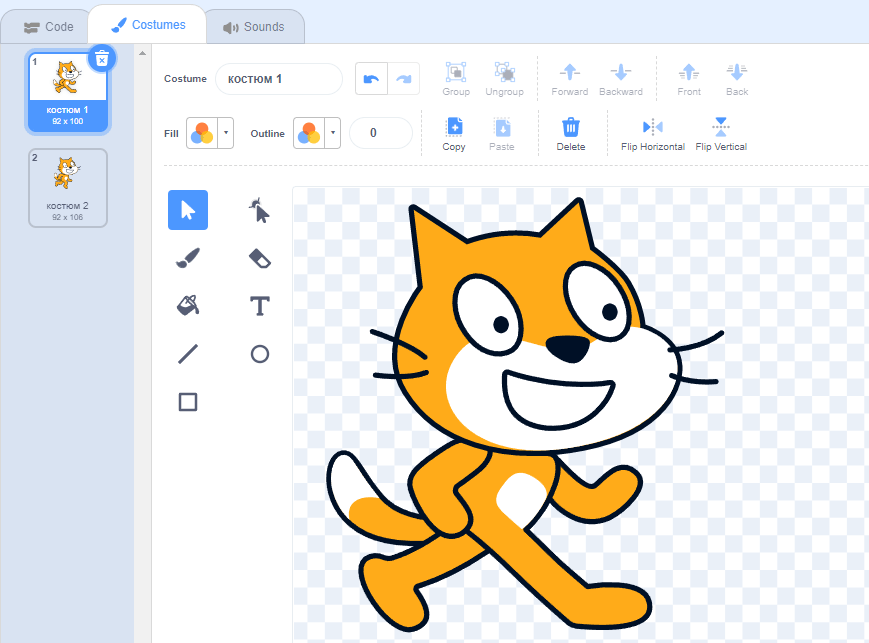
– The Costumes tab is also available in this area, where we can edit the costumes of the characters (sprites).
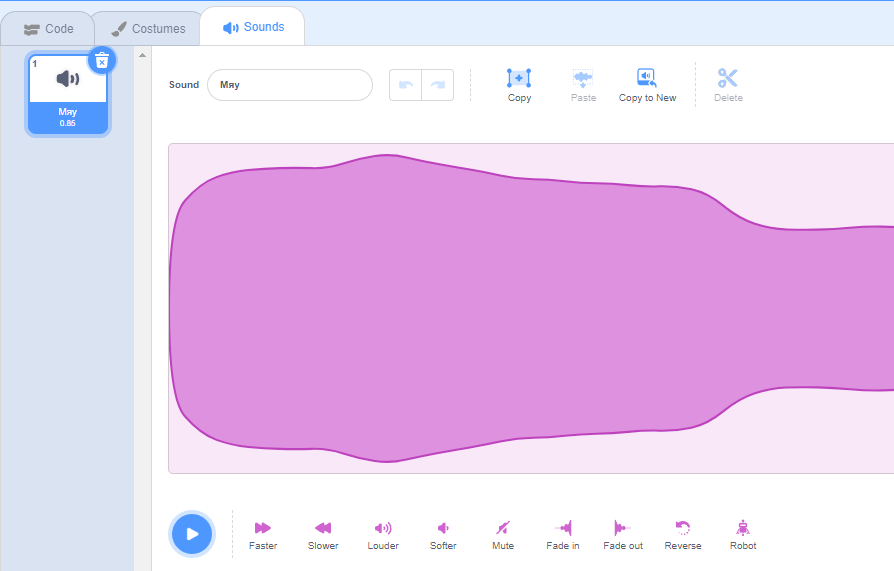
– And the third tab is sounds. There are a variety of sounds. We can also record, select from the library, edit sounds.
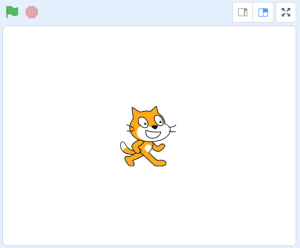
– On the right we see the animation area with the main character. In the field of animation, we will see the results of the programs we create.
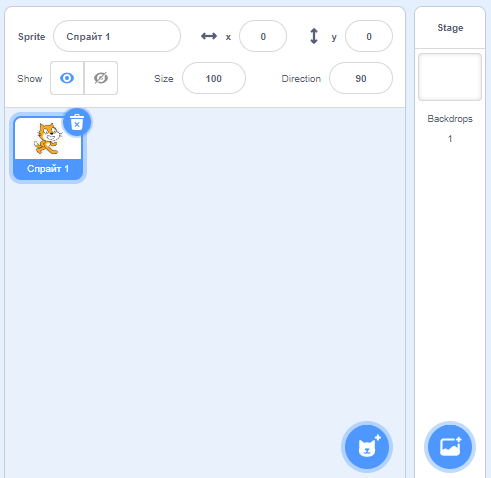
– The object management area is located in the lower right part. In this area, we can choose, that is, activate objects to work with them and create programs for them. In the new empty project, we can control the cat and the stage. Also here are all the parameters of the object: name, coordinates, visibility, size, direction. Here you can add new characters and backgrounds.
Used literature and additional materials:
https://scratch.mit.edu/educators/
The practical part
- Open scratch.
- Create the variables “Correct answers” and “Number”.

- Construct the code using blocks for the cat character, according to the video.

- Load the prepared words as costumes for the second character (item) and build a code for them to receive a message from the first character and change the costume.

- Finish building the code for the first character and test the game.

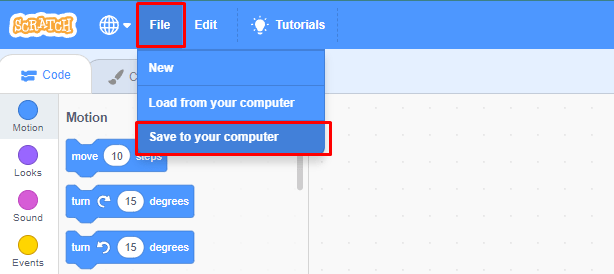
6. To save and load the game in the top tab, click on File → Save to your computer.
Homework assignment
By the next lesson, after the completion of the work, the groups should prepare and present the results of the project. Students can prepare presentations using PowerPoint, videos, interactive whiteboards, blogs and other multimedia. You can use various creative presentation techniques.