
Week 1
Goals:
- Introduction to HTML
- Learning to code in HTML
- Creating a Lesson Schedule in HTML
Expected results:
After studying the project, students:
– acquire the skill of cooperation with a teacher
– analyze and summarize the information received
– a responsible attitude to the teaching will be formed
– accustomed to independent work
– independent logical reasoning and conclusion
– learn to code in HTML
– understanding the structure of the HTML language
Introduction
HTML (Hypertext Markup Language) is the code that is used to structure and display a web page and its content. HTML is not a programming language; it is a markup language, and is used to tell your browser how to display the web pages you visit. It can be complex or simple, depending on how the web designer wants.
In this project you will study:
- creating a simple HTML file;
- creating a lesson schedule in HTML;
- learning to code in HTML.
Subject:
Informatics (working with the HTML programming language)
Teacher’s Guide
- To evaluate the project, in the first week, provide this material (PBLrubrics) to students in order to:
— the students previously understood by what criteria they needed to prepare,
— the students were able to independently give an appropriate assessment to their colleagues.
- At the beginning of the lesson, it is recommended:
— to encourage interest in the project, ask a few «leading questions», such as:
- What programming languages are you familiar with?
- Have you tried writing code before?
- Do you know how web pages are created in a browser?
What is HTML: a set of commands that, after processing, turns into a visual representation. Using the HTML markup language, the browser makes a request to the address that the user entered and receives a file in the “.html” format. The browser recognizes the code, selects familiar signals: it understands what to write in words, where to put the heading and which one. Thus, the code from the file is converted into the necessary visual objects. If you’re currently on a laptop or computer, you can see how any blog would look in HTML. If you right click anywhere for Google Chrome and select “View Page Source” you will see the HTML of that page.
HTML language helps to structure information. These can be commands to add a picture, break the text into paragraphs, add headings and subheadings, create a list, insert a table, draw some element. The layout of the page will look like the developer will code it.
Anatomy of a HTML element
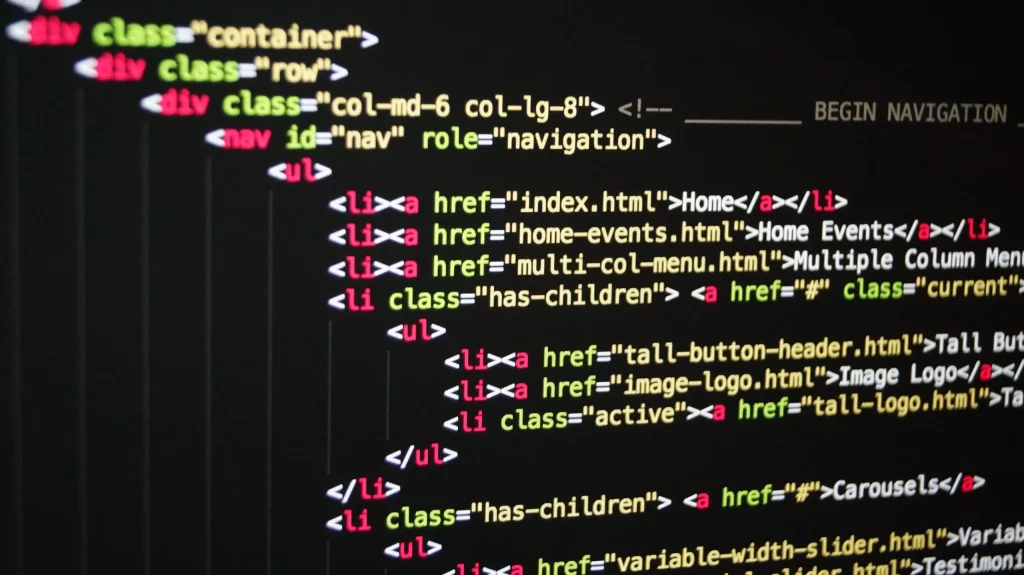
The main constructions of the language are tags. All HTML tags start with “<” (left angle bracket) and end with “>” (right angle bracket). Typically, there is a start tag and an end tag.
<title> Title of the document </title>The end tag looks the same as the start tag, it differs from it by a forward slash before the text inside the angle brackets. Some tags, such as <hr> (a tag that defines a horizontal line), do not require an end tag.
HTML is case insensitive, syntax insensitive. Tags are either recognized by the browser or not.
A simple HTML page consists of three tags: <html>, <head>, and <body>. In a document, <head> and <body> are used only once.
<html> goes in the document immediately after the “doctype” – the designation of the document type. From it, the browser determines the HTML version and understands how to display the page correctly.
<head> stores important service information – page title and encoding.
The <body> holds the content of the page. This is how the code is displayed in the browser. Texts and pictures are added inside this tag.
How HTML works on websites
Let’s take a look at how browsers render web pages using HTML files.
The way markup works is as follows:
- You enter the address of a site or page in the address bar.
- The browser sends a request to this address and receives an HTML file.
- The code from the received file is sequentially converted into visual objects.
Sources:
- Что такое HTML: зачем он нужен, возможности языка гипертекстовой разметки — почему HTML должен знать каждый веб-разработчик (yandex.ru)
- Основы HTML – Изучение веб-разработки | MDN (mozilla.org)
- Что такое HTML и зачем он нужен – База Знаний Timeweb Community
- Что такое HTML и зачем он нужен каждому веб-разработчику / Skillbox Media
Practical part
Laboratory work №1.
Create a simple HTML file
Step 1.Create a folder where all your website files are stored.
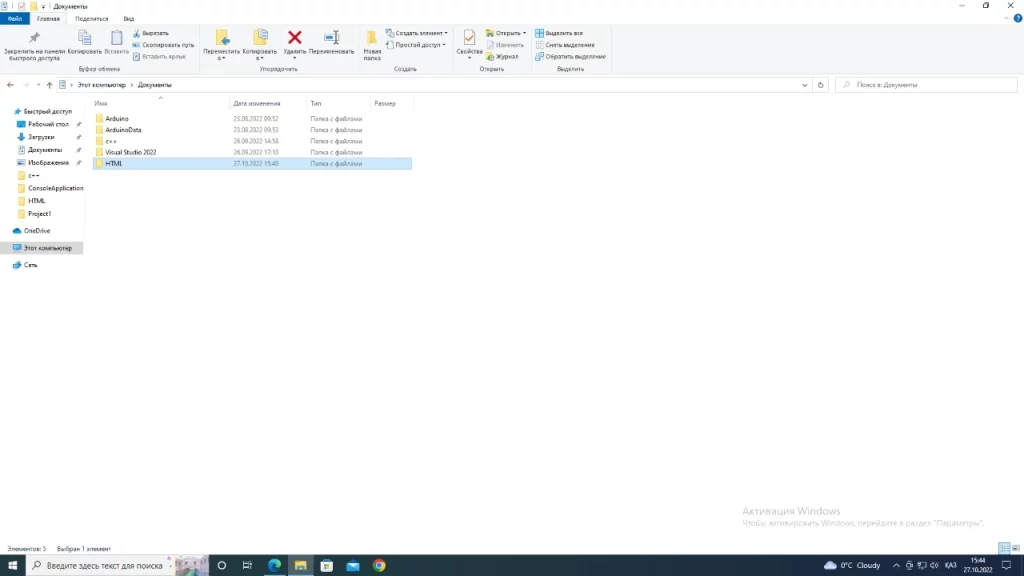
Step 2. Run the text document program.
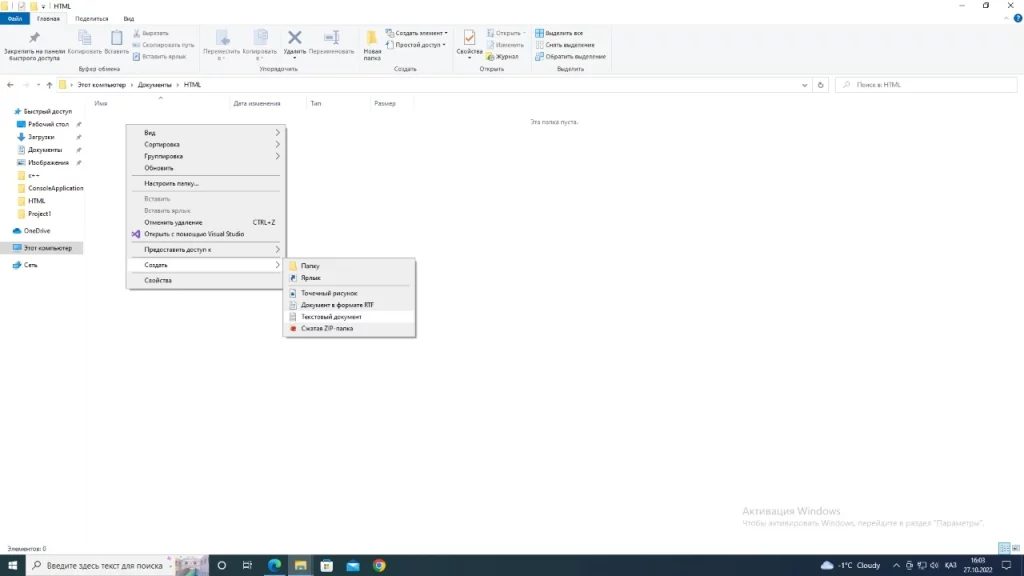
Step 3. Enter the simple HTML file code into Notepad.
<HTML>
      <HEAD>
            <TITLE> HTML Tutorial</TITLE>
      </HEAD>
      <BODY>
            Class schedule for Tuesday
      </BODY>
</HTML>
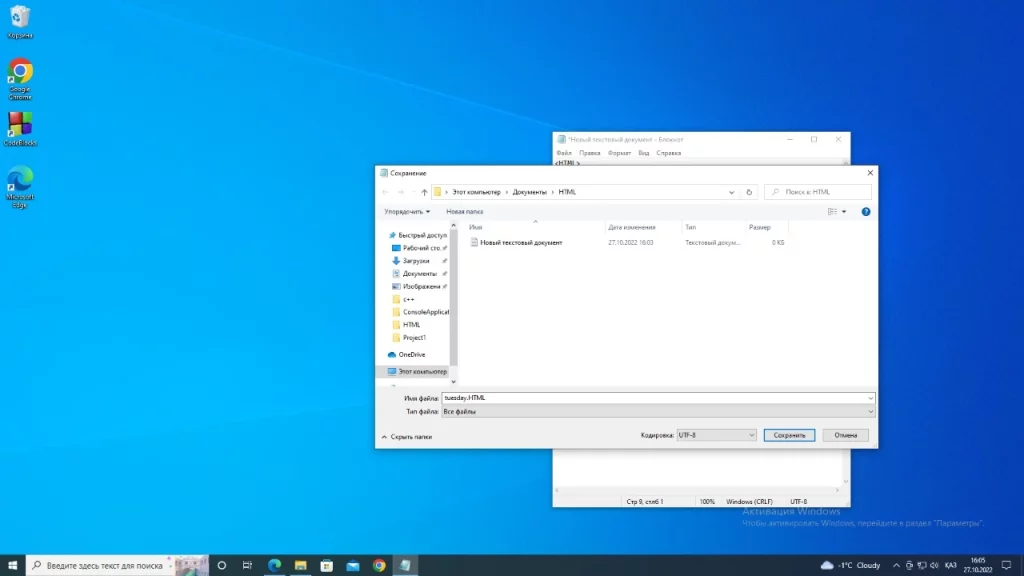
Step 4. Save the file as tuesday.HTML (be sure to specify the HTML file type when saving) in your personal folder.
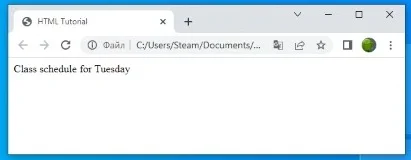
Step 5. Use any browser program (Google Chrome, Internet Explorer, Opera, Mozilla Firefox, or other) to view the Web page. To do this, without leaving the Notepad program, open your personal folder and double-click on the tuesday.HTML file to open a browser window.
Laboratory work №2.
Controlling the layout of text on the screen.
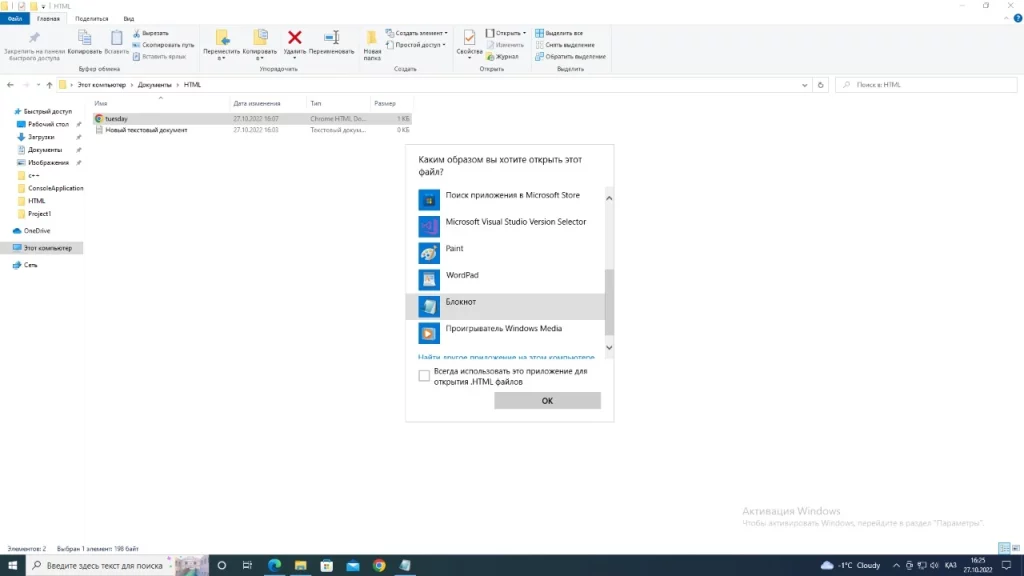
Step 1. Open the text of the web page in Notepad (tuesday.HTML right-click the HTML file 1 time, open with… and select the Notepad application).
Step 2. Make changes to the tuesday.HTML file by placing the words Schedule, class, Tuesday on different lines.
<HTML>
<HEAD>
<TITLE>HTML Tutorial</TITLE>
</HEAD>
<BODY>
 Class
schedule
for Tuesday
</BODY>
</HTML>
Step 3. Save the text with the changes made in the tuesday.HTML file (menu File | Save).
Step 4: Open a browser window by opening a separate folder and double-clicking the tuesday.HTML file.
Has the display of text on the screen changed?
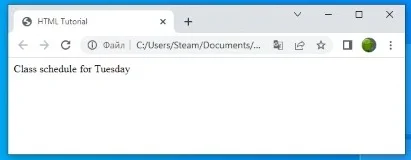
Don’t be surprised that the look of your Web page hasn’t changed.
Laboratory work №3.
Some special commands for changing text
The <BR> line break tag separates a line from subsequent text or graphics. The <P> paragraph tag also separates a line, but it also adds a blank line to make the paragraph stand out. Both tags are single element, the <P> tag is double, i.e. a closing tag is required.
Step 1. Open the text of the web page in Notepad (tuesday.HTML right-click the HTML file 1 time, open with… and select the Notepad application).
Step 2: Make changes to the tuesday.HTML file
<HTML>
<HEAD>
<TITLE>HTML Tutorial</TITLE>
</HEAD>
<BODY>
 <P>Class</P>
 <BR>schedule<BR>
 for tuesday
</BODY>
</HTML>
Step 3. Save the changes, switch to the browser program on the taskbar, refresh the Web page.
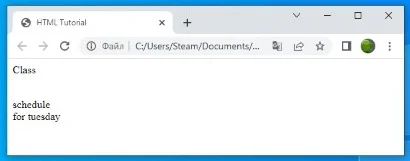
Step 4: Analyze the HTML code by looking at the result that appears in the browser.