
Week 2
In the past week, you’ve been familiar with HTML, created a simple HTML file, and worked with some special commands to modify text. This week, you’ll be doing some more labs as you continue your familiarity with HTML.
Resizing Posts on a Web Page
There are two ways to control the size of text displayed by the browser:
- using heading styles,
- set the font size of the main document or the current font size.
Six heading tags are used: from <H1> to <H6> (double tag, i.e. requires closing). Each tag has a specific style defined by the browser settings.
Setting the current font size
The <FONT> font tag allows you to set the size of the current font in individual places of the text in the range from 1 to 7.
Setting the typeface and font color
The <FONT> tag provides control over the typeface, color, and size of the text.
Changing the typeface of the text is done by simply adding the FACE attribute to the <FONT> tag. For example, to display text in Arial font, you would write:
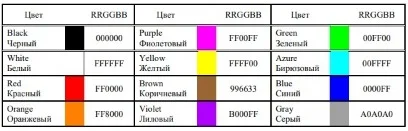
<FONT FACE=”ARIAL”>To change the font color, you can use the COLOR=”X” attribute in the <FONT> tag. Instead of “X”, you need to substitute the English name of the color in quotation marks (“ ”), or its hexadecimal value. When specifying a color by a hexadecimal number, it is necessary to present this color decomposed into three components: red (R – Red), green (G – Green), blue (B – blue), each of which has a value from 00 to FF. In this case, we are dealing with the so-called RGB format.
Examples of writing text in RGB format are shown in the Table:
Laboratory work №1.
Highlighting text fragments
Step 1. Open the text of the tuesday,HTML webpage in the notepad you created last week (tuesday.html right-click the file 1 time, open with… and select the Notepad application).
Step 2.Edit the tuesday.html file
<HTML>
<HEAD>
<TITLE>HTML Tutorial</TITLE>
</HEAD>
<BODY>
  <B>Class</B>
  <I>schedule</I>
  <U> for Tuesday</U>
</BODY>
</HTML>
Step 3: Save your changes, refresh and open the web page in a browser.
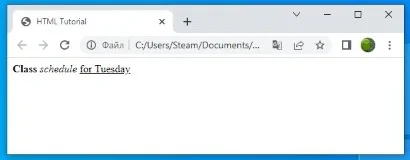
Step 4: Analyze the HTML code by looking at the result that appears in the browser.
Laboratory work №2.
Resizing Posts on a Web Page
Step 1. Open the text of the tuesday.HTML webpage in the notepad.
Step 2: Make changes to the tuesday.HTML file
<HTML>
<HEAD>
<TITLE>HTML Tutorial</TITLE>
</HEAD>
<BODY>
  <P><H1>Class</H1></P>
  <I>schedule</I><U>for Tuesday</U>
</BODY>
</HTML>
Step 3: Save your changes, refresh and open the web page in a browser.
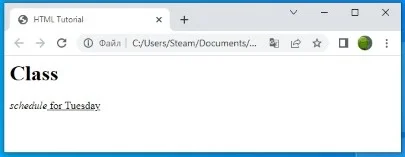
Step 4: Analyze the HTML code by looking at the result that appears in the browser.
Laboratory work №3.
Setting the current font size
Step 1. Open the text of the tuesday.HTML webpage in the notepad.
Step 2: Make changes to the tuesday.HTML file
<HTML>
<HEAD>
<TITLE>HTML Tutorial</TITLE>
</HEAD>
<BODY>
  <FONT SIZE="7">Class</FONT>
  schedule for tuesday
</BODY>
</HTML>
Step 3: Save your changes, refresh and open the web page in a browser.
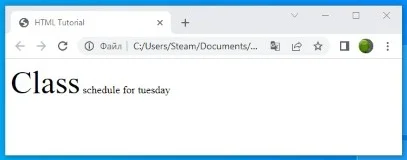
Step 4: Analyze the HTML code by looking at the result that appears in the browser.
Laboratory work №4.
Setting the font color
Step 1. Open the text of the tuesday.HTML webpage in the notepad.
Step 2: Make changes to the tuesday.HTML file
<HTML>
<HEAD>
<TITLE>HTML Tutorial</TITLE>
</HEAD>
<BODY>
<U><I><B><FONT COLOR="#FF0000" FACE="ARIAL" SIZE="7">
  Class</FONT></B></I></U> schedule for tuesday
</BODY>
</HTML>
Step 3: Save your changes, refresh and open the web page in a browser.
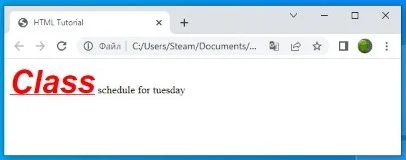
Step 4: Analyze the HTML code by looking at the result that appears in the browser.
Laboratory work №5.
Align text horizontally
Step 1. Open the text of the tuesday.HTML webpage in the notepad.
Step 2: Make changes to the tuesday.HTML file
<HTML>
<HEAD>
<TITLE>HTML Tutorial</TITLE>
</HEAD>
<BODY>
  <P ALIGN="CENTER">
  <FONT COLOR="#008080" SIZE="7">
  <B>Class</B></FONT><BR>
  <FONT SIZE="6"><I> schedule for tuesday</I></FONT>
  </P>
</BODY>
</HTML>
Step 3: Save your changes, refresh and open the web page in a browser.
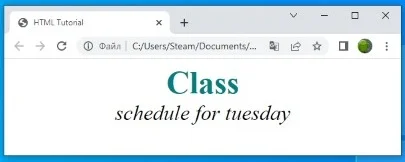
Step 4: Analyze the HTML code by looking at the result that appears in the browser.